




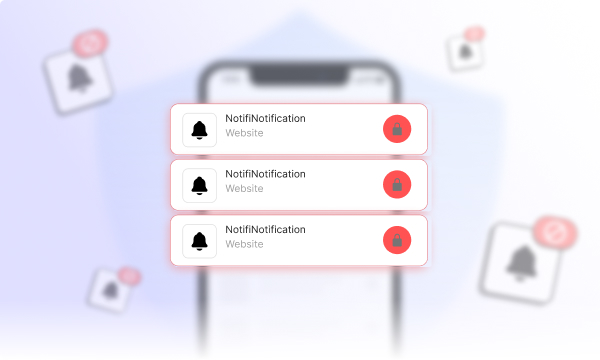
Notifications can be helpful. They can also turn your day into a loop of quick checks that keep pulling you away from whatever you meant to do. One banner leads to one tap. One tap turns into a scroll. Then another alert arrives, and the cycle repeats.
In this post, we will answer the question “can digital wellbeing tools help in managing notifications?” with a simple idea: you can reduce the pull of notifications by limiting access to the apps and sites that notifications keep trying to lead you into. That is a big part of digital wellbeing for managing notifications, especially when the goal is to stop turning every ping into a browsing session.
If you are exploring managing notifications with digital wellbeing apps, it helps to look at why notification overload shows up so easily, and what habits it creates.
Why notification overload happens
Notification overload rarely comes from a single app or setting. It builds up over time and is defined by how apps are designed, how we communicate, and how many screens we carry with us. Below are the most common reasons it happens:
1. Apps are built to bring you back
Notifications are one of the simplest ways apps pull you back in. Likes, mentions, comments, fresh content, discounts, reminders, streaks. Each one feels small on its own. When several apps do this at the same time, your lock screen fills up fast and never really clears.
2. Too many notification types stay enabled
Most apps arrive with multiple alert categories switched on by default. On Android, notification channels split alerts into different types, which helps with control, but it also means a single app can generate a wide range of pings unless you actively adjust them.
3. Group chats multiply alerts
One active group chat is enough to interrupt your day. Messages may be trivial, but the frequency matters. Repeated alerts train a reflex to check immediately, even when nothing urgent is happening.
4. Work tools blur boundaries
Email, messaging apps, task boards, and shared documents often carry an implied urgency. When updates come in across multiple tools, the line between work time and personal time gets fuzzy. It can feel like you are expected to respond at all hours, even when no one said that explicitly.
5. Web notification prompts create extra noise
Many websites ask permission to send browser notifications. Once approved, those alerts can surface at any time. Over weeks or months, it becomes hard to remember which sites you allowed, yet the interruptions keep coming.
6. Notifications arrive at the wrong moment
An alert can be useful and still disruptive. Focused work, meetings, commuting, or late nights are all poor moments for interruptions. Timing often matters just as much as the message itself.
7. Multiple devices repeat the same alerts
Phones, laptops, tablets, and smartwatches often mirror notifications. One event can trigger several interruptions in quick succession, turning a single update into a chain reaction.
8. Mixed-value alerts train constant checking
When low-importance alerts sit next to critical ones, people tend to check everything just in case. Over time, this conditions a habit of opening apps the moment something pings, regardless of its actual value.
The next section shows how digital wellbeing tools help reduce constant notifications by changing what happens after a notification, not only the alert settings themselves.
Can digital wellbeing tools help manage notifications?
Digital wellbeing tools promise calmer phones and fewer interruptions. Yet the banners still show up. The buzz still lands. And with it comes the same reflex to tap and check.
So where does digital wellbeing actually help if notifications never really disappear?
With BlockSite, the value sits one step later. It does not try to silence notifications or replace your system settings. Instead, it limits where those notifications can take you. The goal is simple: fewer moments where a quick glance turns into an unplanned session.
Below are the features of this tool that support digital wellbeing by targeting notification driven checking behavior:.
Block list (apps and websites)
Start with the places notifications pull you into most often: social feeds, news sites, shopping apps, short video platforms.
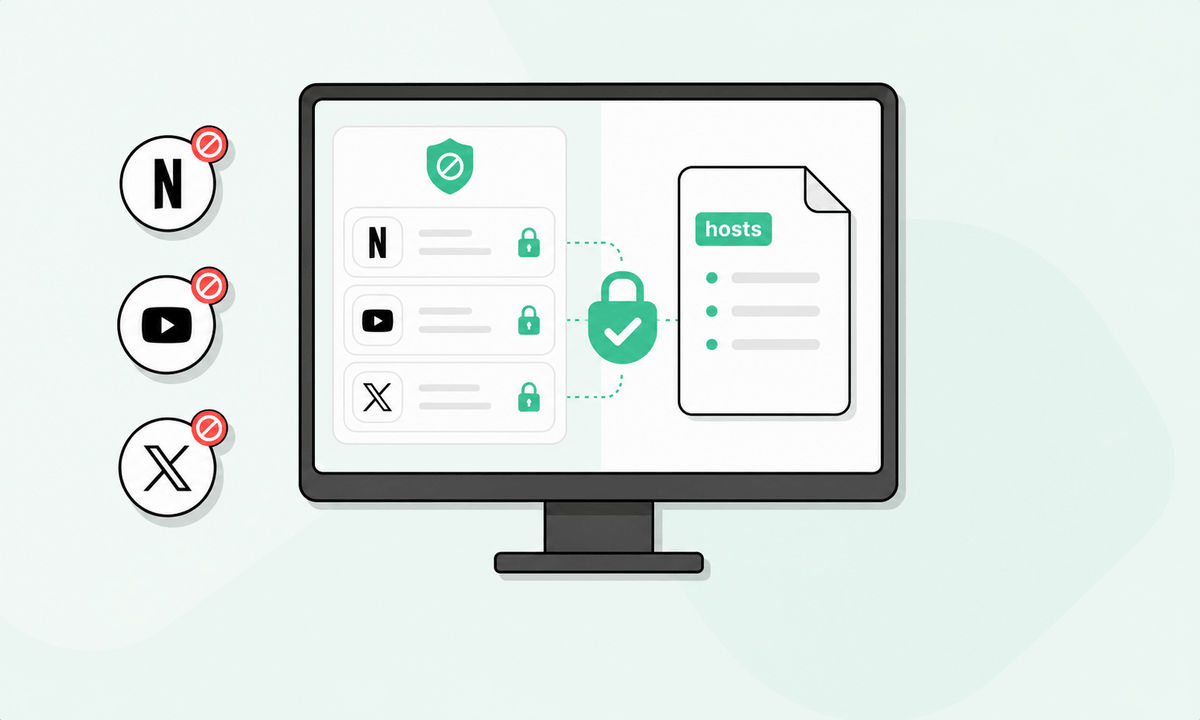
On mobile, BlockSite works in blocking apps on iPhone and Android, and websites too. On desktop, it blocks sites in the browser.
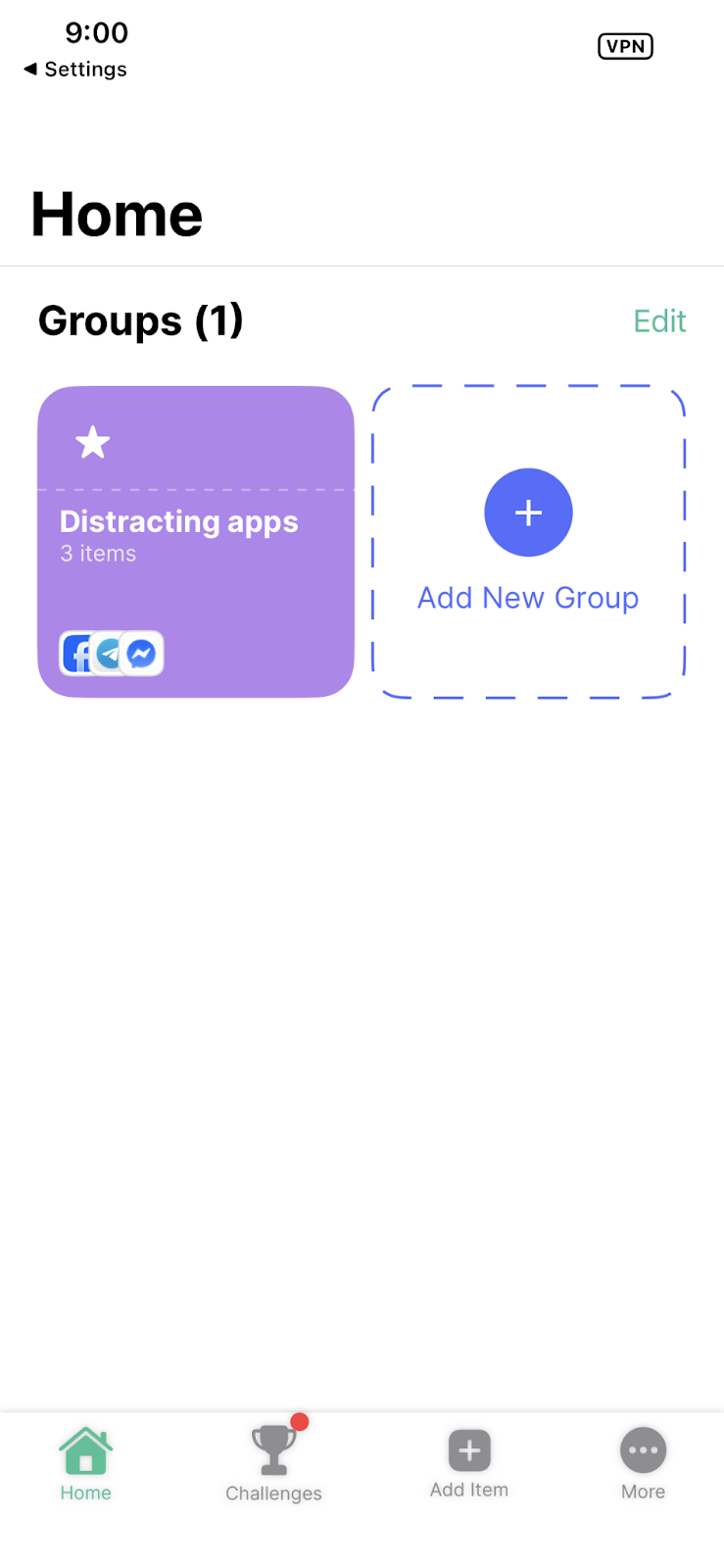
You still see the notification. But when you tap, access is blocked during the times you choose. That pause is often enough to stop a quick check from becoming a long scroll.
Scheduled blocking (time based rules)
Scheduled blocking lets you block selected apps, websites, and keywords on specific days and hours.
Notification overload follows patterns: work hours, evenings, mornings that slip away. A schedule protects those windows without relying on willpower in the moment.
Focus Mode (timer based focus sessions with breaks)
Focus Mode lets you set a countdown timer tied to a chosen block list, with optional breaks.
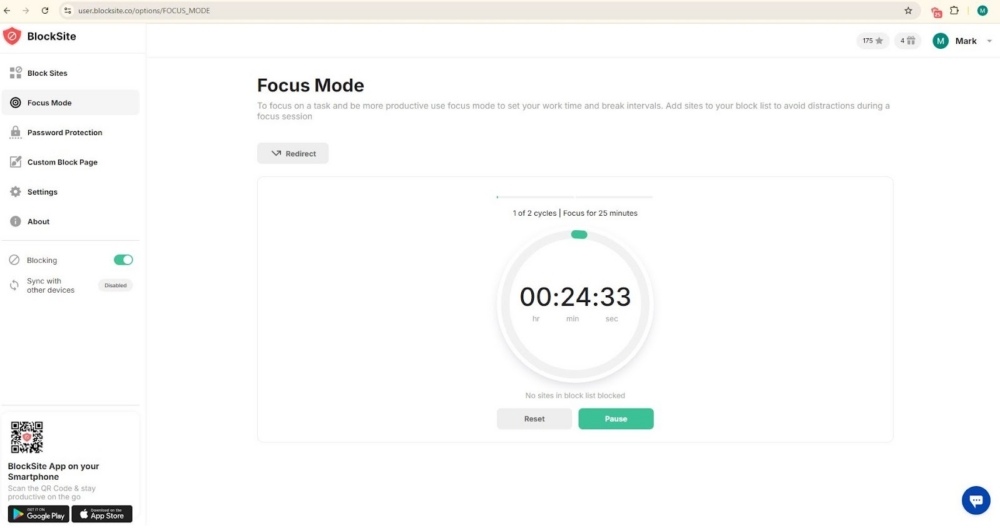
Notifications feel lighter when you already know when you will check things. Focus Mode creates a clear boundary. Work now, check later, then return.
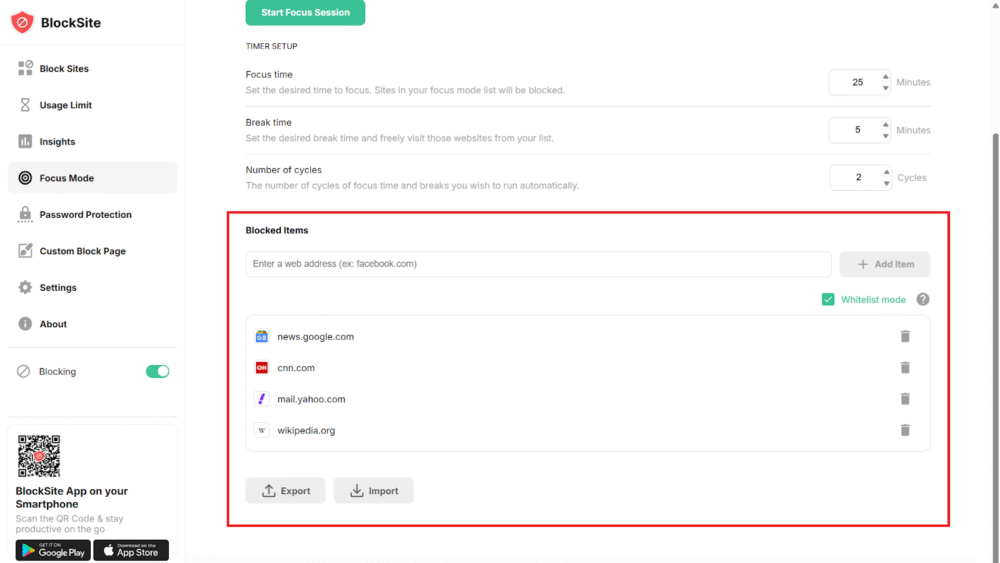
Whitelist Mode (allow only what you approve)
Whitelist Mode lets you decide which sites are allowed while this website blocker is active. Everything else stays blocked. If notifications keep leading you to new distractions, Whitelist Mode tightens the rules. You work with a short list of approved tools and nothing more.
This is useful when you’re on a deadline, want a short habit reset, or have a preference for simple morning rules.
Keyword and category blocking (reduce trigger routes)
BlockSite supports blocking specific keywords and broader content categories through its dashboard.
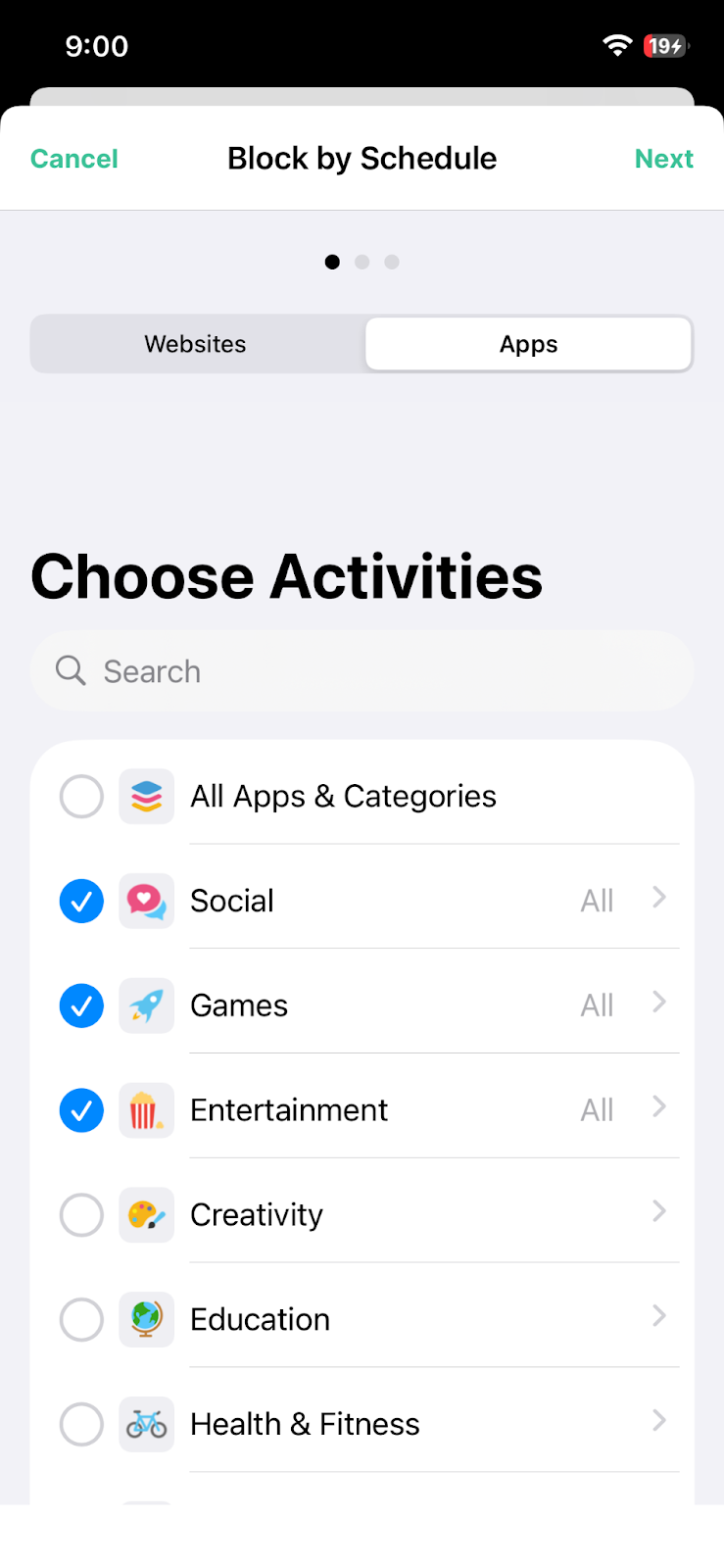
Some notifications pull you into topics that lead to chain clicking. Keyword and category blocks reduce the chance that one tap opens ten related tabs.
You can block keywords tied to impulse topics or block categories that consistently waste your time.
Custom block page (a reminder at the moment you need it)
Instead of a generic blocked screen, BlockSite can show a custom message.
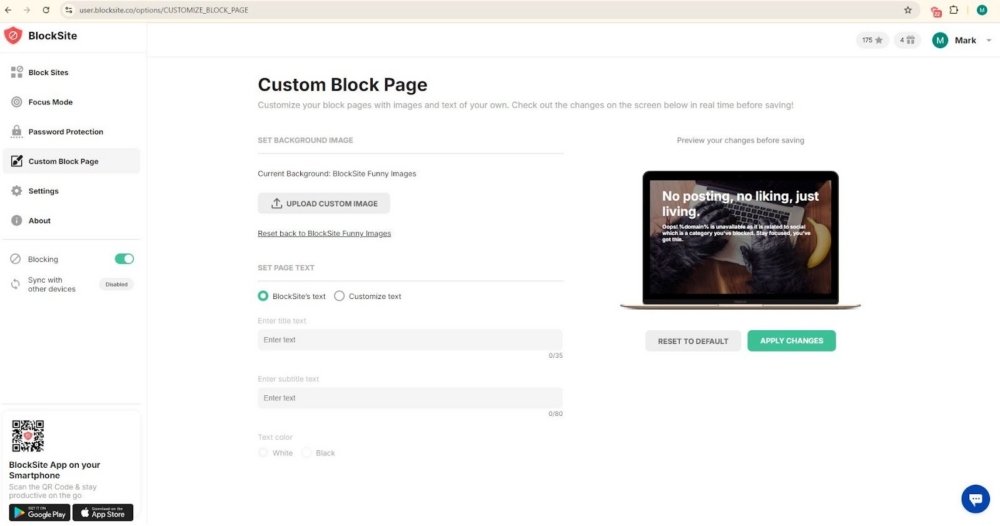
Many notification taps happen on autopilot. A short message interrupts that pattern and reminds you what you planned to do instead.
Here are some helpful messages you can use:
- Check messages at 4:00 PM
- Finish this section, then take a break
- If it is urgent, they can call
Password protection (stop quick exceptions)
This tool also supports password protection for settings. If you often disable blocks right after a notification, this adds friction. It keeps your rules in place when impulse would usually win.
Insights (see what still pulls you in)
Insights show browsing trends, time spent, and time saved by blocking. If everything feels distracting, data shows what actually is.
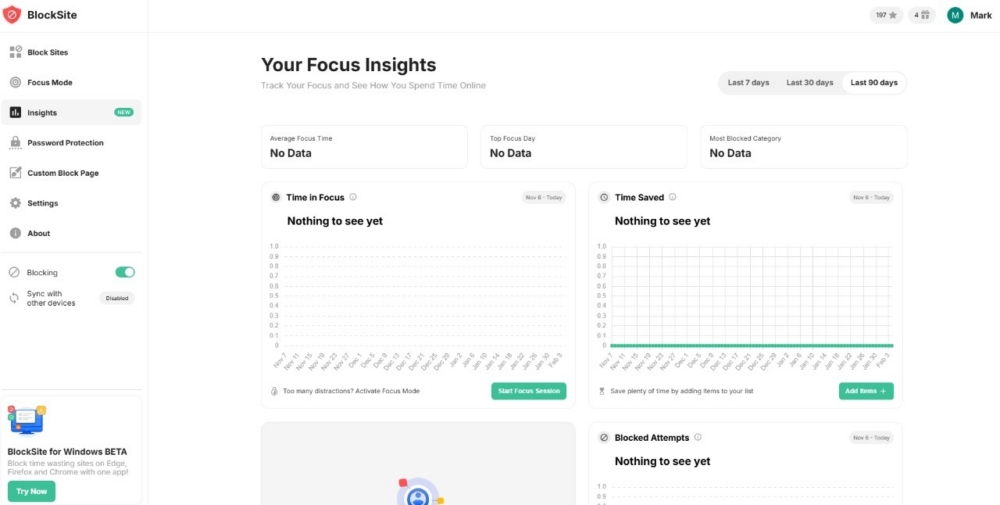
You can see which sites still eat time after notifications and adjust your blocks, schedules, or limits.
Sync across devices (same rules everywhere)
BlockSite syncs rules across supported devices. If one device stays open, notifications find it. Shared rules close those gaps and keep your limits consistent across phone and desktop.
If you’re also searching for how to stop phone addiction, this is one of the cleanest ways to start, because it targets the tap-through habit that keeps notifications in control.
Make notifications less disruptive by blocking the tap-through
Notification overload is not only about how many alerts you receive. It is also about what those alerts lead to. If notifications keep pulling you into the same apps and sites, blocking that tap-through pattern can change how your day feels.
BlockSite works well for this approach because it lets you block the apps and sites that notifications pull you toward, then reinforce the rule with schedules, Focus Mode, and usage limits.
Start small. Pick your top two notification magnets. Add them to the block list. Add a schedule for your most important hours. Use Focus Mode for your highest-value work block. Then check Insights and tighten the rules where you still lose time.
FAQ
Can reducing notifications improve focus and productivity?
Yes, especially when notifications cause frequent task switching and quick app opens. Many people find that fewer interruptions make it easier to stay on one task and finish it. If your main issue is tapping into distraction apps, BlockSite helps by blocking those tap-through destinations during the hours you choose.
What features should I look for in a notification management tool?
Look for features that match your biggest issue. If you need fewer alerts, use system controls like notification summaries, focus profiles, or Android notification channels. If you need fewer tap-through sessions, look for blocking, schedules, focus timers, and usage limits. BlockSite covers those.
Do digital wellbeing apps work on both Android and iPhone?
Many do, but features can vary by platform. BlockSite is available on Android and iOS.
Can I customize which notifications still come through?
Yes. On iPhone, you can use Scheduled Summary and Focus to allow certain people or apps while silencing others at specific times. On Android, notification channels let you control categories within an app, so you can keep important alerts and turn down the rest.
Are app time limits effective for reducing notification overload?
They can help when the issue is time lost after you open something. A limit will not stop the banner from appearing, but it can stop a quick check from becoming extended browsing. BlockSite’s usage limits can help with websites that repeatedly pull you in.
Do digital wellbeing tools block notifications from all apps?
Usually not. Most tools do not take over system notification delivery. BlockSite’s strength is that it blocks the apps and sites you would open after a notification, which reduces the payoff of tapping.
How can I stop feeling anxious about missing important updates?
Start by deciding what counts as “important” and keep only those channels available during your important hours. Use focus profiles or notification controls to allow priority people and apps, then silence or batch the rest. If your anxiety comes from habit-checking social or news apps, BlockSite helps by blocking those destinations during the times you want protected.
What’s the best way to start reducing daily notifications?
- Do a quick two-part audit: Which apps send the most alerts for you, and which apps you open most often right after a notification.
- Use your phone’s settings to reduce, silence, or schedule non-essential alerts.
- Use BlockSite to block the biggest tap-through apps and sites during your key hours with schedule blocking or Focus Mode.


 Take back your focus