






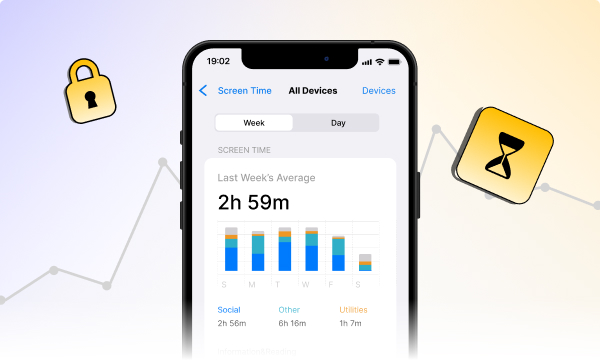
Phones, laptops, and tablets keep everything within reach, which is exactly why time slips away so easily. A few minutes checking messages turns into an hour. A busy day feels productive, yet the to-do list barely moves. When you look at your screen time totals, the gap between effort and output becomes hard to ignore.
That is where monitoring earns its place. It reveals habits you rarely notice, like late night scrolling, bouncing between tabs, or spending half the afternoon on a single site. If you have been searching how to monitor screen time usage, the good news is that most devices already track it for you. Built in reports show daily totals, app usage, and browsing patterns without extra setup. Once the numbers are visible, it becomes easier to set boundaries, plan breaks with intention, and change routines that work with your schedule rather than against it.
Benefits of monitoring screen time
Monitoring screen time is not about guilt or cutting devices out entirely, but rather visibility. Once usage is measured, decisions stop being abstract and start becoming reasonable. These benefits tend to build on each other:
1. Clear awareness of habits
Daily and weekly reports replace assumptions with facts. You see how often apps are opened, how long sessions last, and where short checks quietly stack up. Patterns that were invisible before suddenly feel obvious.
2. Better time management
When time is accounted for, planning changes. Instead of guessing where hours go, you can allocate them with intent. Using screen time reports can help you organize your time at work by showing which apps and sites quietly take up the most minutes.
3. Improved focus
Tracking highlights the moment when a quick glance turns into a prolonged scroll. Once those trigger points are visible, limits and focus sessions become more precise rather than generic.
4. Healthier digital routines
Many people use screen data to space out breaks and reduce late night usage. Stepping away from displays at regular intervals can lower eye strain and support more consistent rest patterns.
5. Easier goal setting
Clear numbers make goals concrete. A daily cap, a weekly reduction, or fewer pickups per hour gives direction. Trend views then show whether those adjustments actually hold, which supports a practical digital detox.
6. Stronger boundaries on shared devices
On family or work devices, reports make rules easier to explain. Instead of opinions, there are totals. That clarity helps with kids, guests, and mixed use accounts.
7. Safer browsing habits
Unusual site patterns or repeated link hopping act as early warnings. They signal when content controls or restrictions may need tightening.
8. Better decisions about tools
Once time leaks are visible, choosing fixes becomes simpler. App timers, scheduled downtime, or website blockers are selected with purpose, not guesswork.
How to see screen usage time in PC
Checking screen usage time on a PC is not complicated, but it is also not centralized in one clean dashboard. Windows spreads this information across a few system tools. Once you know where to look, you can get a clear picture of how long your computer has been active and where that time likely went. Start with built-in Windows options, then layer in browser tracking if most of your activity happens online.
Check Battery usage in Windows Settings (Windows 11)
Windows 11 offers a simple starting point through battery reports. Open Settings, go to System, select Power & battery, then click Battery usage. From here, switch the view to the last seven days and select a specific date to see app-level usage. This view is most useful on laptops, especially if you want a daily breakdown rather than a running total.
Use Task Manager for a fast total
If you only need a quick answer, Task Manager gets you there fast. Right-click Start, open Task Manager, then select the Performance tab. Under CPU, look for the Up time value. This shows how long the PC has been running since the last restart. It does not separate active work from idle time, but it is the fastest way to check total usage.
Check Wi-Fi Duration as a quick proxy
Another shortcut is network uptime. Open Control Panel, go to Network and Internet, then View network status and tasks. Click your active Wi-Fi connection and find Duration. This works best if your PC stayed connected to the same network the entire time.
Review Activity History for more detail (Windows 10)
On Windows 10, Activity History adds more context. Open Settings, go to Privacy, select Activity History, then choose Manage my activity. This shows device usage and time spent across apps.
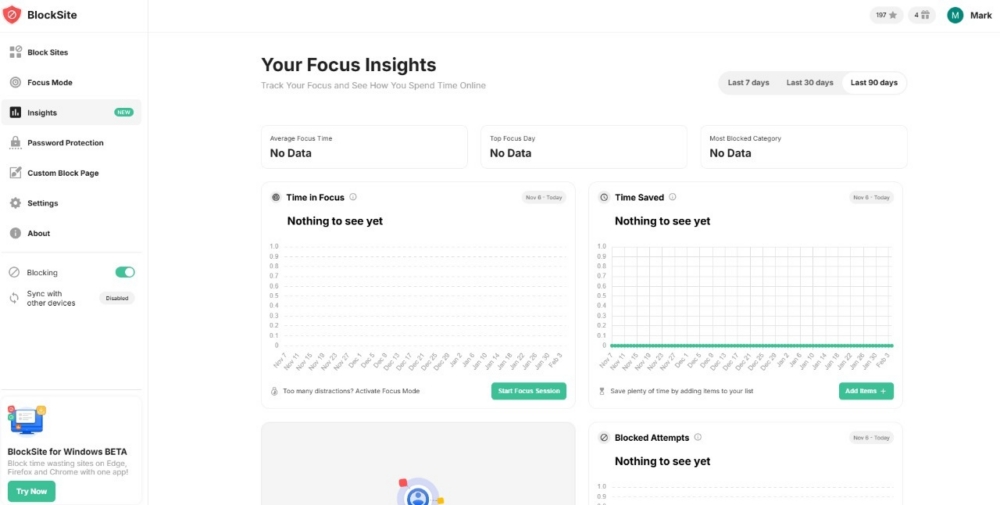
Track browser time with BlockSite
If websites are the main time sink, install the BlockSite browser extension and open Insights. It tracks time spent per site and highlights browsing patterns clearly. It even has site blocking features so you can instantly add specific websites during specific days or hours.
How to find screen time usage on Android
Android already tracks how much time you spend on your phone. You just need to know where to look. Built into the system is a usage dashboard that shows total screen time, app activity, and usage patterns across the day or week. No extra apps. No setup. Just a few taps.
These are the steps on how to find screen time usage on Android. This is the fastest way to check Android screen time usage without installing anything new:
1. Open Digital Wellbeing
Start by opening Settings. In the search bar, type Digital Wellbeing and parental controls. Tap into it. This takes you straight to the main dashboard where Android collects screen time data. On most devices, this screen shows today’s usage by default, giving you an immediate snapshot of how long your phone has been active.
2. Review today’s total and the app list
At the top of the dashboard, you will see your total screen time for the day. Below that, Android lists apps ordered by usage. This is where patterns start to show. Tap on any app to see more detail, including time spent by hour, how many notifications it sent, and how often you opened it. It is a simple way to spot apps that quietly eat up time in short sessions.
3. Switch to a longer view
Daily numbers only tell part of the story. Use the date selector or week view if your device supports it. Weekly totals make trends easier to see, especially when one light day masks heavier usage across the rest of the week. This view is useful for understanding habits, not just single-day spikes.
Track your app usage and browsing patterns on Android with BlockSite
If a large share of your time is spent online, BlockSite for Android includes an Insights feature. It tracks app usage and browsing trends over time, so you can see which sites and applications pull the most attention and how often you return to them. It also works as a website and Android app blocker to temporarily disable access to any distractions based on your preferences.
How to find screen time usage on iPhone
If you want to know how much time you actually spend on your iPhone, Apple already gives you the answer. You do not need a third party tool or a hidden menu. Screen Time lives inside Settings, quietly tracking how often you unlock your phone, which apps pull you in, and when usage spikes during the day.
Here is how to check your iPhone screen time usage, step by step:
1. Open Screen Time
Start by opening Settings. Scroll until you see Screen Time and tap it. If Screen Time is not active, tap Turn On Screen Time and follow the prompts. This sets up tracking across apps, websites, and system activity.
If you are managing a child’s device, this is also where you add a Screen Time passcode. The passcode prevents limits from being changed without approval and keeps reports consistent.
2. Check your totals
Inside Screen Time, tap See All Activity. This view shows daily and weekly totals at the top, with clear comparisons between days. You can switch between Day and Week to see short-term habits or longer patterns.
Below the totals, you will find pickup counts, notifications, and the hours when your phone is used most. This is often where patterns become obvious, especially late-night or early-morning usage.
3. Review app and category details
Scroll down to see a list of apps ranked by time spent. Tapping any app reveals more detail, including background usage.
For a wider view, switch to categories like social, entertainment, or productivity. This helps you see where time clusters are rather than focusing on a single app.
Tip: If you are trying to find screen time usage on iPad, the steps are almost identical. iPadOS uses the same Screen Time menu and layout.
A better tip: You can also install the BlockSite iOS app and open Insights. This feature shows how time is spent online, and highlights the apps and sites that take the most attention throughout the day. This is a handy tool for blocking apps and sites that keep pulling you away from what you actually planned to do.
Make your numbers work for you
Once you see the totals laid out, decision making gets simpler. You know where time leaks happen, where attention drifts, and where limits actually make sense. Start with the reports already sitting on your laptop and phone. They give you a baseline. From there, change one habit, not ten.
BlockSite fits neatly into that process. First, it blocks distracting apps and sites, along with common web interruptions like pop ups and ads. Second, it gives you Insights. This shows browsing patterns and time spent across sites and apps, so you are working with facts, not guesses.
Install BlockSite, let it run for a few days, review Insights, then set limits that reflect what you actually see.
FAQs
How to check screen time on Samsung?
On most Samsung phones, screen time lives inside Digital Wellbeing. Open Settings, scroll to Digital Wellbeing & parental controls, and tap the dashboard at the top. You will see today’s total usage, along with a ranked list of apps by time spent. From here, you can also review pick-ups and notifications, which often explain why short sessions add up fast.
How can I access my screen time?
Access depends on the device you are using. On Windows 11, go to Settings, then System, then Power & battery, and open Battery usage. Switch the view to Last 7 days to compare daily activity. On Android phones, Digital Wellbeing shows totals and app usage. On iPhone or iPad, open Settings, tap Screen Time, and review activity by day or week.
How to see phone usage history on Android?
Open Digital Wellbeing & parental controls and tap the graph at the top of the screen. This view shows total time for the day, plus a breakdown by app. Many Android devices also display the number of pick-ups and notifications, which helps highlight frequent checking habits. Switching to a weekly view makes patterns easier to spot.
How do I see many hours spent on my PC?
For a quick estimate, open Task Manager, select the Performance tab, and look under CPU for Up time. This shows how long the system has been running since the last restart. Another option is Wi-Fi Status in Control Panel, where Duration reflects time connected to the current network.
How to check total usage of hours on iPhone?
Go to Settings, tap Screen Time, then select See All Activity. You can toggle between Day and Week to view totals and per-app usage. If you use more than one Apple device, enable Share Across Devices to see combined activity instead of a single screen.



 Take back your focus