


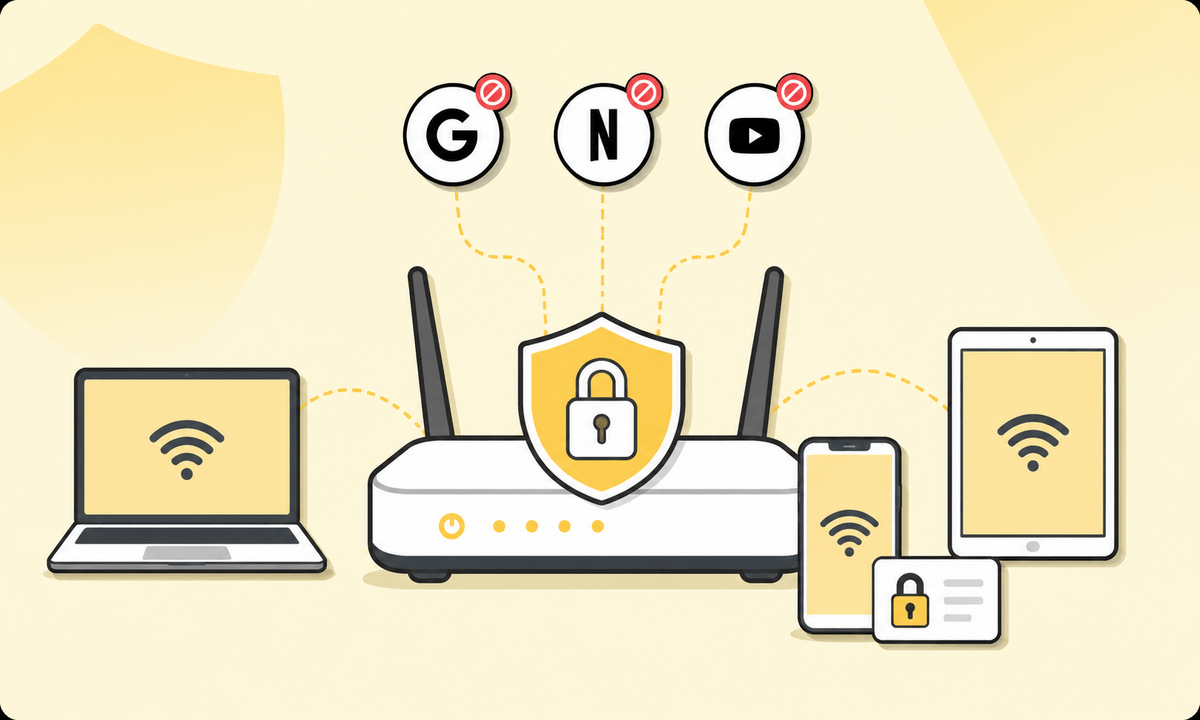
Yes, can I block websites on my network router? In most cases, yes. Router-level blocking is one of the most powerful ways to restrict websites because it applies to every device connected to your home Wi-Fi at the same time. No separate setup is needed on each phone, laptop, tablet, smart TV, or gaming console.
That makes your router a strong control point if you want to protect kids, limit distractions, reduce access to adult content, or manage browsing across a household. But most guides stop too early. Here, we will show you how to set up router blocking properly, including brand-specific notes, and then explain the limitation that catches many people off guard: router rules only work while the device is using that router.
Why block websites at the router level?
Router-level website blocking is useful because it works at the network level. Instead of installing a blocker on every device, you create one rule inside the router, and that rule applies to devices connected to your Wi-Fi.
The main advantages are clear:
- It covers every device automatically. Router blocks apply to phones, laptops, tablets, gaming consoles, smart TVs, and other connected devices. That makes it useful for families, shared houses, and small workspaces.
- It usually cannot be changed from the user’s device. Someone using a phone or laptop on your Wi-Fi cannot open their device settings and remove the router rule. They would need access to the router admin panel.
- It works for the whole household. One set of rules can apply to everyone connected to the network. This is helpful if you want to block distracting sites during homework time, work hours, or bedtime.
- It is often free and built in. Many modern routers, including NETGEAR, TP-Link, ASUS, and Linksys models, include some form of parental controls, URL filtering, keyword blocking, or access control.
The tradeoff is that router blocking is strong only inside the network it controls. Here’s how to set it up, then we’ll cover the one scenario where it falls short.
How to block websites on router, step by step
The exact menu names vary, but the process is similar on most home routers. Use these steps if you want to block websites on Wifi router without installing software on every device.
- Connect to your home network. Use a phone, tablet, or computer connected to the same Wi-Fi network as your router. Ethernet also works if you are using a desktop computer.
- Open your router’s admin page. Open any browser and type your router’s IP address into the address bar. Common router addresses include:
- 192.168.1.1
- 192.168.0.1
- To find it on Windows, open Command Prompt, type ipconfig, and look for “Default Gateway.”
To find it on Mac, go to System Settings, then Network, then Wi-Fi, then Details. Look for the Router field. - Log in with the router admin details. The username and password may be printed on a sticker on the bottom or back of the router. Common defaults include admin/admin or admin/password, although many routers require a password created during first setup. Change the default admin password if you have not already done so. If someone else knows the router password, they may be able to remove the blocks.
- Find the website blocking settings. Look for a section called:
- Parental Controls
- Access Control
- Website Filtering
- URL Filtering
- Content Filtering
- Block Sites
- Security
- The wording depends on the router brand and model.
- Add the URLs or keywords you want to block. Add domains such as:
- tiktok.com
- instagram.com
- reddit.com
- youtube.com
- Some routers also support keyword blocking. For example, adding a keyword such as “social” may block URLs that include that term. Use keyword blocking carefully because it can block unrelated pages if the word appears in the URL.
- Choose whether the block is always active or scheduled. Some routers let you block a site all day. Others let you apply rules only during certain times, such as school hours, work hours, or overnight.
- Save or apply the settings. Click Save, Apply, or Add Rule. Some routers apply changes immediately, while others may restart first.
- Test the block. Try opening the blocked site from a device connected to your Wi-Fi. Test both the www and non-www versions if needed, such as www.youtube.com and youtube.com.
That is the basic process for anyone wondering how to block websites on home network access from one central place.
NETGEAR
On many NETGEAR routers, go to Advanced > Security > Block Sites. Some models use a slightly different path, such as Settings > Content Filtering > Block Sites. NETGEAR supports blocking by keyword or internet domain, and you can usually choose whether the block is always active or active on a schedule.
TP-Link
On TP-Link routers, start with Parental Controls in the basic settings menu. For more control, check Advanced > Security > Access Control. Some TP-Link models also include a Content Filter with category-based options, which can be useful if you want to block groups of sites rather than adding each domain manually.
ASUS
On ASUS routers, look for AiProtection > Parental Controls. Depending on the model, ASUS may offer device-level filtering, category filtering, and network-wide rules. This is useful if you want one rule for a child’s tablet and another rule for the rest of the household.
Linksys
On Linksys routers, website blocking is usually found under Parental Controls in the Linksys Smart WiFi interface. From there, you can choose devices, add blocked sites, and set access restrictions. The exact options vary by model.
The big limitation: router blocking stops at your Wi-Fi
Router blocking is powerful, but it is not complete protection. The router only controls traffic that passes through that router. The moment a device stops using your home Wi-Fi, the router no longer has control.
There are three common gaps.
1. Mobile data bypass
If a phone switches from Wi-Fi to 4G or 5G, router-based blocks stop applying. This can happen intentionally or by accident. For example, a child may turn off Wi-Fi, or the phone may automatically switch to mobile data if the Wi-Fi connection is weak.
The router cannot control cellular traffic because that traffic does not pass through your home network.
2. Different Wi-Fi networks
Router rules only apply to your router. If someone leaves the house and connects to school Wi-Fi, a library network, a coffee shop network, or a friend’s Wi-Fi, your home router rules do not follow them.
This is important if the blocked device is a phone, tablet, or laptop that regularly leaves home.
3. App-level access
Router blocking is mostly based on URLs, domains, keywords, or content categories. It can block instagram.com in a browser, but that does not always mean it can block the Instagram app itself.
Many apps use different traffic patterns, app-specific services, or multiple domains. A router may block the website but still fail to fully restrict the app. That is especially important for TikTok, Instagram, YouTube, games, streaming apps, and social platforms.
This is where device-level blocking comes in.
How BlockSite fills the gaps router blocking leaves
The right way to think about this is not router versus BlockSite. It is router plus BlockSite.
Your router handles the home network. BlockSite handles everything else: mobile data, other Wi-Fi networks, and the apps themselves.
What router blocking does
Router blocking is best for broad household coverage. It can:
- Cover all devices on your home Wi-Fi automatically
- Avoid separate setup on every browser or device
- Keep the rule outside the user’s device settings
- Create one shared baseline for the household
That makes it a good first layer.
What BlockSite adds on top
BlockSite adds the device-level layer that router filtering cannot provide. It is useful when you need rules that travel with the device.
BlockSite can help with:
- Mobile data and other Wi-Fi networks. Because BlockSite runs on the device, the block is not limited to the home router.
- App blocking. Instead of only blocking web addresses, BlockSite can block distracting apps such as TikTok, Instagram, or YouTube on supported devices.
- Schedule Mode. You can set rules for school hours, work hours, bedtime, or focus sessions.
- Password Protection and Uninstall Prevention. These features help prevent users from changing settings or removing the blocker without approval.
- Cross-device sync. You can keep the same blocked sites, keywords, and protection settings across devices.
This two-layer setup is more reliable than router blocking alone. The router creates a network-wide baseline. BlockSite protects the specific devices that need restrictions outside the home.
Quick BlockSite setup
- Install BlockSite on the device: Chrome, iOS or Android
- Add the same websites and apps you blocked on the router to the Block List.
- Turn on Password Protection and Uninstall Prevention where available.
- Use Schedule Mode if you want different rules at different times, such as blocking social media from 8am to 3pm on school days.
Your router handles the home network. BlockSite handles everything else: mobile data, other Wi-Fi networks, and the apps themselves.
What if your router doesn’t have website blocking?
Some older routers and ISP-provided routers have weak parental controls or no website-blocking feature at all. If you cannot find Parental Controls, Access Control, Website Filtering, or Block Sites in the admin panel, you still have options.
DNS filtering (OpenDNS / CleanBrowsing)
DNS filtering routes your network’s domain lookups through a filtering service. This can add category-level blocking for adult content, gambling, malware, or social media, depending on the service and settings.
A common option is OpenDNS. The OpenDNS server addresses are:
- 208.67.222.222
- 208.67.220.220
To set it up:
- Log in to your router admin panel.
- Find Internet, WAN, Network, or DNS settings.
- Replace the default DNS addresses with the filtering service’s DNS addresses.
- Save the settings and restart the router if required.
CleanBrowsing is another DNS-filtering option. Check the provider’s setup instructions because the correct DNS addresses depend on the filter level you choose.
DNS filtering is useful, but it still works at the network level. It does not protect a phone that switches to mobile data.
Upgrade router firmware or router
Some routers support custom firmware such as DD-WRT, which can add advanced filtering options. This is more technical and should only be used if your router supports it and you are comfortable changing firmware.
For most homes, a newer router with built-in parental controls is the easier fix. Still, router upgrades do not solve mobile data or app-level access by themselves. BlockSite remains the more practical choice when you need control over specific devices wherever they connect.
The setup that covers the gaps
Yes, you can block sites on router settings, and it is a powerful starting point. It gives you broad coverage across your home Wi-Fi and lets you manage access from one place.
But router blocking is only half the solution. A two-layer setup gives better coverage: router blocking for the home network, BlockSite for everything outside it. That means mobile data, other Wi-Fi networks, and app-level distractions are covered too.
FAQ
Can I block websites on my router for all devices?
Yes. Blocking a website at the router level prevents every device connected to your home Wi-Fi from accessing it, including phones, laptops, tablets, gaming consoles, and smart TVs. No installation is required on individual devices. The limitation is that the block only applies while devices are connected to your home network.
How do I find my router’s IP address to access the admin panel?
On Windows, open Command Prompt, type ipconfig, and look for “Default Gateway.” On Mac, go to System Settings, then Network, then Wi-Fi, then Details, where the router’s IP appears next to “Router.” The address is usually 192.168.1.1 or 192.168.0.1.
Can my child bypass the router block by switching to mobile data?
Yes. Once a phone switches from your home Wi-Fi to mobile data, router-based blocks no longer apply. That is why combining router-level blocking with a device-level blocker like BlockSite is more effective than relying on the router alone.
Does blocking a website on the router block the app too?
Not always. Router blocking usually works at the domain or URL level, so it can stop browser access to a site but may not fully block the related app. For apps such as TikTok, Instagram, or YouTube, device-level app blocking is the more reliable layer.
What if my router doesn’t have parental controls or website blocking?
You can change your router’s DNS settings to a filtering service such as OpenDNS, using 208.67.222.222 and 208.67.220.220. This adds network-level filtering even if your router has limited built-in controls. You can also install BlockSite on individual devices for more specific blocking, schedules, and app-level control.
Is blocking websites on a router permanent?
The blocks stay active until someone changes or removes them in the router admin panel. To keep the rules in place, use a strong router admin password that only you know. You can still update the block list later if your household needs change.