


A Windows PC gives you too many ways back into the same distracting sites. You can block Reddit in Chrome, then open it in Edge. You can remove a Firefox extension, switch accounts, or use an app instead of a browser tab. That is why the best method depends on what you are trying to control: your own focus during work or study, or access on a shared family computer.
There are four basic ways to block websites on Windows. BlockSite is the fastest option for most people because it works in Chrome, Edge, and Firefox with scheduling built in. Microsoft Family Safety is better for a child’s Windows account. The hosts file is free and system-wide, but technical. Windows Defender Firewall is useful only for advanced IP-based blocking.
Method 1: BlockSite, fastest and best for most Windows users
For most people searching for how to block websites on Windows PC, BlockSite is the most direct answer. It is built for everyday website blocking, not system administration. You install it in your browser, add the sites you want to block, and turn on extra controls like schedules, focus sessions, password protection, category blocking, and daily usage limits.
The main reason BlockSite fits Windows users well is that Windows does not give you a simple native tool for time-based website blocking. The hosts file can block a domain, but it cannot automatically block YouTube from 9am to 5pm and then reopen it after work. Microsoft Family Safety helps with child accounts, but it is not built for adult self-control or flexible productivity routines.
BlockSite is the better fit when you want to block distracting websites during specific hours, limit time on certain sites, stop impulse changes to your block list, or create a cleaner study or work environment.
Setup on Windows (Chrome / Edge / Firefox)
- Go to Blocksite Chrome extension, Edge, or Firefox.
- Install BlockSite in your browser.
- Click “I Accept” to grant the required permissions.
- Click the BlockSite icon in the browser toolbar.
- Open Settings by clicking the gear icon.
- Go to the “Block Sites” tab.
- Click “+ Add to Block List.”
- Type the website URL, such as reddit.com or youtube.com.
- Click “Done.”
The site is blocked immediately in that browser.
For blocking across all browsers at once
Browser extensions work inside the browser where they are installed. So if you use Chrome, Edge, and Firefox on the same Windows PC, install BlockSite in each browser you actually use.
After signing in to your BlockSite account, your block list can sync across supported browsers and devices, so you do not need to rebuild the same list from scratch every time. This is the fastest setup for people who want broad browser coverage without editing system files.
Power features for Windows users
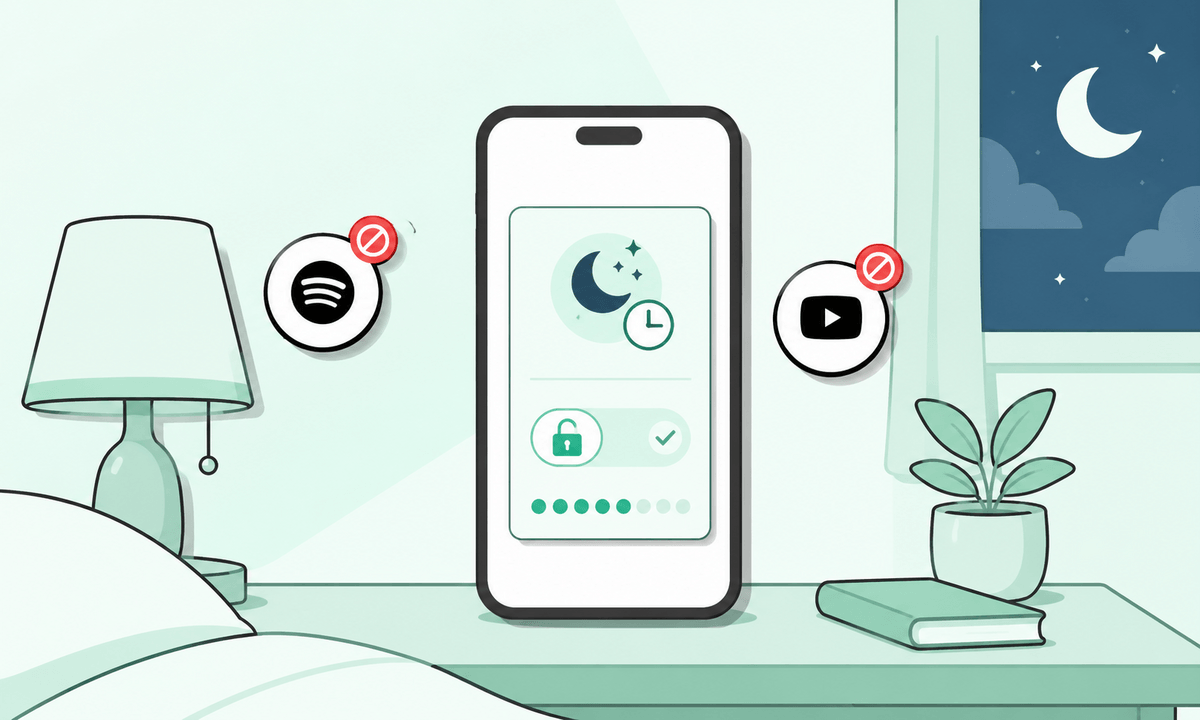
- Schedule Mode is the standout feature for productivity. You can block distracting sites only during work, study, or sleep hours, such as Monday to Friday from 9am to 5pm. The block runs automatically, so you do not need to decide every morning whether to turn it on.
- Focus Mode is useful when you work in structured sessions. It follows the Pomodoro-style pattern of focused work intervals followed by short breaks, with distracting sites blocked during focus periods.
- Password Protection helps protect your settings. If you are likely to remove a site from your list when you are bored or tired, password protection adds a barrier before you can change the block.
- Category Blocking is helpful when blocking one site at a time is not enough. Instead of adding every social, shopping, news, gaming, or adult site manually, you can block full categories.
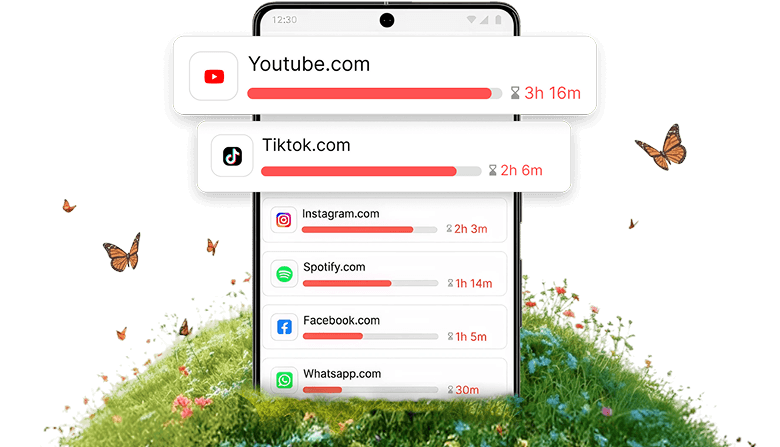
- Usage Limits help when you do not want to ban a site completely. For example, you can allow 30 minutes of YouTube per day, then block it after that time is used.
- Site Redirect changes what happens when you try to open a blocked site. Instead of showing only a blocked page, you can redirect yourself to a task list, calendar, email, study page, or another productive destination.
Windows 10 and Windows 11
The setup is the same for Windows 10 and Windows 11 because BlockSite installs through the browser, not through a Windows-only settings panel. If you are searching for how to block websites on PC Windows 10, the steps above apply. The same is true for how to block websites on PC Windows 11, as long as you are using a supported browser.
Method 2: Microsoft Family Safety (best for parental controls)
Microsoft Family Safety is the better choice when you are setting up website restrictions for a child on a shared Windows PC. It works through Microsoft family accounts and applies rules to the child’s signed-in profile, especially inside Microsoft Edge.
This method is best for parents who want account-level controls, content filtering, and a safer browsing setup for a family computer. It is not the best option for adults who want flexible work-hour blocking, because it is designed for parental control rather than personal productivity.
For parents wondering how to completely block websites/content on a Windows PC, the honest answer is that no single Windows setting covers every possible browser, app, account, network, and workaround. A better setup combines Microsoft Family Safety for the child account with BlockSite for browser-level blocking and password-protected rules.
How to set up Microsoft Family Safety
- Sign in to your Microsoft account at account.microsoft.com/family.
- Add your child’s Microsoft account to your family group, or create one.
- Open the child’s profile.
- Go to Content Filters.
- Open the web browsing settings.
- Turn on “Filter inappropriate websites and searches.”
- Add specific sites under the blocked sites list, such as tiktok.com or youtube.com.
Once active, the rules apply to the child’s Microsoft account in supported Microsoft browsing environments, especially Edge.
Key limitations
- Microsoft Family Safety is account-specific. If another Windows account on the same PC has no restrictions, that account is not covered by the child’s settings.
- It is also not a full cross-browser productivity blocker. Microsoft’s web and search filters are built around Edge, so parents should not assume the same filtering automatically covers every browser.
- If other browsers are installed, use app controls to restrict them or install BlockSite where browser-level blocking is needed.
- It also does not give you the same kind of simple website scheduling that BlockSite offers. For example, it is not the cleanest tool for blocking social media only during homework hours while allowing it later.
Method 3: the hosts file (free, system-wide, technical)
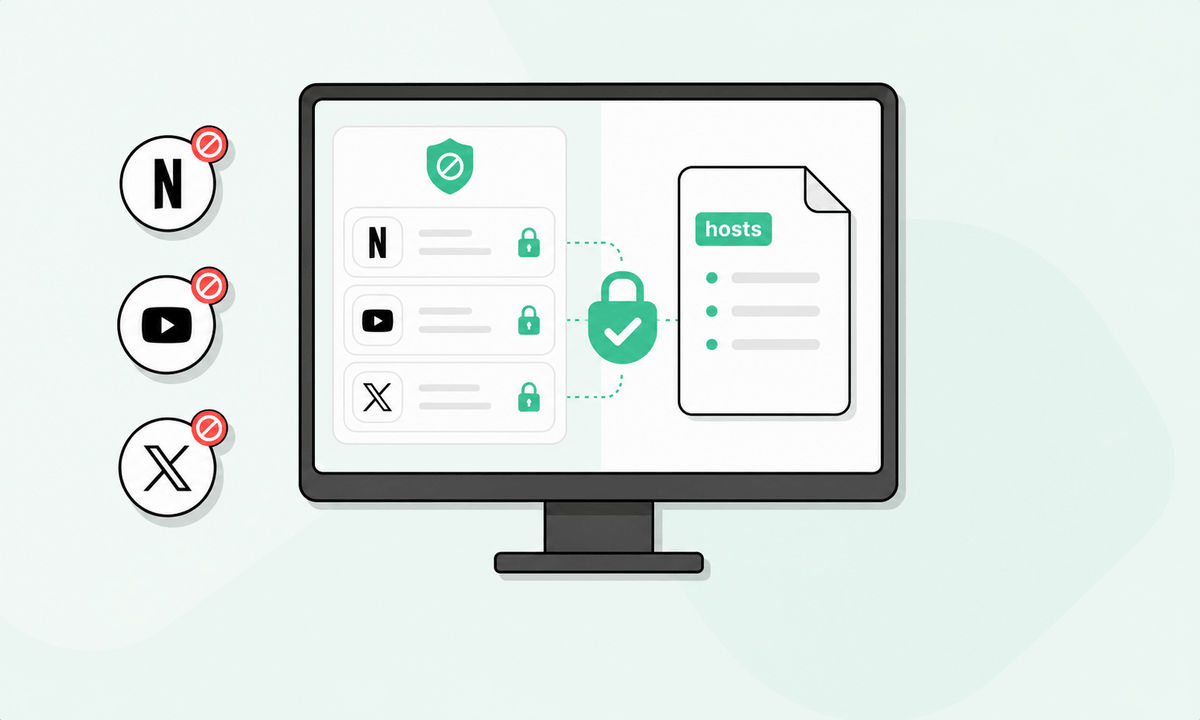
The Windows hosts file is a system file that tells your computer how to resolve domain names. When you redirect a website to 127.0.0.1, the site points back to your own computer instead of the real website. That stops it from loading across browsers on that Windows PC.
This method is free, built into Windows, and system-wide. It can work well for technical users who want to block a short list of websites without installing anything. It is not ideal for people who want schedules, categories, password protection, or a quick setup.
How to block websites with the hosts file
- Press the Windows key.
- Search for “Notepad.”
- Right-click Notepad and choose “Run as administrator.”
- Click File, then Open.
- Go to this folder: C:\Windows\System32\drivers\etc
- Change the file filter from “Text Documents” to “All Files.”
- Open the file named hosts.
- At the bottom, add one line for each version of the site you want to block:
127.0.0.1 www.reddit.com
127.0.0.1 reddit.com
Add both the www and non-www versions where relevant.
- Click File, then Save.
- Open Command Prompt as administrator.
- Run this command: ipconfig /flushdns
After that, the blocked site should fail to load in browsers on that Windows PC.
Hosts file limitations
The hosts file requires administrator rights. Any other admin user can open the same file and remove the block.
Some apps and browsers may use their own DNS handling, cached connections, or multiple related domains, which can leave gaps. It is also manual. If you want to unblock a site after work, you need to edit the file again.
This method is fine for a handful of domains. It becomes messy if you want to block categories like social media, news, gaming, adult content, or shopping.
Method 4: Windows Defender Firewall (advanced, IP-based)
Windows Defender Firewall can block outbound connections to specific IP addresses. Technically, that means it can stop your PC from connecting to a known server. In practice, it is a weak method for everyday website blocking.
Most large websites do not rely on one fixed IP address. They use changing infrastructure, content delivery networks, shared hosting, and multiple domains. Blocking one IP may fail to block the site, or worse, it may break unrelated websites that use the same network.
The basic path is Windows Security, Firewall & network protection, Advanced settings, Outbound Rules, New Rule, Custom, then Remote IP addresses. From there, you can add the IP addresses you want to block and save the outbound rule.
This is best for advanced users who need to block a known static IP, an internal server, or a specific network destination. It is not the right tool for blocking everyday distractions like YouTube, Reddit, TikTok, shopping sites, gaming sites, or news sites. Use BlockSite for practical website blocking.
The best setup for most people
For most Windows users, BlockSite is the fastest and most complete option. It takes a few minutes to install, works in Chrome, Edge, and Firefox, and includes scheduling so your blocks run automatically during work or study hours. You get more control than the hosts file, less complexity than firewall rules, and better productivity features than native Windows tools.
For a family PC, use a layered setup: Microsoft Family Safety for the child’s Windows account, BlockSite for browser-level blocking, and a strong Windows admin password so settings cannot be changed casually.
FAQ
Does blocking a website in Chrome on Windows also block it in Edge and Firefox?
No. A browser extension normally blocks sites only inside the browser where it is installed. To block the same site in Chrome, Edge, and Firefox, install BlockSite in each browser you use, or use the hosts file if you want a system-wide method.
How do I block websites on Windows 10 vs. Windows 11, is it different?
The main methods are essentially the same on Windows 10 and Windows 11. BlockSite installs through the browser, so there are no special Windows-version steps. The hosts file path and Microsoft Family Safety setup are also largely the same across both versions.
How do I permanently block a website on my Windows PC?
Install BlockSite, add the site to your Block List, and turn on Password Protection so the list cannot be changed casually. For a system-level block without an extension, edit the hosts file. For a stronger setup, use both methods together.
Can I block websites on Windows during work hours only?
Yes. BlockSite’s Schedule Mode lets you block specific sites only during set hours, such as 9am to 5pm from Monday to Friday. The hosts file and basic Family Safety website blocks do not offer the same simple time-based website blocking, which is why BlockSite is the practical choice for work-hour rules.
How do I block adult content on a Windows PC?
For a personal PC, use BlockSite and enable adult-content category blocking so a wide range of adult sites are covered without adding each URL manually. For a child’s PC, combine BlockSite with Microsoft Family Safety for account-level content controls in Edge. Keep the child on a standard Windows account, not an administrator account.
Can someone bypass website blocks on a Windows PC?
It depends on the method. BlockSite’s Password Protection and Uninstall Prevention make casual bypassing harder, while the hosts file can be edited by any administrator on the PC. Microsoft Family Safety is tied to the child’s account, so it can leave gaps if another Windows account or uncovered browser is available.