


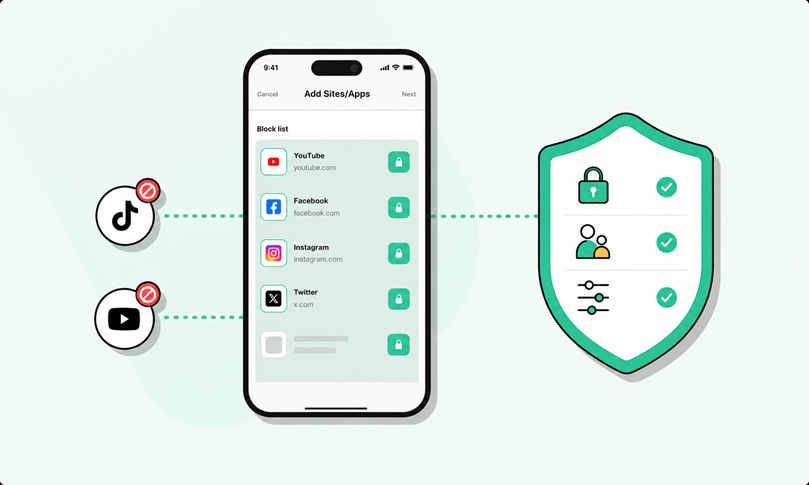
Kids do more of their socializing, gaming, watching, and messaging through apps than many parents realize. That creates a wider safety problem than simple screen time. And many unsafe apps do not look unsafe at first glance. They may appear as games, video tools, anonymous chat spaces, livestream platforms, or “private” messaging apps. Some also hide risky behavior behind harmless features, like disappearing messages, unmoderated group chats, location sharing, or requests for contact details.
The biggest risks usually fall into four areas:
- contact from strangers or predators
- exposure to sexual, violent, or age-inappropriate content
- cyberbullying, harassment, or social pressure
- privacy risks, including data collection and location exposure
Parents often focus on whether an app is popular or whether their child’s friends use it. A better question is what the app allows people to do. A game with open voice chat can be riskier than a video app with tighter controls. A messaging app that hides conversations can be riskier than a social app that is easier to review.
That is why this topic needs a wider view. The issue is not only blocking access. It is helping children build judgment, speak up early, and understand why some apps are not safe for them.
How to keep your kids off unsafe apps
1. Know what apps your kids use
You cannot protect against what you do not know is there. The first step is staying involved in your child’s digital world without turning every conversation into an interrogation.
Start by asking directly which apps they use most, what they do on them, and who they talk to. Children are more likely to be honest when the tone is curious instead of accusatory. Ask them to show you how the app works. That often reveals more than the app name alone.
Review installed apps on their phone or tablet regularly. Do not only scan the home screen. Check folders, secondary pages, recently downloaded apps, and browser-based apps they use instead of installed ones.
Watch for hidden or secondary channels too. A child may not use a separate chat app at all, but may still be chatting inside games, livestream platforms, creator communities, or school-related spaces. Some of the most dangerous apps for kids are risky because of their communication features, not because of their main label.
2. Use BlockSite tools
A blocker helps when you already know which apps, websites, or categories need limits. It is most useful as part of a wider family safety setup, not as the only line of defense.
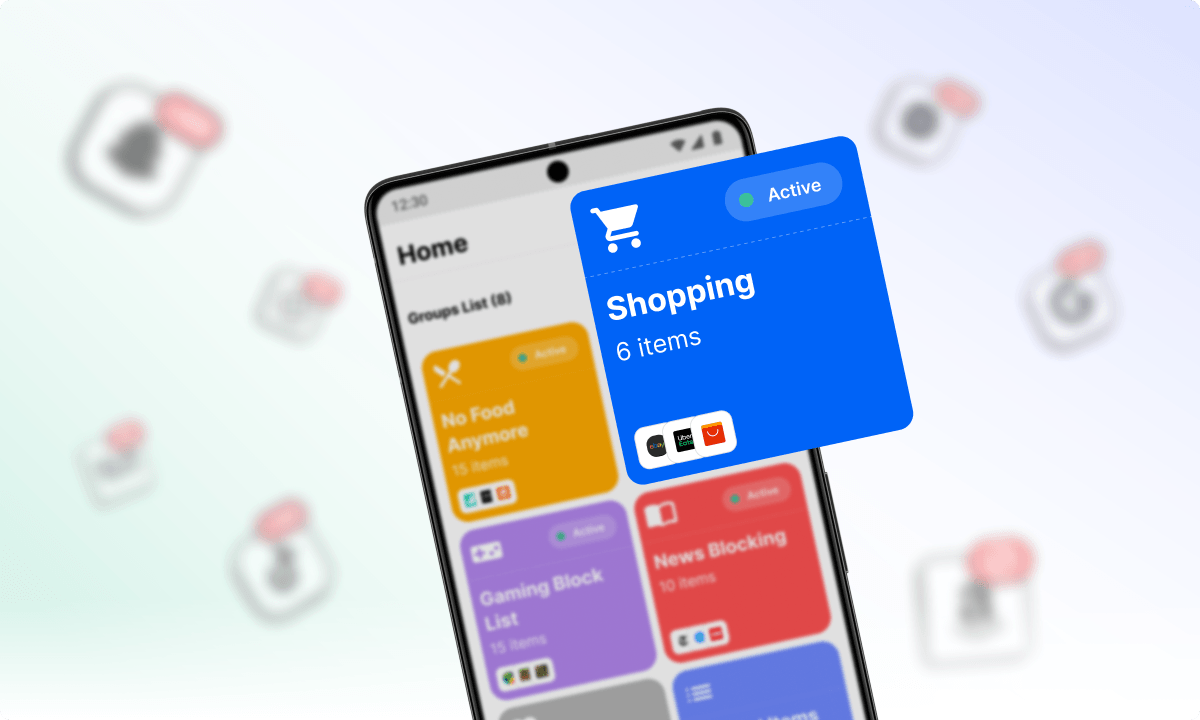
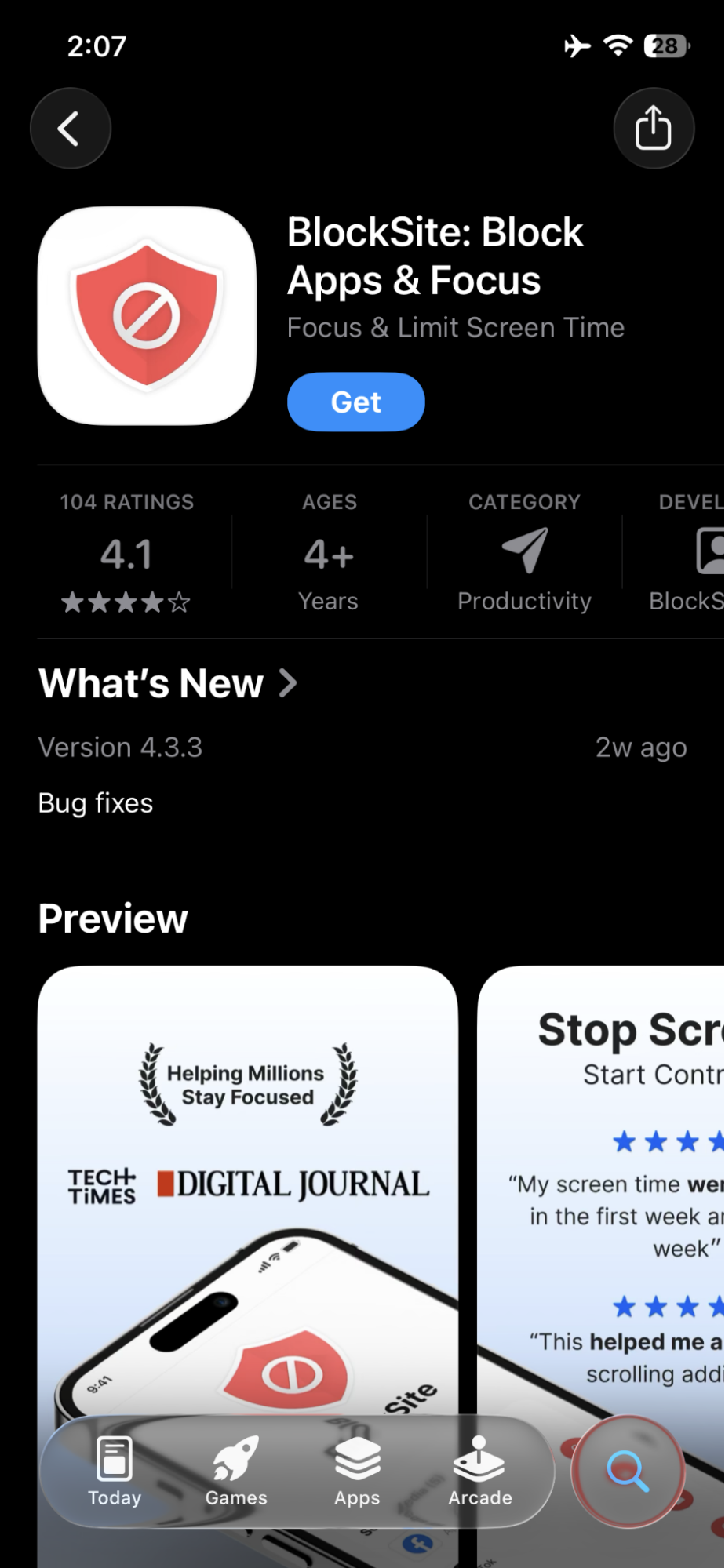
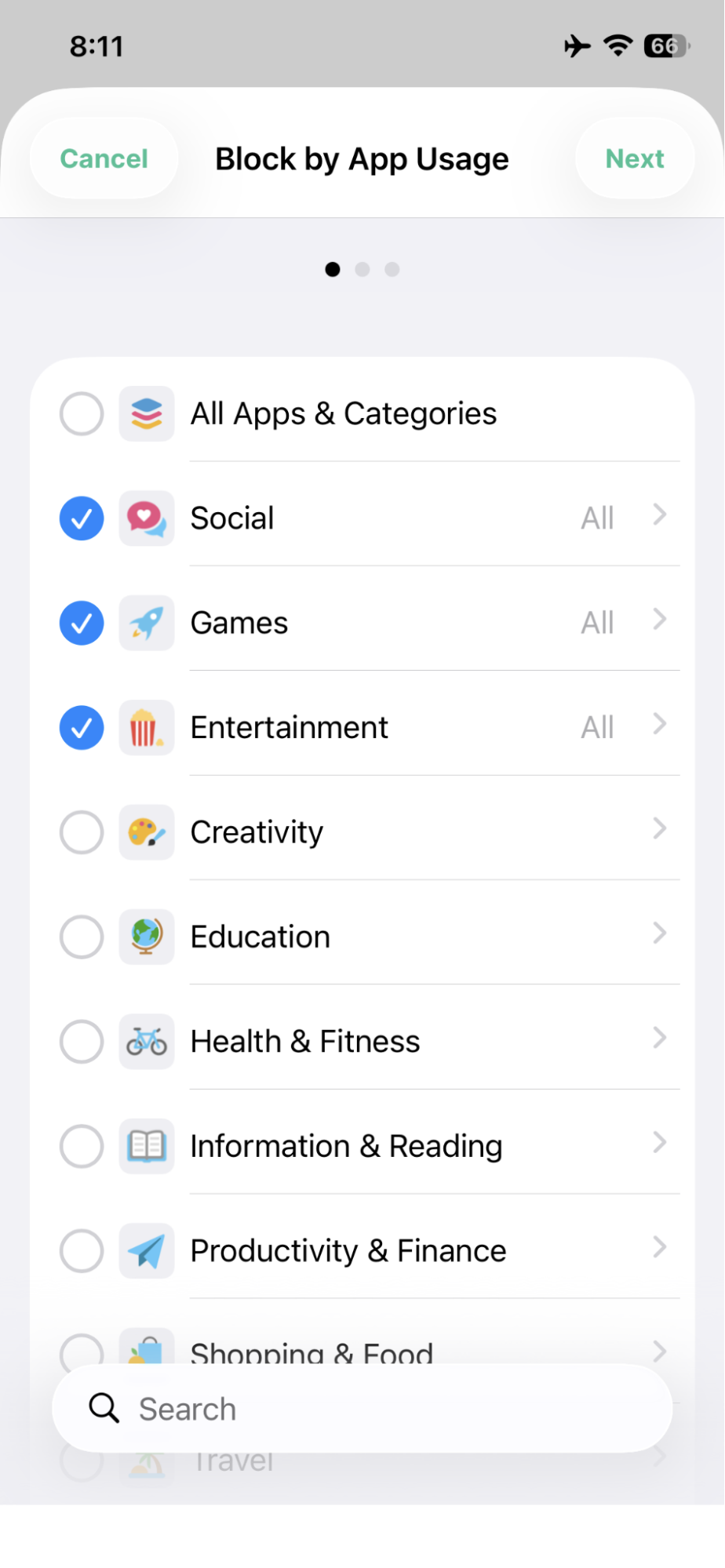
On iPhone, BlockSite lets you block by app and by category. For broader protection, start with categories such as Social, Games, and Entertainment, since many risky apps tend to fall under those groups. After that, add any specific apps you want to restrict as well.
Here are the steps:
- Install BlockSite on your iPhone.

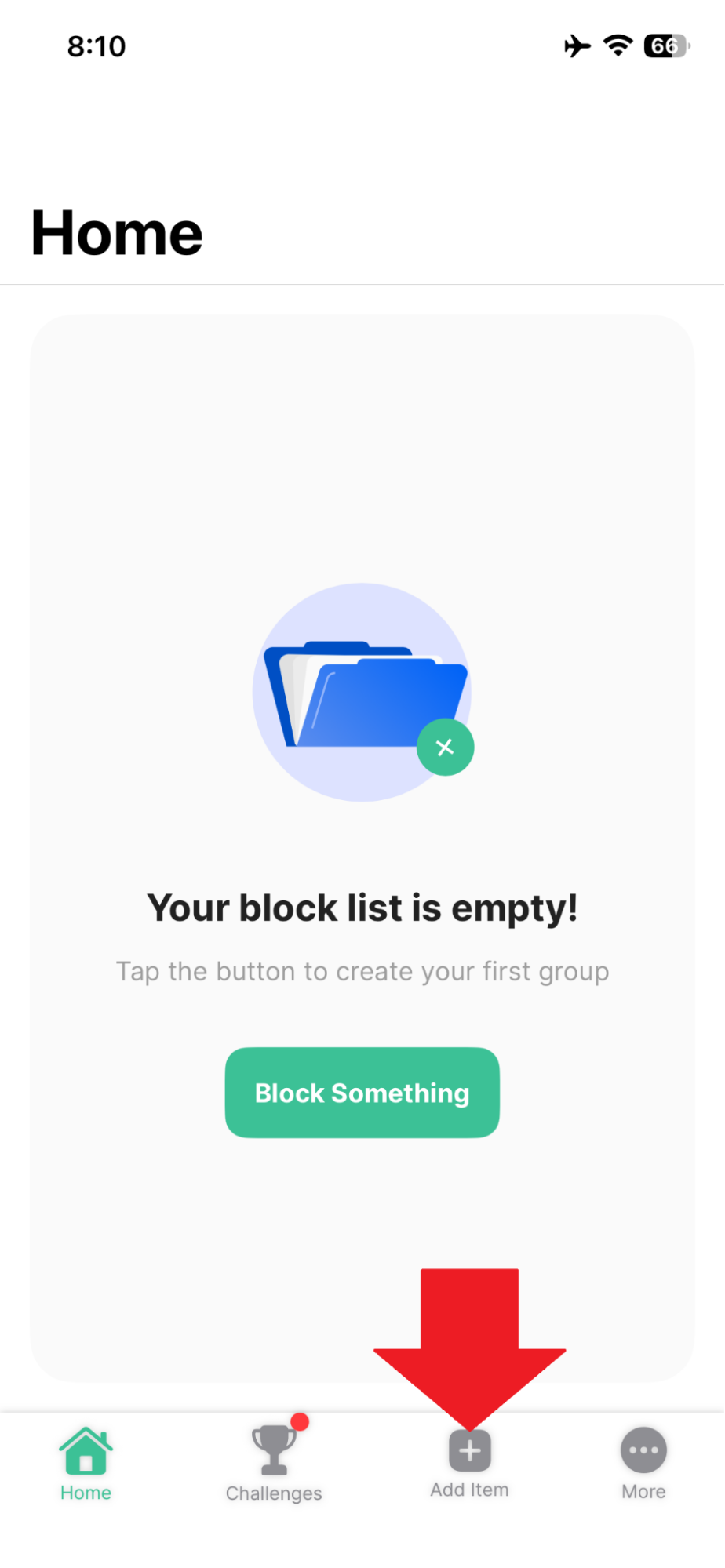
- Launch the app and then tap Add Item.
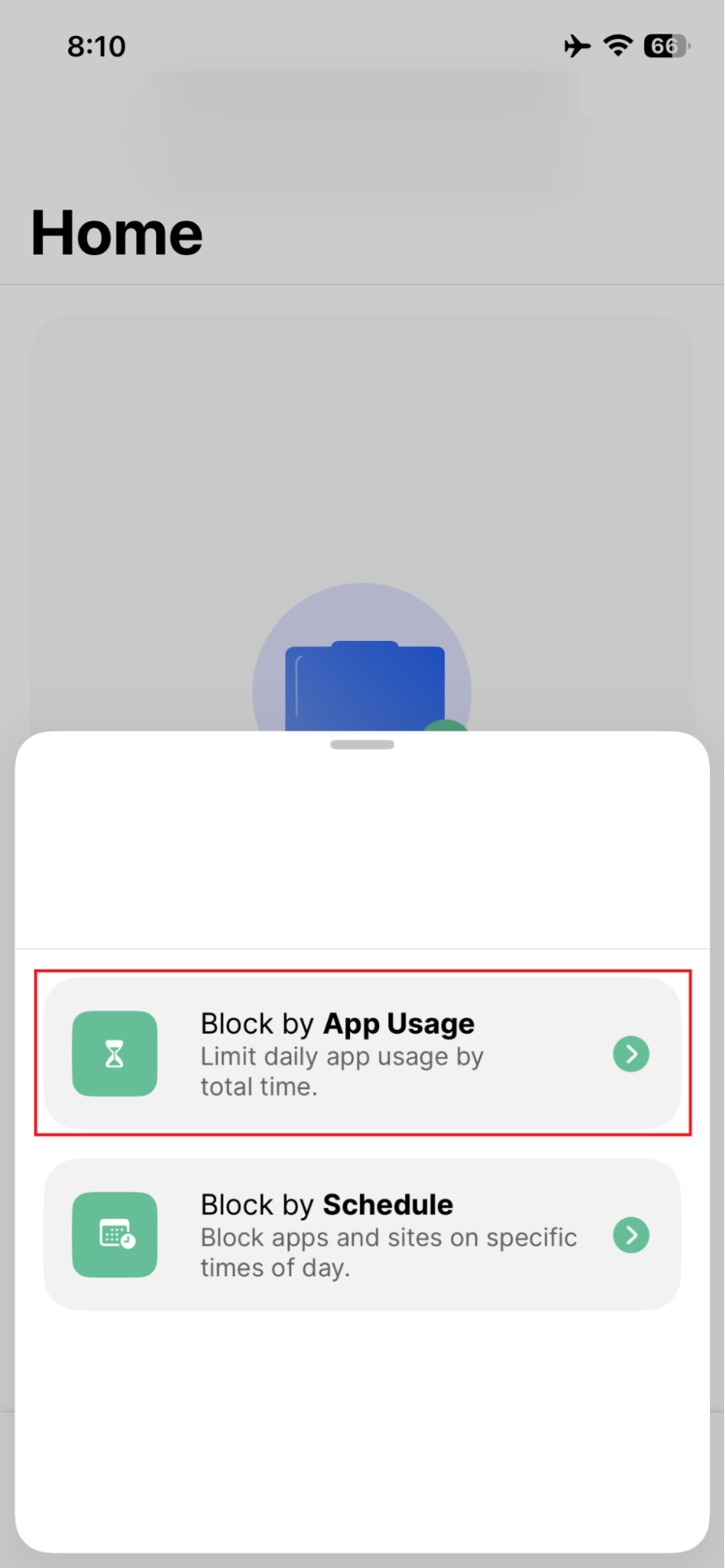
- Choose Block by App Usage, since the focus here is app access.
- Pick the categories you consider unsafe for your child.
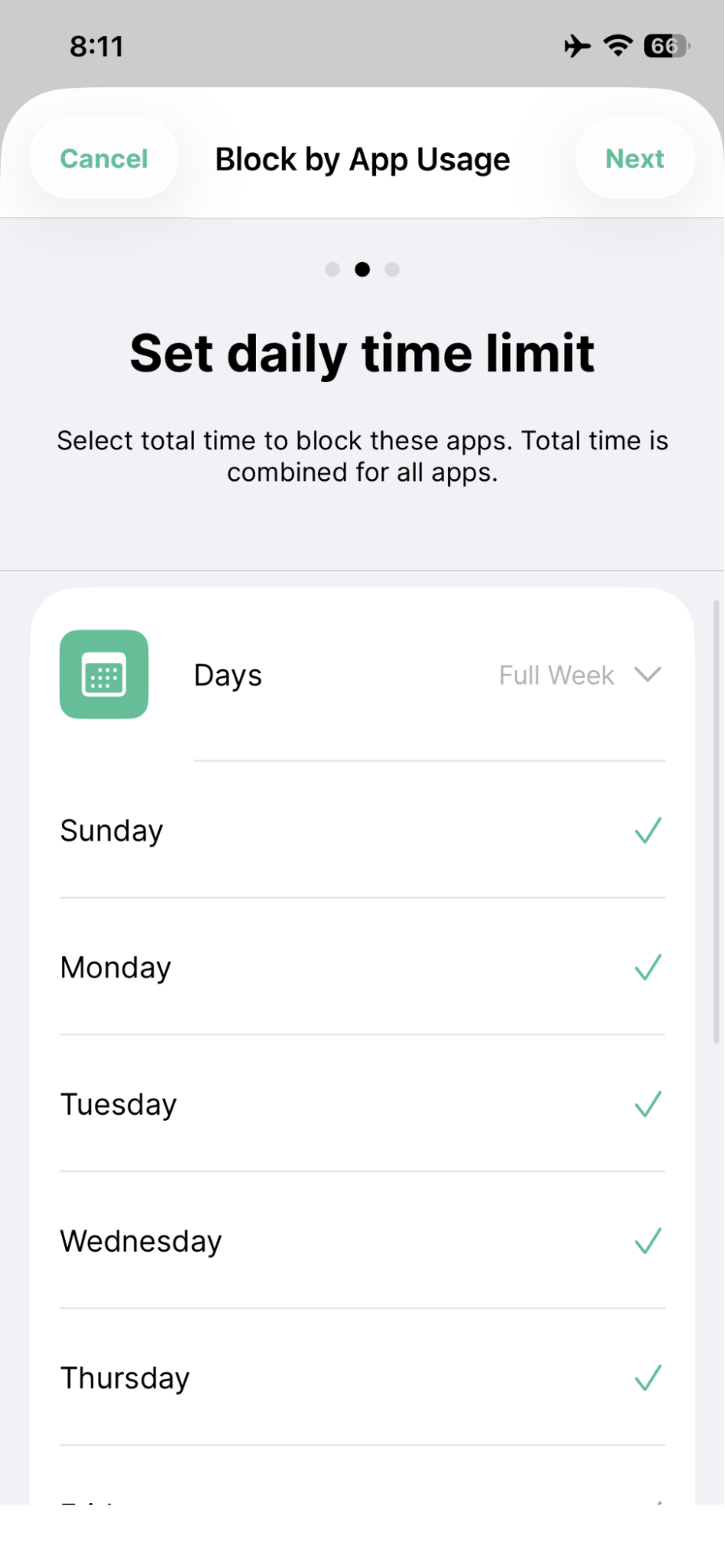
- To keep those apps unavailable at all times, set the daily time limit so access stays blocked all day. You can adjust this later if your family rules change.
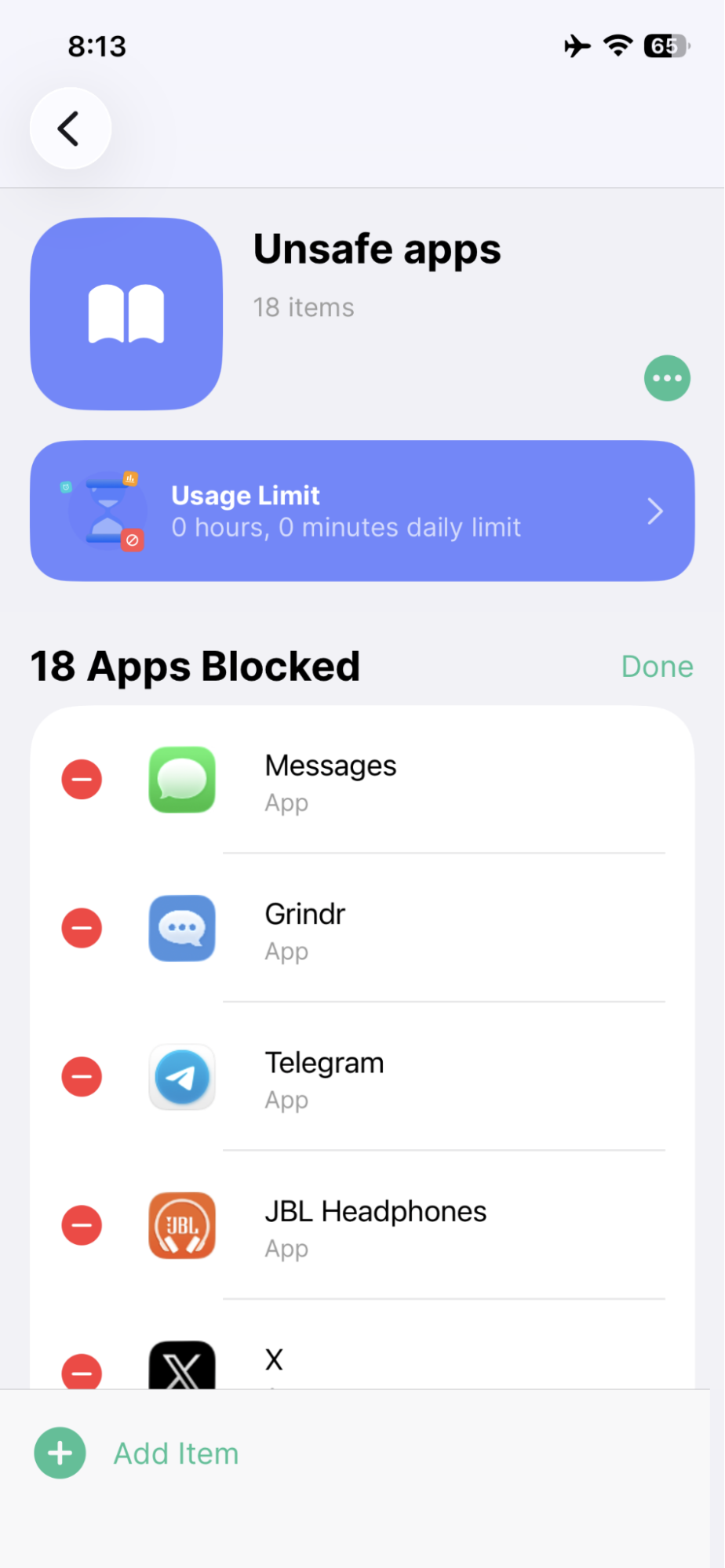
- Check that the apps included under those categories appear in the blocked list. Then open a few of them to confirm they can no longer be accessed.
On Android, BlockSite can block both individual apps and broader categories. That gives you wider coverage, since many unsafe apps fall into the same category even if they are not the exact apps you had in mind at first. A good setup is to block the categories that raise concern, then add any specific apps you want restricted as well.
Here are the steps:
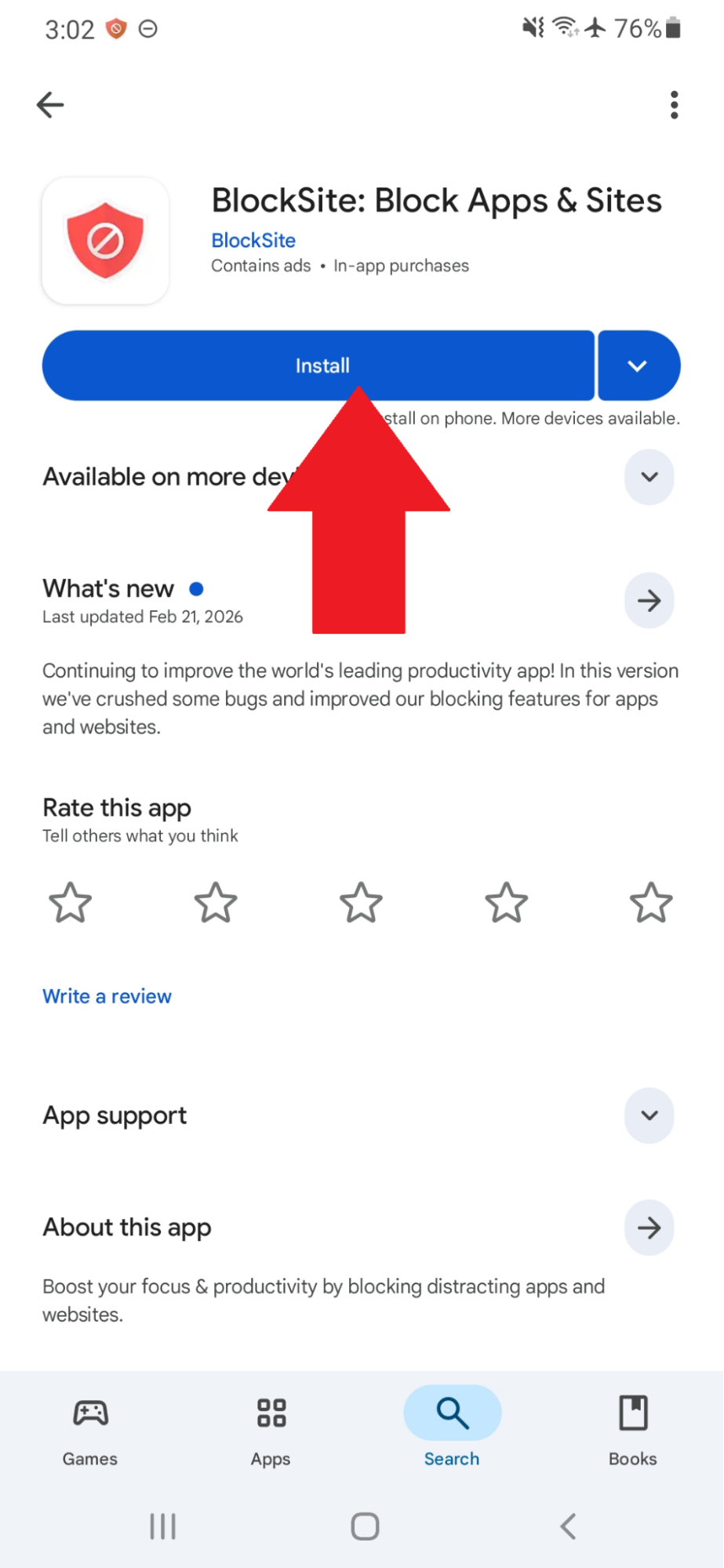
Install BlockSite on your Android phone.
- Install the BlockSite app from the Google Play Store.
- Open the app and then tap Create.
. - Choose the categories you want to block for your child, such as Adult, Social, Shopping, and Gambling.
- If you want those apps unavailable at all times, set the daily time limit so the block stays active throughout the day. You can always update this later.
- Check that the apps covered by those categories appear in the blocked list. Then test a few of them to confirm they can no longer be opened.
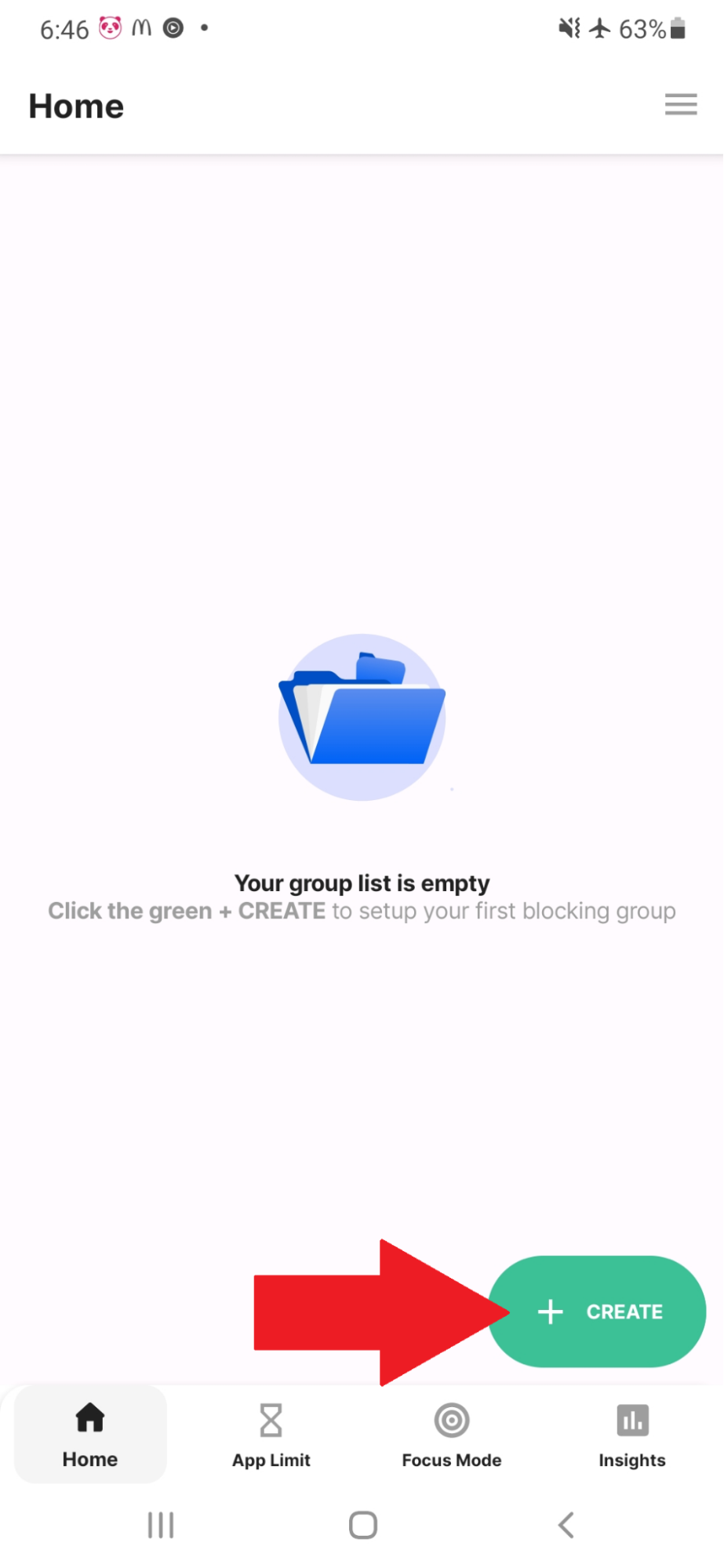
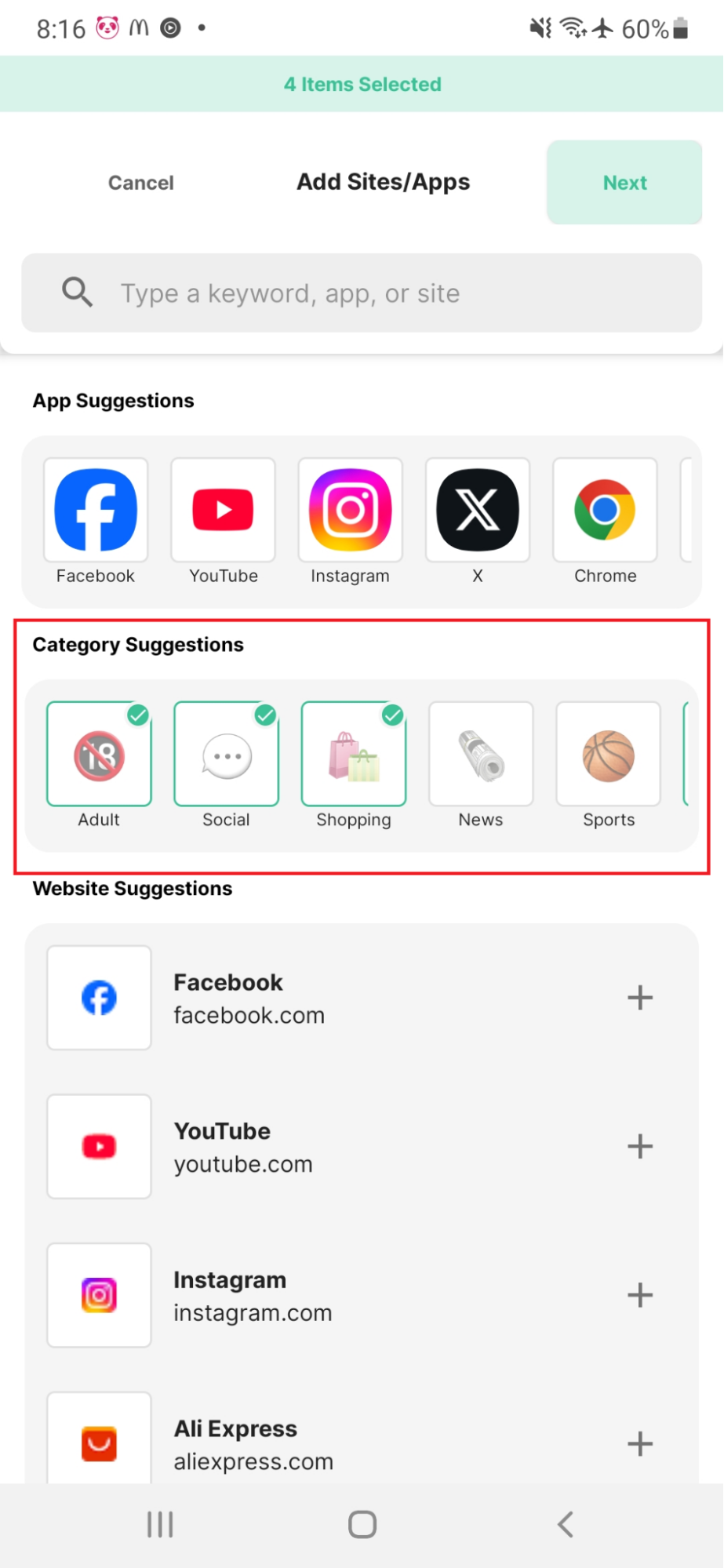
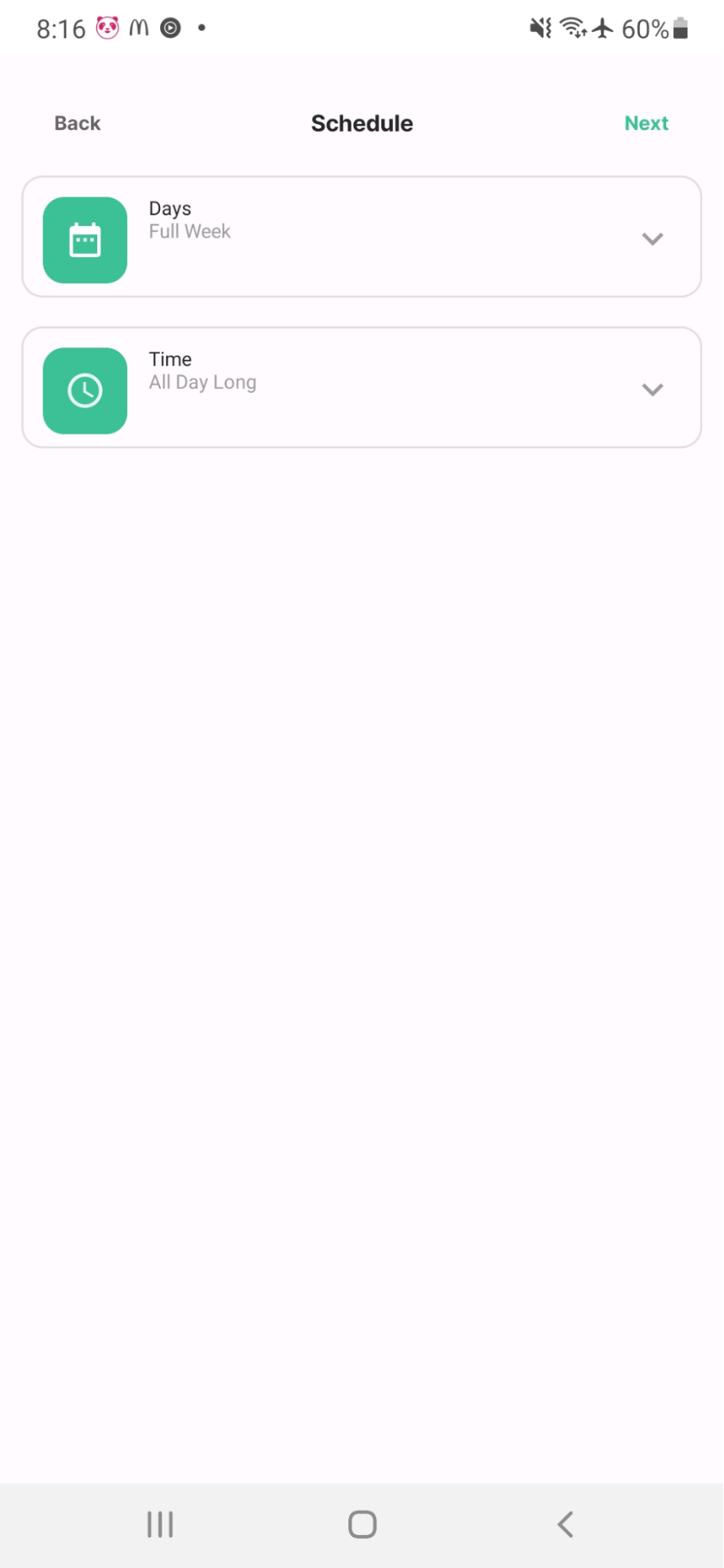
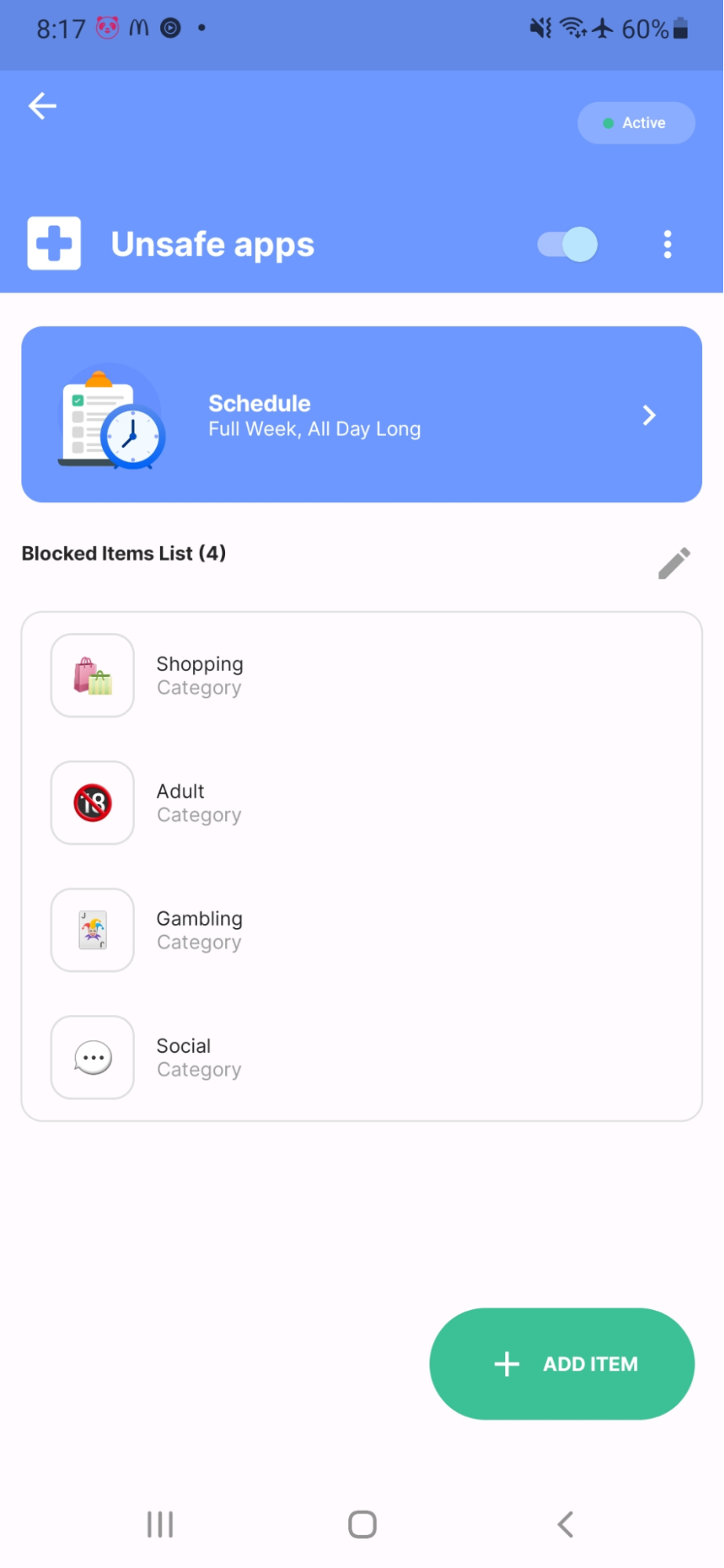
Used well, these controls do more than block sites. They reduce temptation, limit repeat exposure, and buy parents time to teach better habits. That is especially useful when you are blocking apps on Android and iOS too across different devices in the same household.
3. Set clear rules about app usage
Children do better with clear rules than vague warnings. “Be careful online” is too broad. “You may not download apps without asking first” is clear.
Write down which apps are allowed, which ones are off-limits, and which ones need a parent to approve them first. Keep the categories simple:
- allowed anytime
- allowed with limits
- not allowed
- ask first
Set screen time boundaries too. Some families limit app use only at night. Others use school-night rules, no-phone mealtimes, and weekend exceptions. The exact schedule can vary, but it should be easy for a child to understand and easy for an adult to enforce.
Most importantly, explain why a restriction exists. A child is more likely to cooperate when they understand that a rule is about safety, sleep, privacy, or mental health, not just control. This is one of the clearest ways to keep your kids safe from malicious apps without turning the home into a constant battle.
4. Teach kids how to recognize unsafe apps
Children need a mental checklist of warning signs. That checklist should be simple enough to remember in the moment.
Teach them to pause when an app does any of the following:
- asks for personal information it does not need
- encourages private chats with strangers
- allows anonymous messaging
- has unmoderated voice or text chat
- pushes them to keep secrets from parents
- asks for photos, location, school name, or contact details
- nudges them to click unknown links or leave the app for another platform
Show them examples of risky questions they should never answer, such as where they live, what school they go to, when they are home alone, or what their username is on another app.
Children also need to know that “popular” does not mean safe. Many parents search for how to keep their kids safe from malicious apps after an incident, but the better move is to teach these warning signs before something goes wrong.
5. Keep communication open
This is the most important part because every other safeguard becomes weaker when a child is afraid to tell the truth.
Encourage your child to talk about what they see online, including weird messages, upsetting videos, pressure from friends, or anything that feels off. Do not wait for a crisis. Make digital safety a normal topic, like school, sleep, or sports.
Your child should know they can report something uncomfortable without losing every device immediately. If the first response to a problem is punishment, many children will hide the next one. Trust grows when a child sees that telling the truth leads to help first and discipline second.
A useful script is simple: “If anything online makes you uncomfortable, confused, pressured, or scared, tell me. You will not be in trouble for coming to me.”
That is a better long-term answer to how you can keep your kids safe from malicious apps than relying on surveillance alone.
6. Monitor without spying
Children need supervision, but they also need dignity. Monitoring works best when it is proportional to age, maturity, and risk.
For younger kids, frequent check-ins make sense. For older kids, a lighter touch often works better. That can include:
- reviewing downloads together
- checking privacy settings together
- talking about who they interact with
- doing occasional device reviews with notice
- using shared family rules instead of secret monitoring
Tools should support parenting, not replace it. A productivity tool app can help manage access and routines, but it cannot tell you whether your child feels pressured, excluded, or unsafe.
Supervision should also change as children grow. A 9-year-old and a 15-year-old should not be managed in the same way. Younger children usually need tighter controls. Teens usually need more explanation, more shared decision-making, and more frequent conversation about judgment.
7. Create a family “digital safety plan”
A family safety plan turns good intentions into repeatable rules. It also removes some of the emotion from daily arguments because the expectations are already set.
Build the plan together and keep it short. Cover these areas:
- app downloads, including whether approval is required
- daily and weekly screen time limits
- device-free times, such as meals, homework, and bedtime
- what to do if a stranger contacts them
- what personal information is never shared
- what happens if a rule is broken
- when parents may review devices
And make sure that you revisit the plan regularly. Children change fast. So do the apps they use. A rule that made sense last year may be too loose or too strict now.
It also helps to give children alternatives, not only restrictions. When kids are bored, lonely, or stressed, unsafe digital spaces become more attractive. Family routines, hobbies, sports, reading time, and screen-free activities all lower that pull.
Balance protection with trust
Parents do need tools that reduce access to unsafe digital spaces. BlockSite can help by letting families block apps and websites, set schedules, use category-based controls, add password protection, and create firmer boundaries around device use. That can lower exposure and make family rules easier to enforce.
But protection should not end with restriction. The bigger job is raising children who know when something is off, who understand what personal information should stay private, and who feel safe coming to you when they make a mistake. That is how to keep your kids off unsafe apps in a way that lasts.
FAQ
At what age should kids be allowed to download apps on their own?
There is no single age that fits every child. A better standard is judgment. If your child can explain what an app does, why they want it, what information it collects, and what they would do if a stranger contacted them, they may be ready for more independence. Until then, parent approval for every download is usually the safer rule.
How can I tell if an app is safe for my child?
Look at more than the age rating. Check whether the app includes open chat, anonymous messaging, disappearing messages, location sharing, livestreaming, user-generated content, or weak moderation. Also review privacy permissions, especially access to contacts, camera, microphone, and location. This is a strong starting point for parents searching for how to keep their kids safe from malicious apps before allowing installation.
What are the best tools for blocking unsafe apps?
The best tools are the ones that let you block specific apps and websites, set schedules, protect settings, and apply broader controls when needed. For families using multiple devices, cross-device controls are helpful because children often switch screens when one route is limited.
How do I block inappropriate apps on iPhone or Android?
Start by identifying the exact apps or websites you want restricted. Then use a blocker to create a block list, add schedules, and secure the settings so they cannot be changed easily. On some setups, category restrictions are useful when you want broader coverage rather than a one-app-at-a-time method.
Should I check my child’s phone regularly or respect their privacy?
Both. Younger children usually need regular review. Older children usually need a clearer privacy boundary with agreed check-ins. The key is transparency. Tell them what you may review, when, and why. Hidden surveillance often damages trust faster than it improves safety.
What signs indicate my child is using unsafe apps?
Watch for secrecy around devices, sudden deletion of messages, hidden apps, new contacts they cannot explain, emotional changes after phone use, withdrawal, sleep disruption, or defensiveness when asked simple questions about apps. None of these signs prove danger on their own, but they do justify a closer look.
How can I talk to my child about online safety without scaring them?
Keep the tone steady and specific. Focus on what to do, not only what to fear. Teach clear rules, such as never sharing private details, never moving a chat to a secret platform, and always telling a trusted adult when something feels wrong. Children usually respond better to coaching than to horror stories.
Are social media apps safe for younger children?
Many are not a good fit for younger children, especially when they include public posting, direct messages, algorithmic recommendations, or high social pressure. Even when an app has useful settings, it may still expose children to bullying, strangers, or age-inappropriate content.
What should I do if my child is already exposed to harmful content or people online?
Stay composed first. Ask what happened, what the other person said or sent, and whether your child responded. Save evidence when needed, block the account or app, review privacy settings, and report the issue through the platform when appropriate. If there is grooming, threats, coercion, or sexual content involving a minor, escalate quickly to the relevant authorities and child safety services.