





Most people look up how to block a website for one of two reasons. Either a specific site keeps hijacking attention when you are trying to work, study, or sleep, or you want a safer browsing setup for a shared device. Most of the time, it comes down to one thing: you want to make it harder to drift back to a site you did not mean to open, especially when you are trying to stay on track.
Blocking works because it changes the default. Instead of relying on self control every time you see a tempting tab, you set a rule once and let it handle the repeat decision for you. Done well, it is less about restriction and more about creating time and headspace for what matters.
We’re going to walk you through the most common ways to block sites using BlockSite, including quick setup on desktop and mobile, and the basic steps to reverse the block later if you need access again.
Why is it important to block websites?
People block websites for a few common reasons. The main point is that your defaults and triggers matter more than willpower in the moment.
1. Avoid distractions and improve focus
Distraction is rarely random. It is usually the same handful of destinations that are optimized to keep you scrolling, watching, clicking, and reacting. The problem is not that those sites exist, it is that they are always one click away during moments when your brain wants relief from effort.
Blocking helps in two ways:
- It removes the quickest escape option, so you stay with the task long enough to get moving.
- It reduces attention residue, the mental drag that shows up after switching tabs and trying to get back into focused work.
Start with the sites that steal time in the first five minutes of a session. Those are the highest leverage blocks.
2. Protect against harmful or inappropriate content
Not every site is simply distracting. Some are unsafe, manipulative, or inappropriate for kids. Others are common entry points to scams, fake warnings, adult content, or content that leaves you feeling worse after you consume it.
Website blocking creates a cleaner baseline. On shared computers, it reduces accidental exposure. On phones, it helps keep curiosity clicks from turning into a loop of increasingly aggressive content.
4. Enhance productivity and digital well-being
Productivity is not just output. It is also consistency, fewer interruptions, and feeling like you used your time on purpose. Blocking websites supports that by reducing the number of micro decisions you make each day.
For some people, website blocking is also part of a digital detox, a reset that makes it easier to be intentional about what gets your attention.
From a digital wellbeing perspective, the benefit is often emotional:
- Less guilt from unplanned browsing
- Less anxiety from constant checking
- Better recovery time between tasks
- More predictable routines, especially at night
When your browsing is shaped around your goals, you get more control without needing to micromanage every minute.
5. Support parental control and safe browsing
Parents and caregivers often want a simple way to reduce risk without turning the home into a constant supervision zone. A block list or category block can help set expectations and create safer defaults for kids, especially on devices used for homework.
It is also useful in schools, libraries, and households where multiple people use the same browser. The rules stay consistent, so you are not relying on memory or manual checks.
How to block a website?
BlockSite is a digital wellbeing and productivity tool that helps you restrict access to distracting websites, apps, and content categories. The setup is designed to be simple: you choose what to block and when, then the tool enforces the rule so you do not have to keep making the same decision.
Below are the BlockSite capabilities that matter most, followed by step-by-step setup on Chrome, Android, and iPhone.
Simple setup across devices
The best blockers are the ones you will actually use. BlockSite is built around a short setup loop:
- Add a site, app, keyword, or category.
- Decide how strict the block should be.
- Decide when it should apply, for example always-on, scheduled hours, or Focus Mode sessions.
This is intentionally lightweight. If setup feels complicated, most people abandon it before it becomes a habit tool.
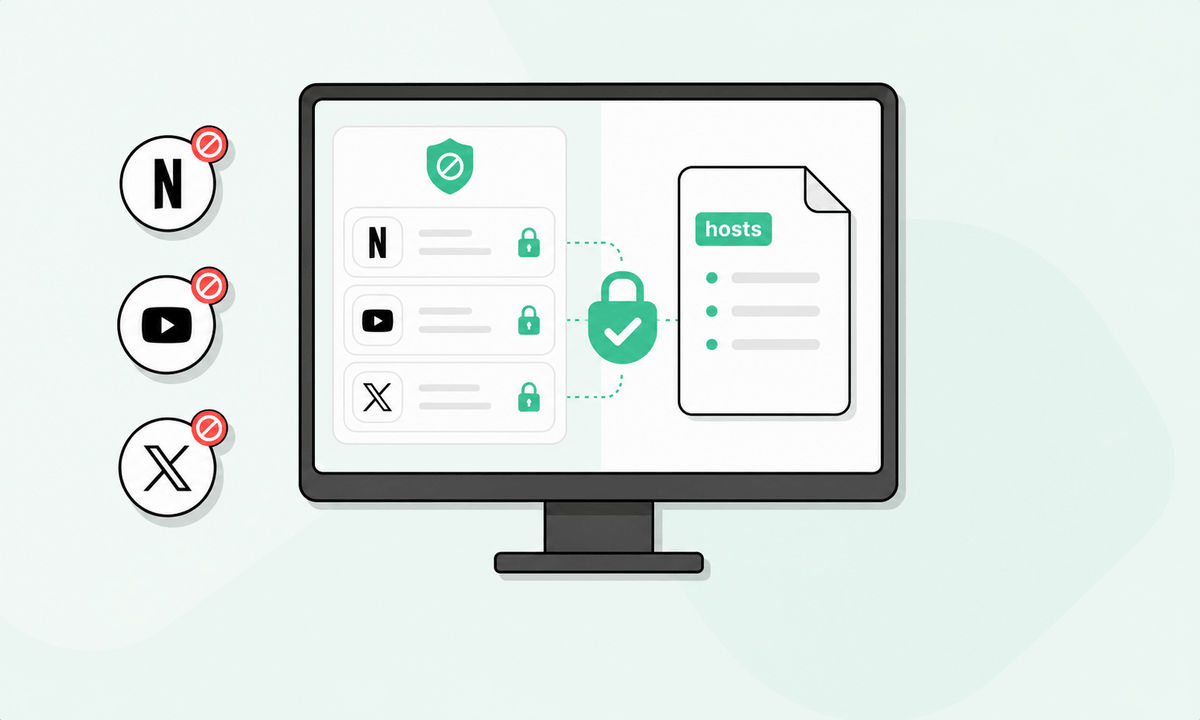
Block specific URLs or entire categories
Different problems need different levels of blocking:
- URL and domain blocks are ideal for one or two specific distractions.
- Category blocking is better when the habit is broader, like social media during work or shopping sites at night.
- Keyword blocking adds an extra filter layer when the distraction shows up across many sites or pages.
You can also use redirects and custom block pages so a blocked visit becomes a reminder, not just a dead end.
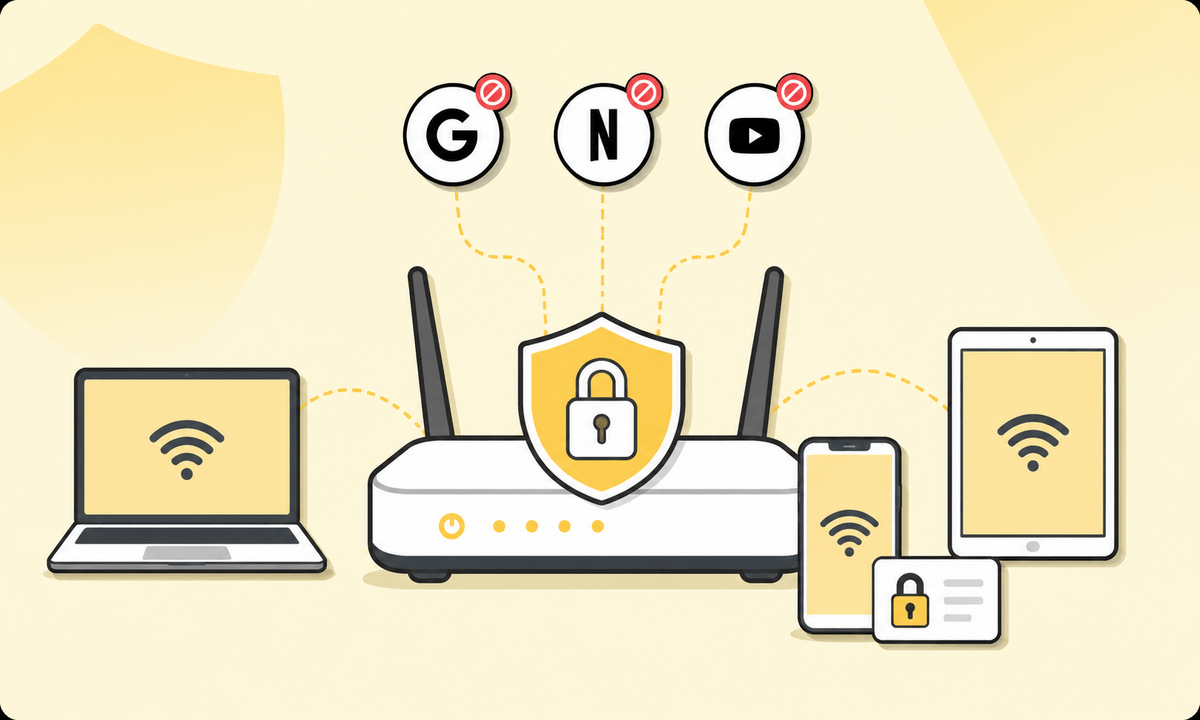
Sync blocking rules across platforms
Blocking breaks down if it only works on one device. Many people block a site on desktop, then pick up their phone as a workaround without thinking about it.
BlockSite supports syncing so the same sites and apps can be restricted across your devices. That helps you build one consistent rule set, which is what behavior change needs.
On Chrome
Chrome is where a lot of distraction lives: tabs, quick searches, and link hopping. If you want how to block a website on Google Chrome, the most direct method is to use the extension so blocks apply inside your everyday browsing flow.
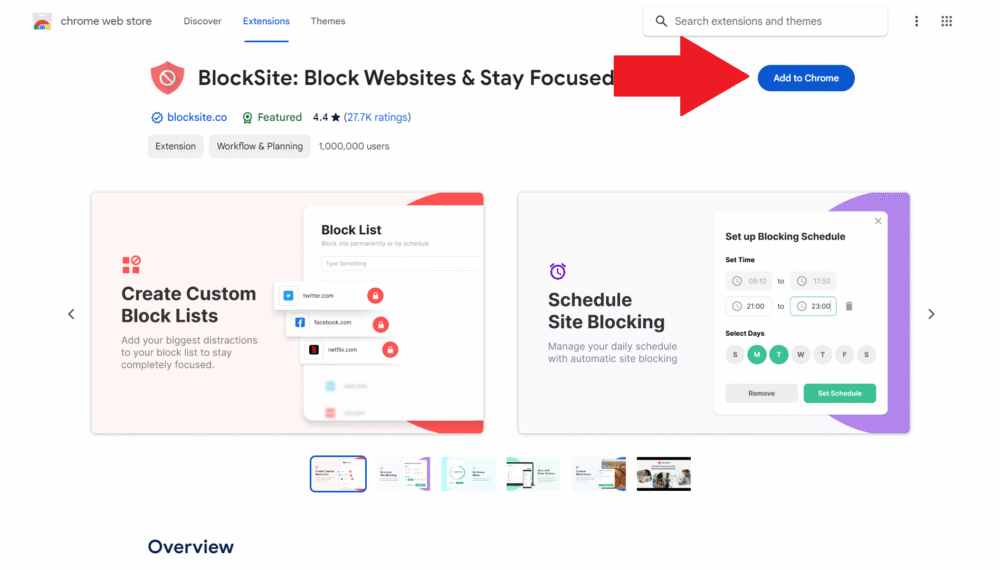
1. Install the BlockSite Chrome extension
Add the website blocker extension to Chrome and pin it to your toolbar. Pinning matters for behavior change because it keeps the control surface visible. When you notice a new distraction site, you can add it immediately instead of telling yourself you will do it later.
A good setup tip: block first, then refine later. It is easier to start strict and loosen a rule than it is to start lenient and slowly tighten it.
2. Add websites to the block list
Open BlockSite and add the sites you want to restrict. Keep your first list short, ideally 5 to 10 sites that reliably derail you.
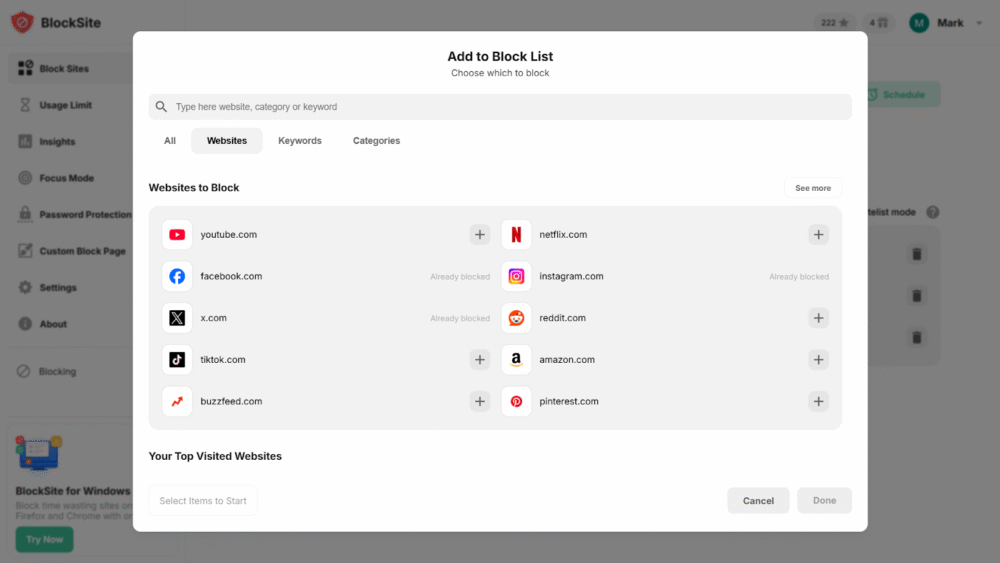
If you are learning how to block certain websites on Chrome, do not overthink it. Start with the top offenders, then review your browsing patterns after a week and adjust.
For broader habits, add categories or keywords instead of chasing individual URLs. That prevents subdomain hopping and similar workarounds.
3. Customize schedules or focus modes
Once the block list is in place, decide how it should behave:
- Schedule mode is best when you need access sometimes, like evenings or weekends.
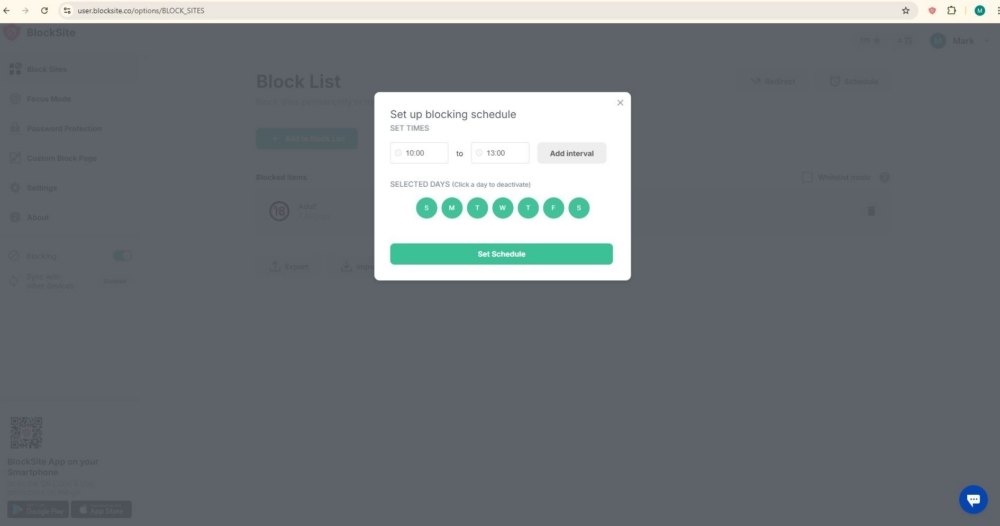
- Focus Mode is best when you want structured work cycles, such as Pomodoro style sessions with breaks.
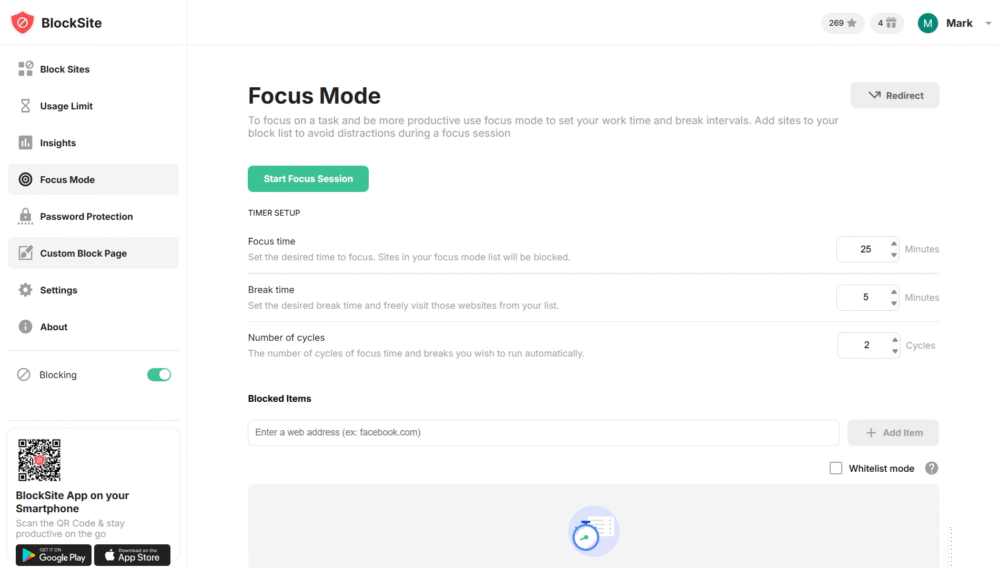
This is where many people fail by being too vague. Pick concrete time windows that match your real day. Example: block distractions 9:00 to 12:00 and 13:30 to 17:30 on weekdays, then allow access after. If you want more flexibility, set a Focus Mode session when you sit down to work.
Scheduling and Focus Mode let you protect productive hours while still leaving room for intentional downtime.
On Android
Phone distractions are different. They are faster, more frequent, and often tied to apps rather than websites. On Android, BlockSite can restrict both websites and apps so you can shut down the whole loop, not just the browser part.
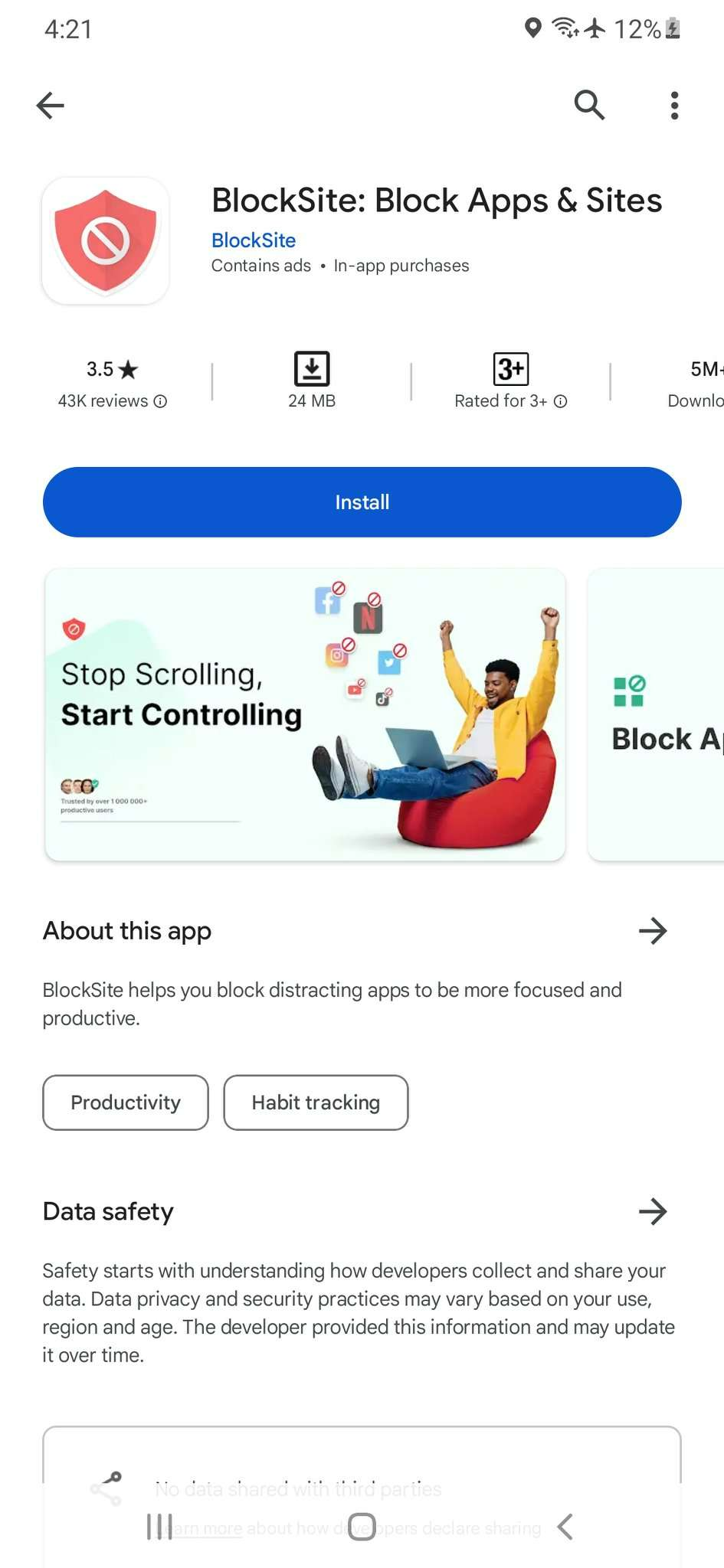
1. Install the BlockSite app
Install BlockSite on your Android device and follow the on-screen steps needed for it to apply blocks reliably. If you skip the permission steps, most blockers become suggestions instead of enforcement.
2. Block websites and apps
Add your distraction sites, then add the apps that trigger the same behavior. Common examples are social media, video, games, and shopping. Blocking both matters because many apps include in-app browsers that bypass a browser-only solution.
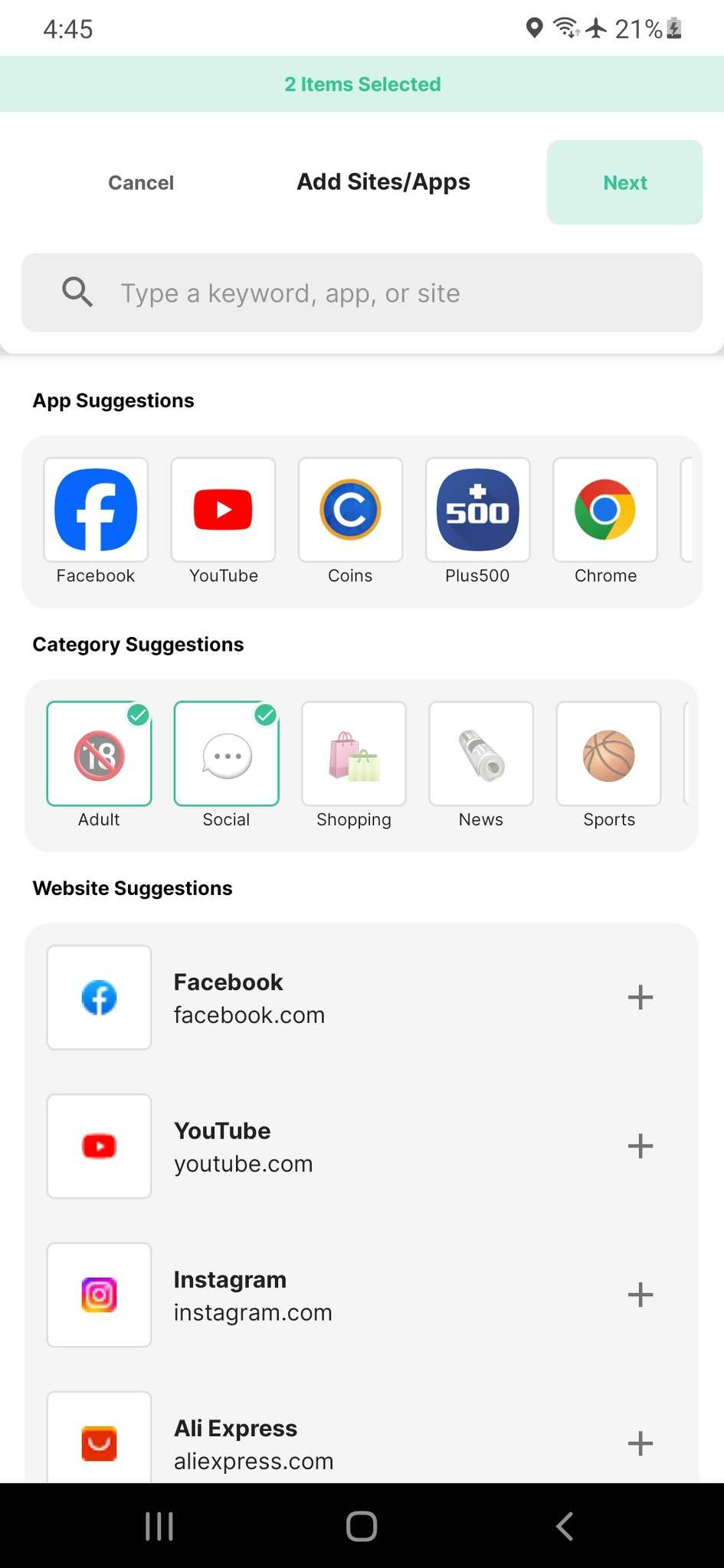
This is the simple way on how to block websites on Android when the habit is phone-first: block the sites, then block the apps that keep reopening them.
3. Enable strict blocking for stronger control
If you often disable blockers in the moment, add a small barrier so it is not effortless to change your settings:
- Use password protection so you cannot edit blocks impulsively.
- Avoid saving the password in the same device if your goal is long term control.
- Use stricter enforcement options when you need a no exceptions block during work, study, or bedtime.
On iPhone
On iPhone, browsing often happens in short bursts: a link from a message, a quick search in Safari, a scroll that turns into 20 minutes. Blocking helps most when it covers both Safari and in-app browsers, because that is where one tap detours happen.
People commonly search how to block a website on iPhone because they want a clean, repeatable method that does not require constant settings tweaks.
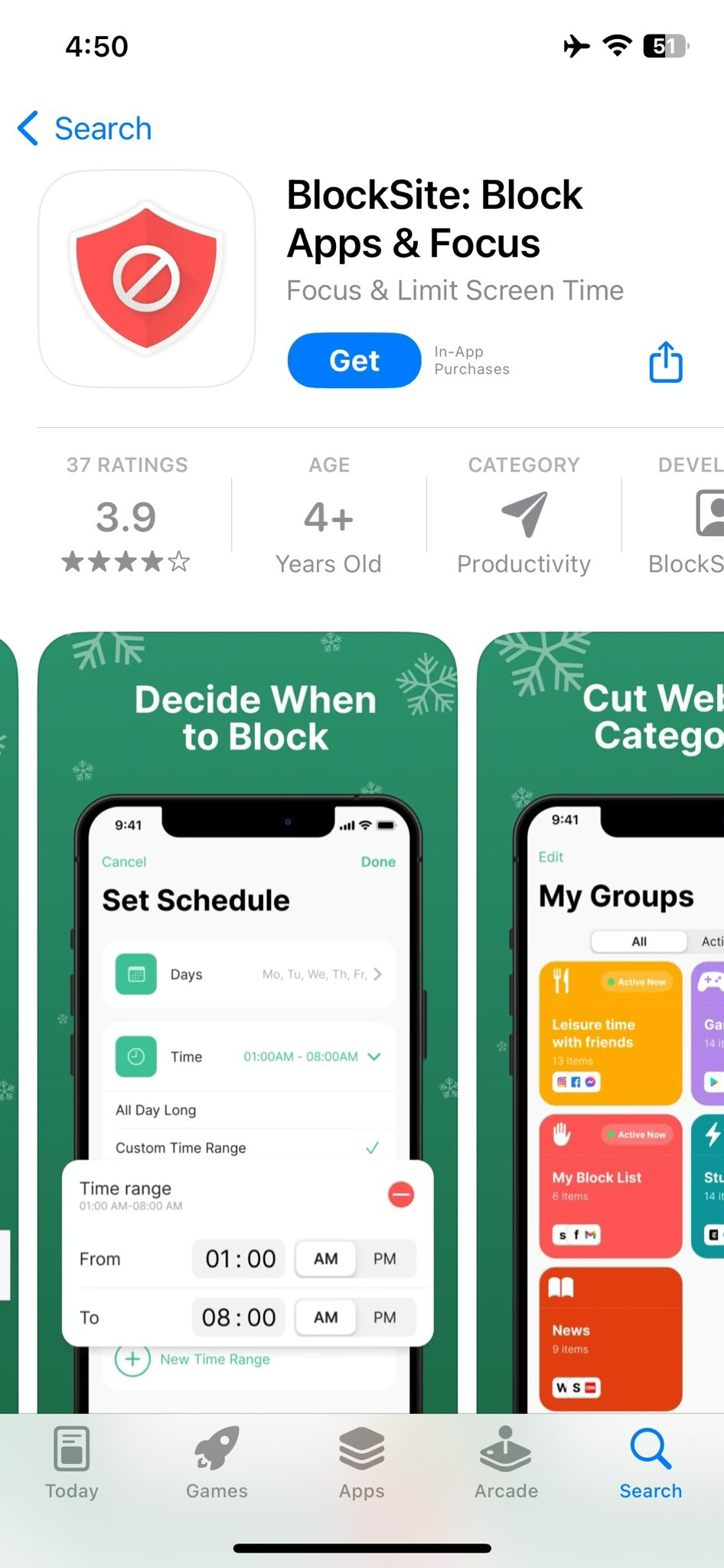
1. Use the BlockSite iOS app
Install BlockSite on iPhone and complete the setup steps so it can enforce the rules you create. Keep your first block list consistent with your desktop list so you do not create an obvious workaround route.
2. Apply Safari and in-app browser blocking
Start with Safari, then consider in-app browsers inside social apps, email, and messaging. If you only block in Safari, links can still open in-app and break your rule.
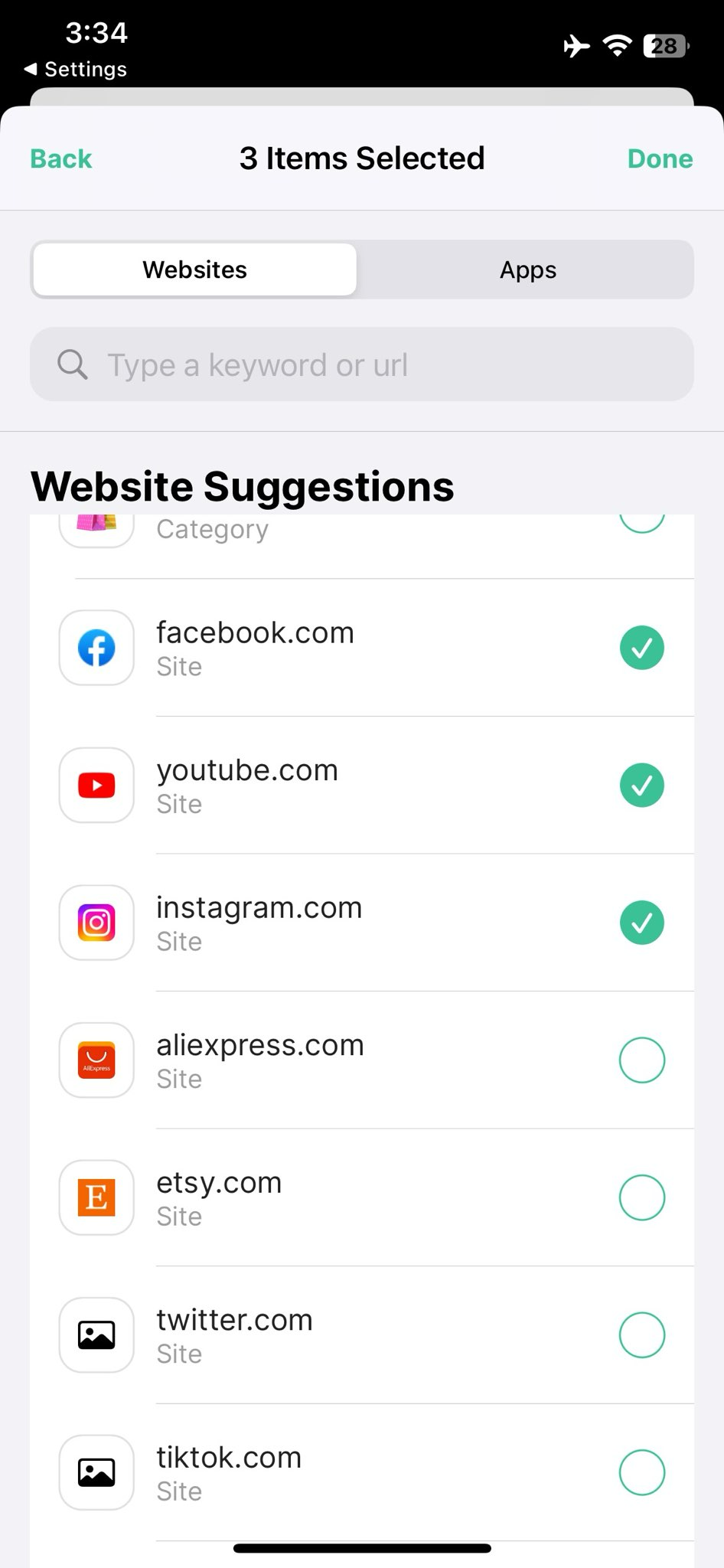
Be sure to block entry points too. If one site always leads you to another, block both so your pattern has no easy detour.
3. Lock settings to prevent changes
Enable password protection so your block list and schedules cannot be changed casually.
How to unblock websites on Chrome?
Unblocking is usually just an edit to your block list. These are the basic steps, and they are the same whether you blocked one site or a long list.
- Open the BlockSite extension in Chrome.
- Find the site in your blocked list.
- Remove it and save, the change applies immediately.
If you are trying to remember how to unblock a website on Chrome, check two things after you remove it: your block list and any schedule or Focus Mode rule that might still be active.
For other browsers and devices, the principle is the same: remove the entry, then confirm no schedule is still restricting it.
Website blocking is easy. Making it stick matters.
With the right tools and habits, website blocking will be effortless for you. Start small by blocking the top distractions first, then expand after a week. Use schedules so you are not fighting your own rules during downtime, and pair blocks with a replacement, like a saved reading list or a short walk. And don’t forget to review weekly. If you keep searching for blocked sites, adjust your schedule.
If you want one setup across all your devices, BlockSite can sync your blocking rules on desktop and mobile so your limits stay consistent when you switch screens.
FAQ
How to block a website on your computer?
If you use Chrome, start with the BlockSite extension, add the site to your block list, then decide whether it should be always-on or scheduled.
How to block a website on Chrome mobile?
Use BlockSite on your phone and add the same sites you blocked on desktop. That prevents your habit from shifting to mobile browsing.
How to permanently block a website?
Add the site to your block list without a schedule, then enable password protection so it is harder to reverse on impulse.
How to block a website forever?
Use an always-on block, turn on password protection, and keep the password separate from the device.
How do I remove a block?
Remove it from your block list and save. If a schedule or Focus Mode session is still active, adjust that rule as well.


 Take back your focus