





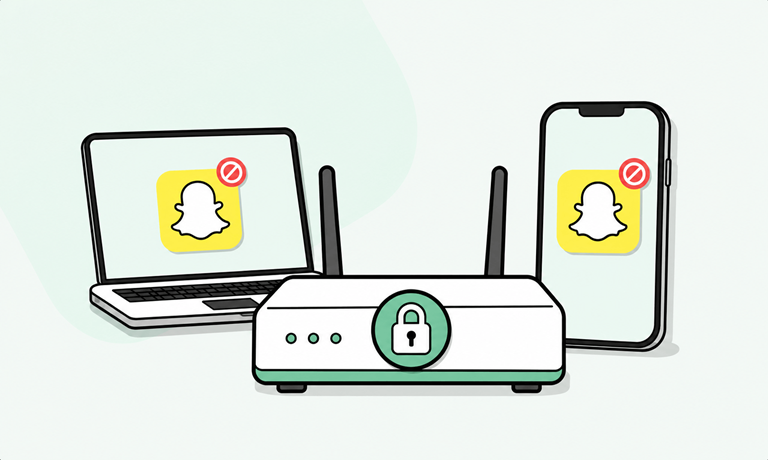
If you want to limit or block Snapchat, the main options are built-in phone controls, browser or computer restrictions, router-level blocking for the whole network, or a dedicated blocker that can cover both the app and the website. That question has become more common as Snapchat keeps growing. In Q4 2025, Snap reported 946 million monthly active users and 474 million daily active users worldwide.
People usually look for a solution for one of two reasons. They want fewer interruptions so they can study or work, or they want tighter parental controls for a child or teen. So what are the best options available? Below, we’ll cover the main ways to block Snapchat on iPhone, Android, computers, and even across your home WiFi.
What is Snapchat?
Snapchat is a multimedia messaging app built around quick photo and video messages called Snaps, public or semi-public Stories, and streak mechanics that reward daily back-and-forth sharing. Snap itself says Snaps and Stories remain central to the experience. A streak starts when users send photo or video Snaps back and forth every day.
That design helps explain why people keep coming back. The app is built for short, repeated check-ins, not long deliberate sessions. Messages, alerts, streak pressure, and visual content create a habit pattern that can easily spill into school time, work hours, late-night phone use, or family time.
Why do people want to block Snapchat?
Addiction and time consumption
Snapchat is easy to open without thinking. A single notification can turn into chats, Stories, streak maintenance, and more scrolling than intended. The app’s daily-use design encourages repeat checking, which is exactly why some people choose to block it instead of relying on self-control alone.
Safety concerns
For parents, the issue is not limited to screen time, but also exposure. Depending on how a child uses the app, there can be concerns around strangers, pressure to share, disappearing content, and easier access to material a parent would rather supervise more closely.
Productivity and focus issues
Snapchat rarely takes over the whole day at once. More often, it chops the day into smaller distracted moments. That hurts sustained attention. For students and professionals, blocking the app during work blocks, classes, or bedtime is often more useful than waiting until the habit gets worse.
Impact of using Snapchat excessively
Mental health and screen time
Heavy social app use can leave people feeling mentally crowded, especially when they are checking messages and Stories all day. That does not mean Snapchat alone causes every problem, but high-frequency social media use can make it harder to stay mentally settled and present.
Sleep disruption
Late-night app use is one of the biggest reasons people try to block social apps. Messages, streak pressure, and bedtime checking can push sleep later. Once that becomes routine, the next day usually starts with lower energy and worse attention. Apple and Google both frame their built-in tools partly around setting time limits and healthier digital habits.
Reduced productivity
The cost is usually cumulative. A few minutes here, a few minutes there, then a work session takes twice as long as it should. Blocking access during high-value hours can cut that pattern before it starts.
Benefits of blocking Snapchat
1. Better focus
Removing quick access to Snapchat reduces the urge to check it during work, study, or family time. When the app and website are both blocked, there are fewer ways to slip back into the habit.
2. Digital wellbeing
Blocking does not have to mean quitting social media forever. Sometimes it just means putting Snapchat behind a rule so you choose when to use it instead of reacting to it all day.
3. Parental control and safety
For parents, blocking is often less about punishment and more about structure. It helps set age-appropriate limits, reduce unsupervised access, and stop repeated re-entry through browsers or shared home devices.
These are very much similar to the benefits of taking breaks from social media. Shorter breaks from apps like Snapchat can help with attention, sleep timing, and overall phone use. Even a scheduled block during homework, bedtime, or office hours can make the day feel less fragmented.
How to block Snapchat on iPhone
Method 1: Using Screen Time
Apple’s built-in controls do not give the cleanest full-app ban for every third-party app, but they do let you restrict use and block the website version. A recommended built-in setup is to use App Limits for Snapchat and then block snapchat.com under web content controls.
These are the steps:
- Open Settings.
- Tap Screen Time.
- Turn on Screen Time and set a passcode if you have not already.
- Tap App Limits.
- Tap Add Limit.
- Open the relevant category, find Snapchat, and select it.
- Set the lowest limit that fits your purpose, then save it.
- Go back to Screen Time.
- Open Content & Privacy Restrictions.
- Tap App Store, Media, Web & Games.
- Tap Web Content.
- Choose the option that lets you restrict websites, then add snapchat.com to the blocked list.
This method is decent for parents and for people who want a built-in option, but it is still more of a restriction setup than a dedicated blocking system.
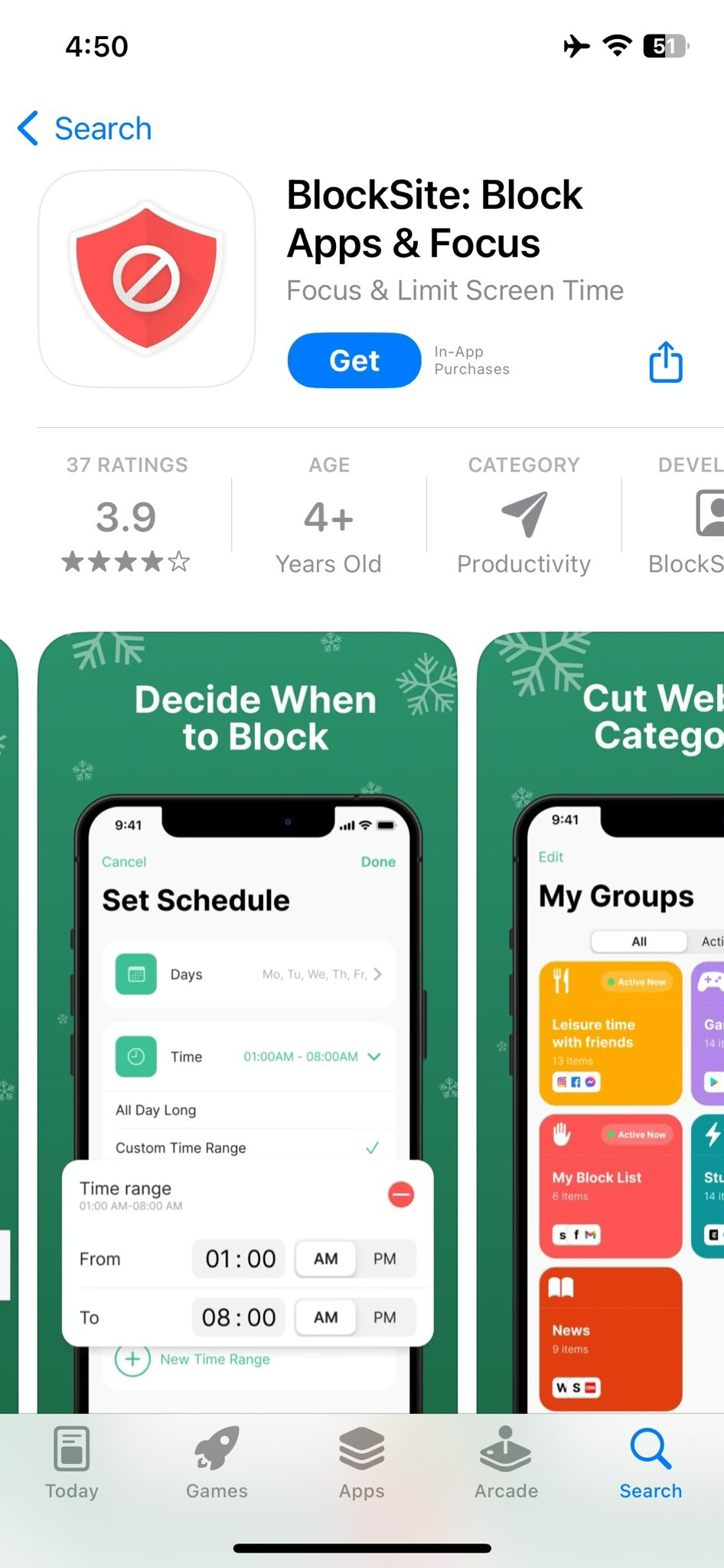
Method 2: Using BlockSite
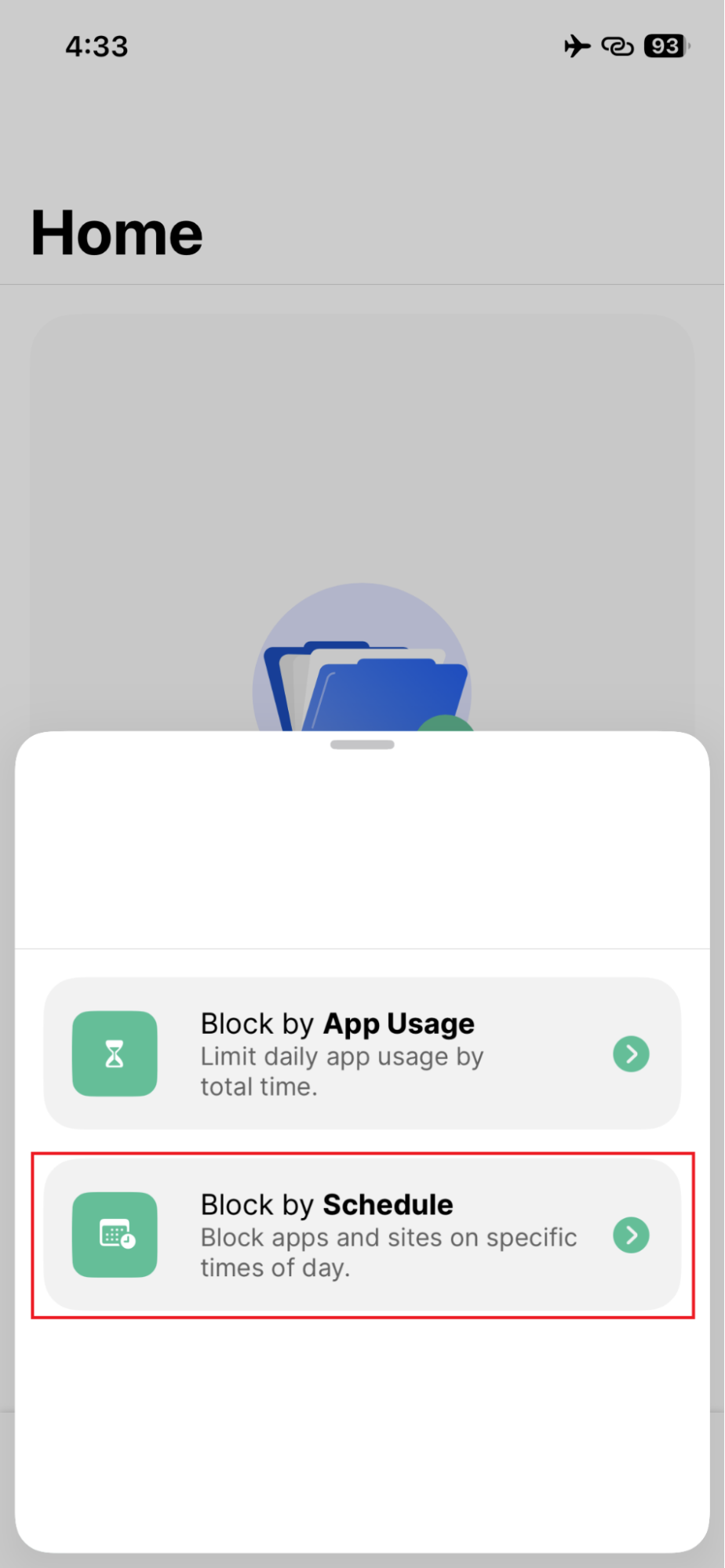
BlockSite gives you more control because it can cover both the Snapchat app and the Snapchat website, and it also supports timed restrictions.
Here’s how to do it:
- Install the BlockSite app on your iPhone.

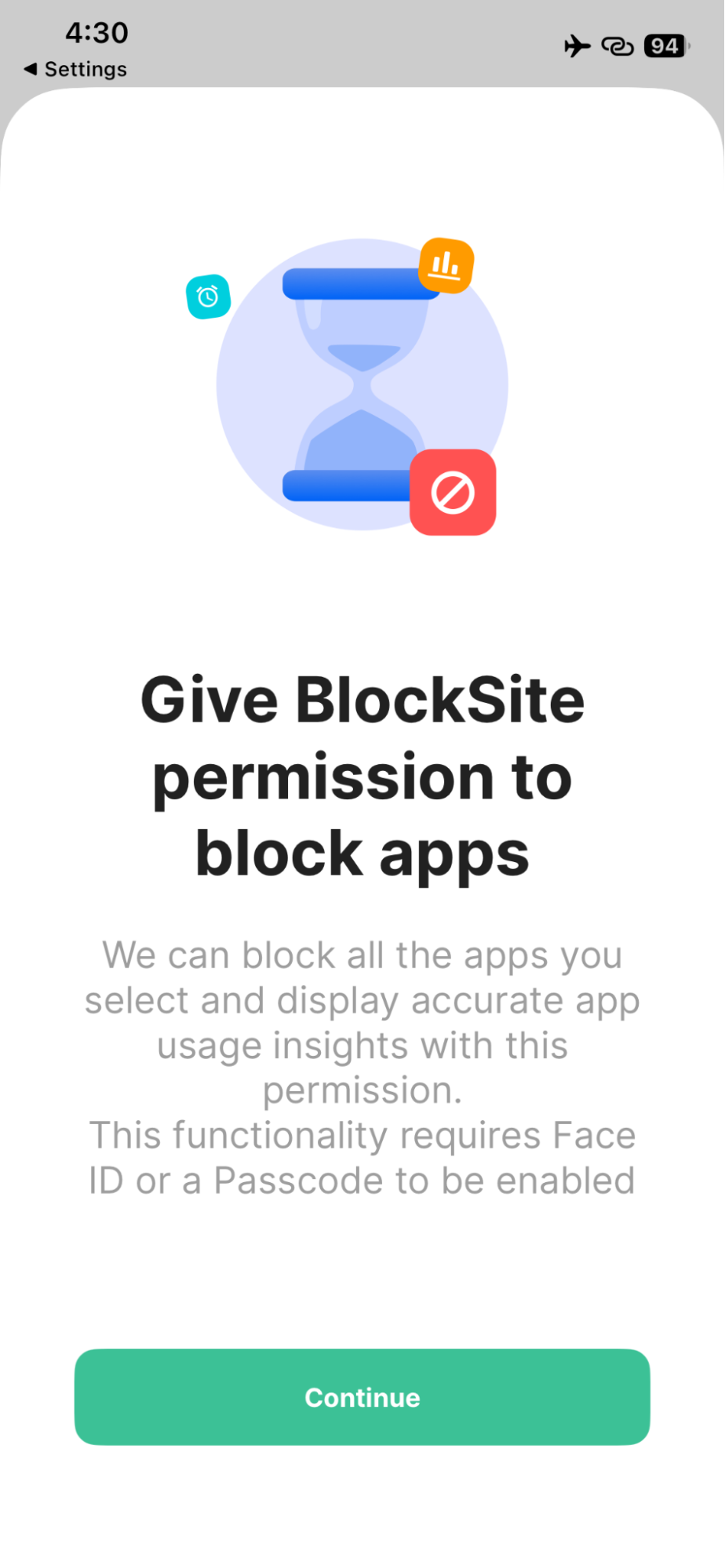
- Allow the permissions it asks for so it can enforce blocking rules.
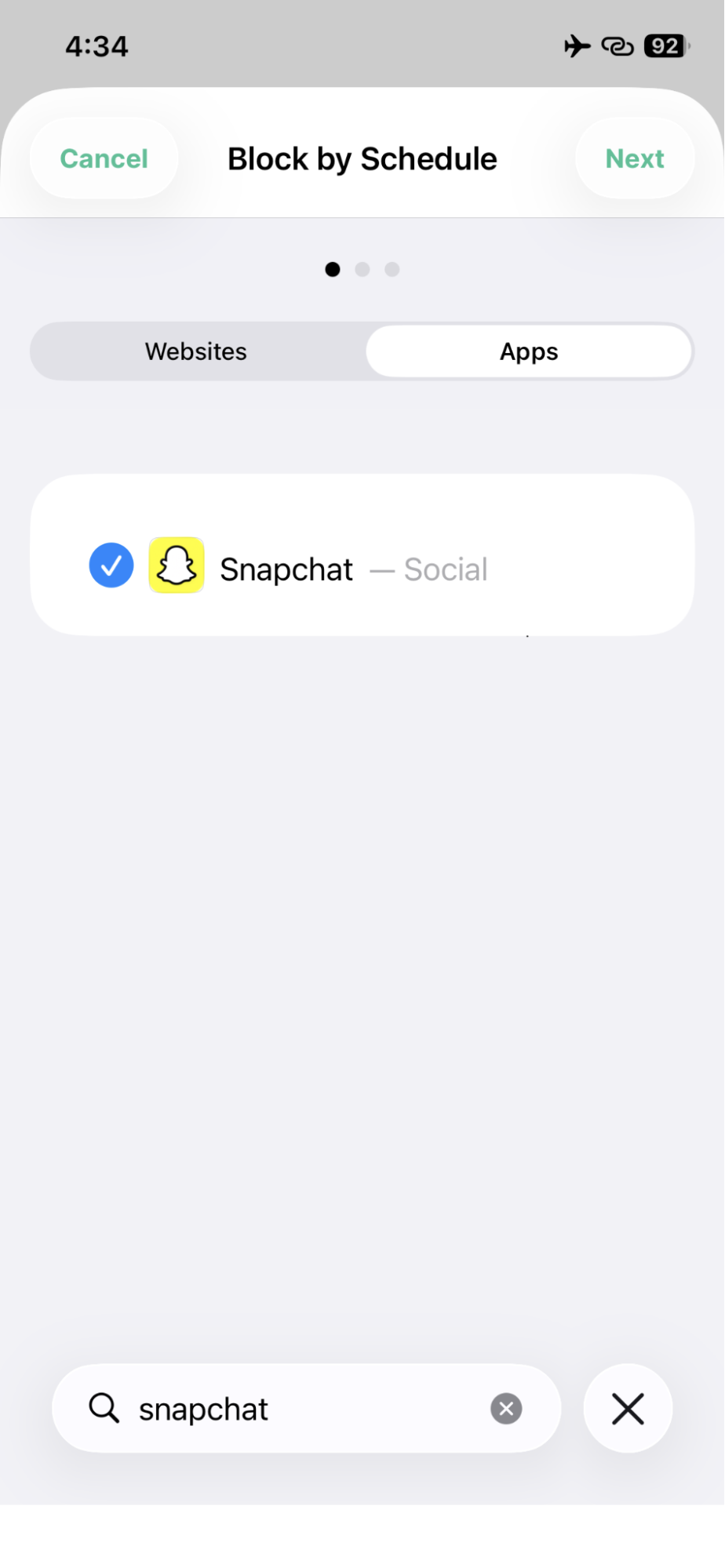
- Create or open your block list. You have the option to Block by App Usage or Block by Schedule. Choose the latter so you can block both the app and site.
- Add Snapchat as an app to block.
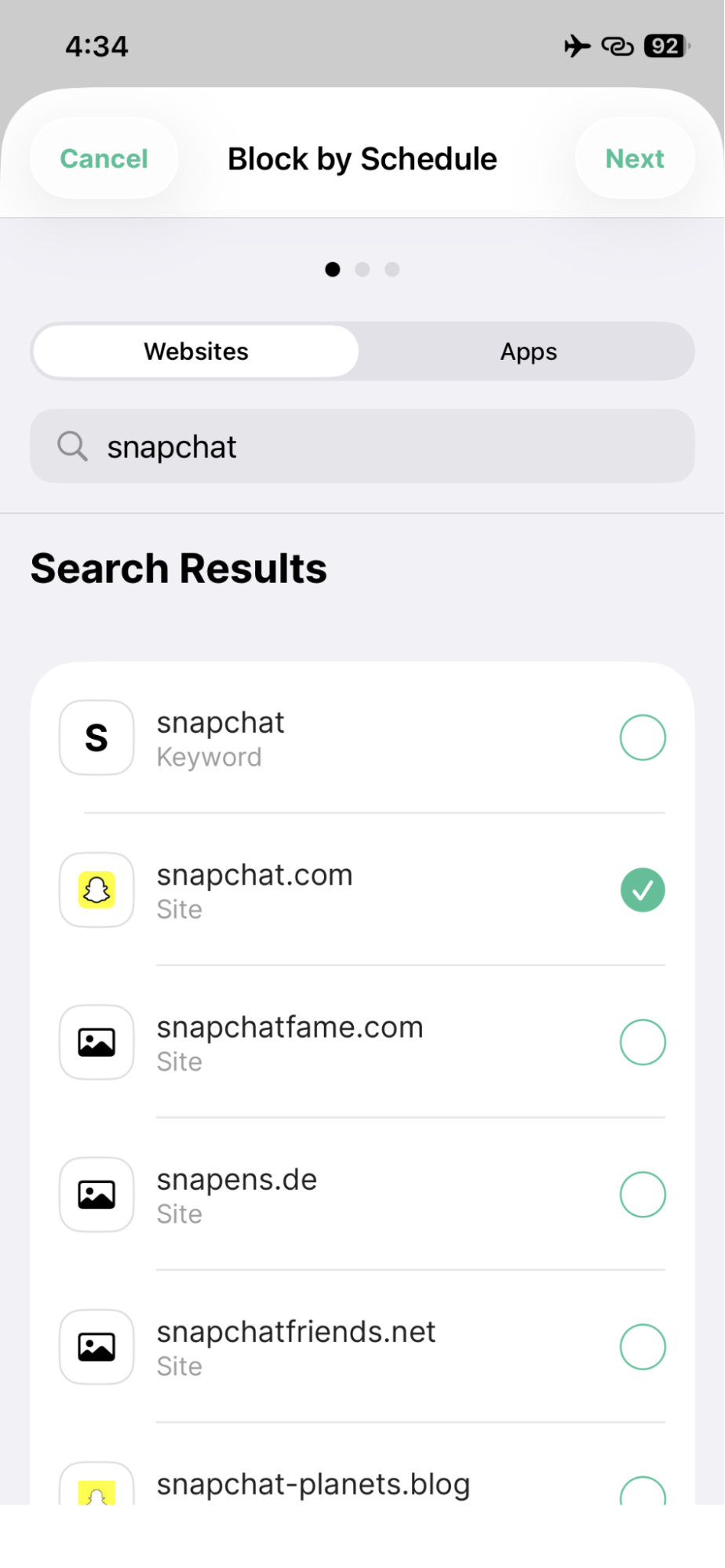
- Add snapchat.com so the browser version is covered too.
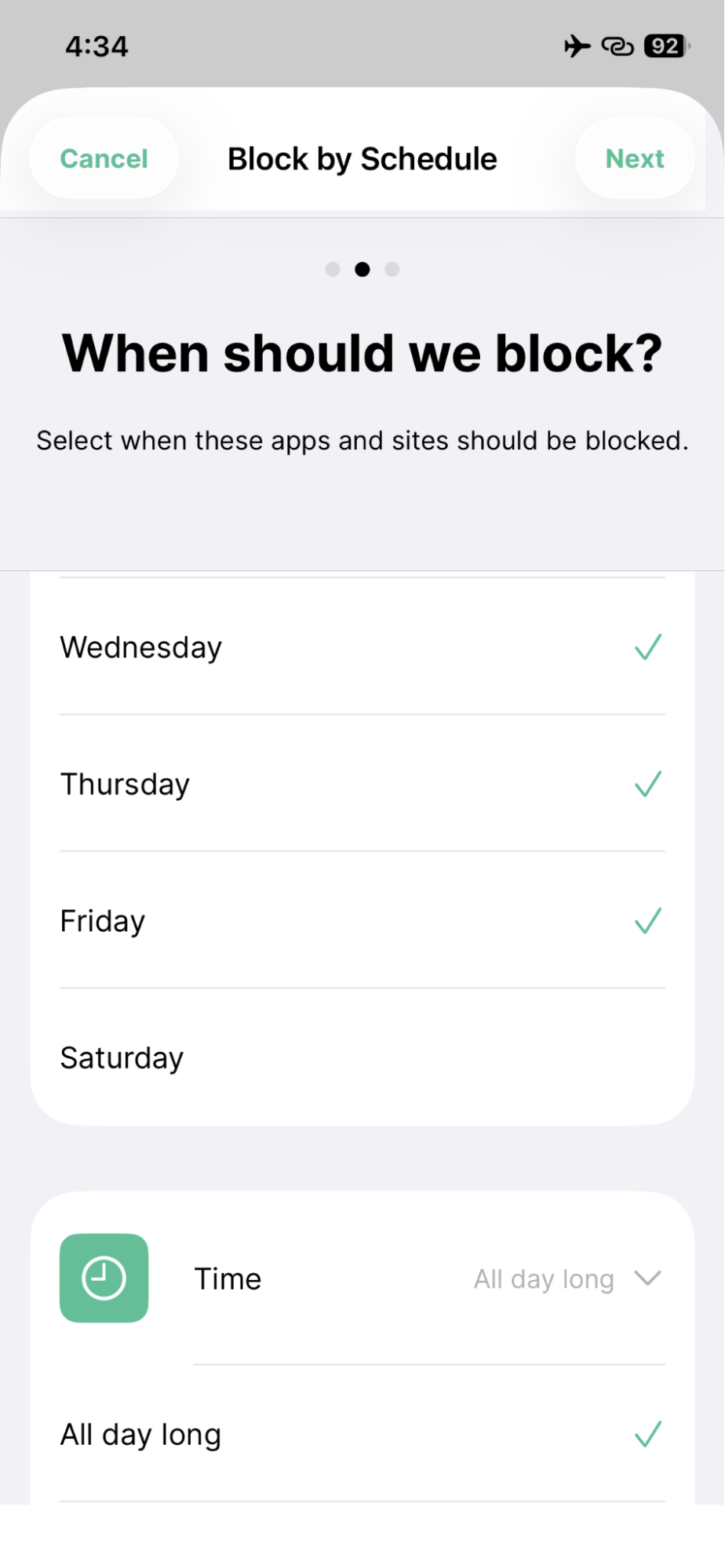
- Turn the block on all day, or attach it to a schedule if you only want it blocked during certain hours.
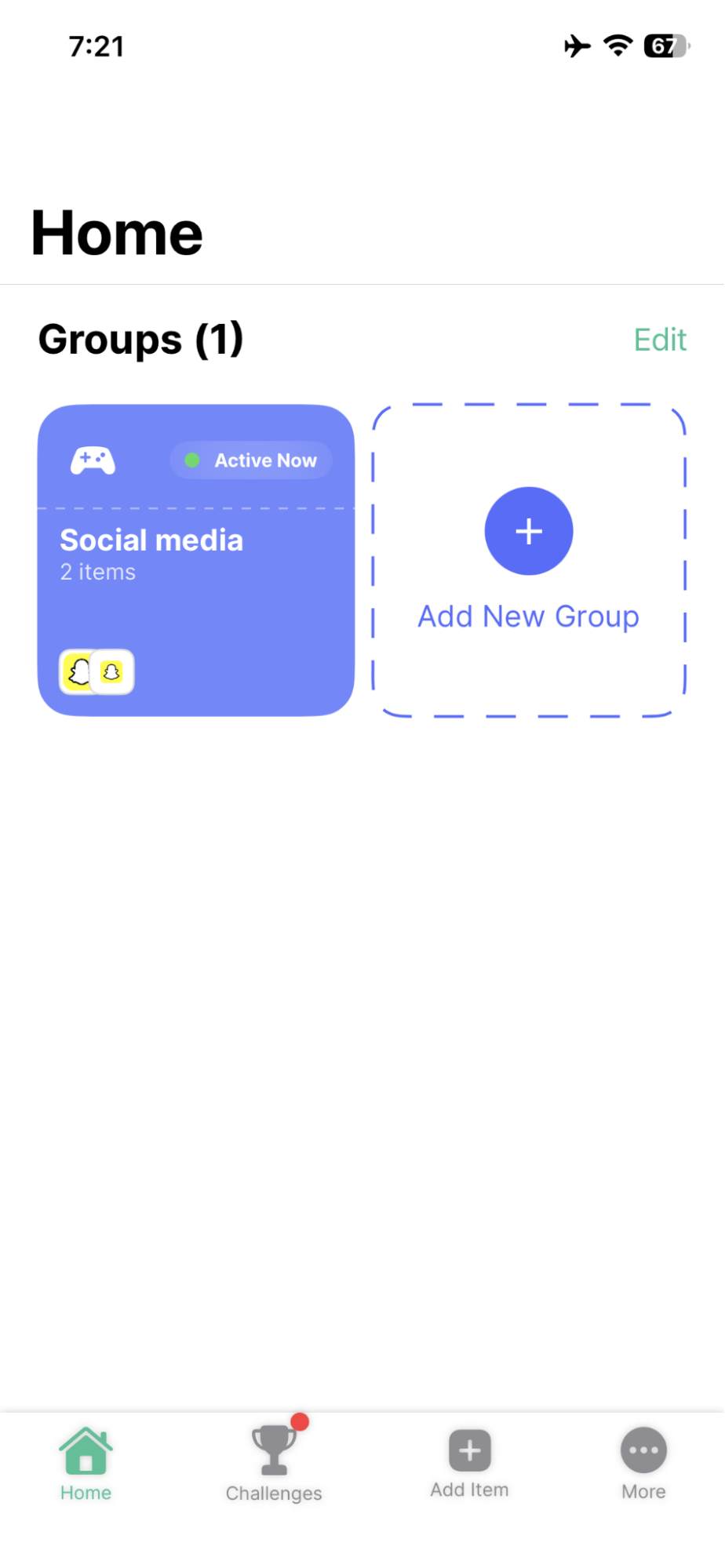
- Confirm that the Snapchat app and website were both added to the group and that the block is now in effect.
How to block Snapchat on Android
Method 1: Digital Wellbeing or parental controls
Android offers a stronger built-in time-limit workflow. Google says you can open Digital Wellbeing & parental controls, turn on a PIN for app time limits, and set app limits on the device. Family Link can also be used to manage apps, websites, and time rules for a child.
These are the general steps:
- Open Settings.
- Tap Digital Wellbeing & parental controls.
- Open App limits.
- Turn on a PIN for app time limits if prompted.
- Select Snapchat.
- Set the limit you want.
- For a child’s device, use parental controls or Family Link to make the rule harder to bypass.
This is a good starting point, especially if you want built-in controls and do not need extra features.
Method 2: Using BlockSite
BlockSite for Android not only comes with app and website blocking, but also other features such as scheduled blocking, Focus mode, insights, device sync, password protection, and even uninstall prevention. That makes it more flexible than a basic timer if your aim is stricter control.
Steps:
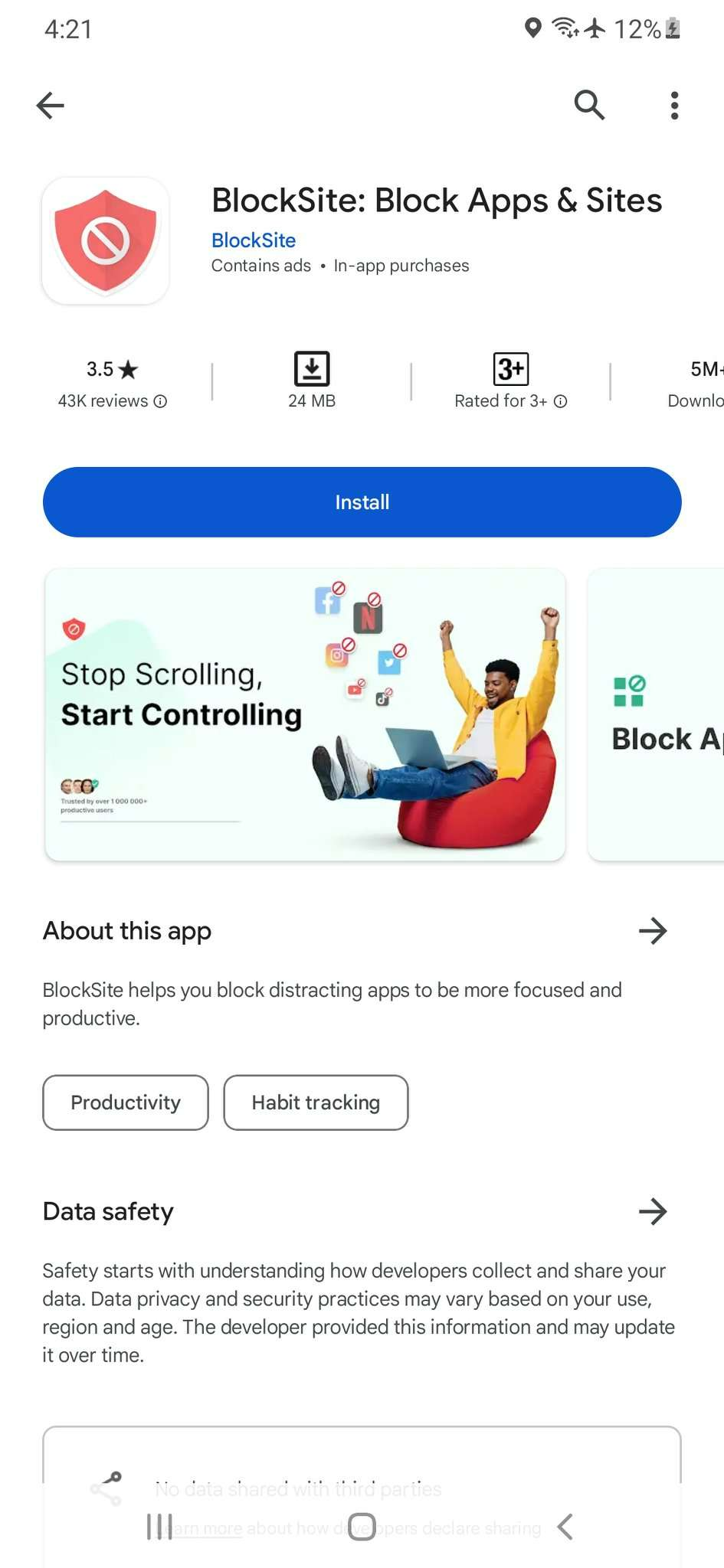
- Install BlockSite on Android.
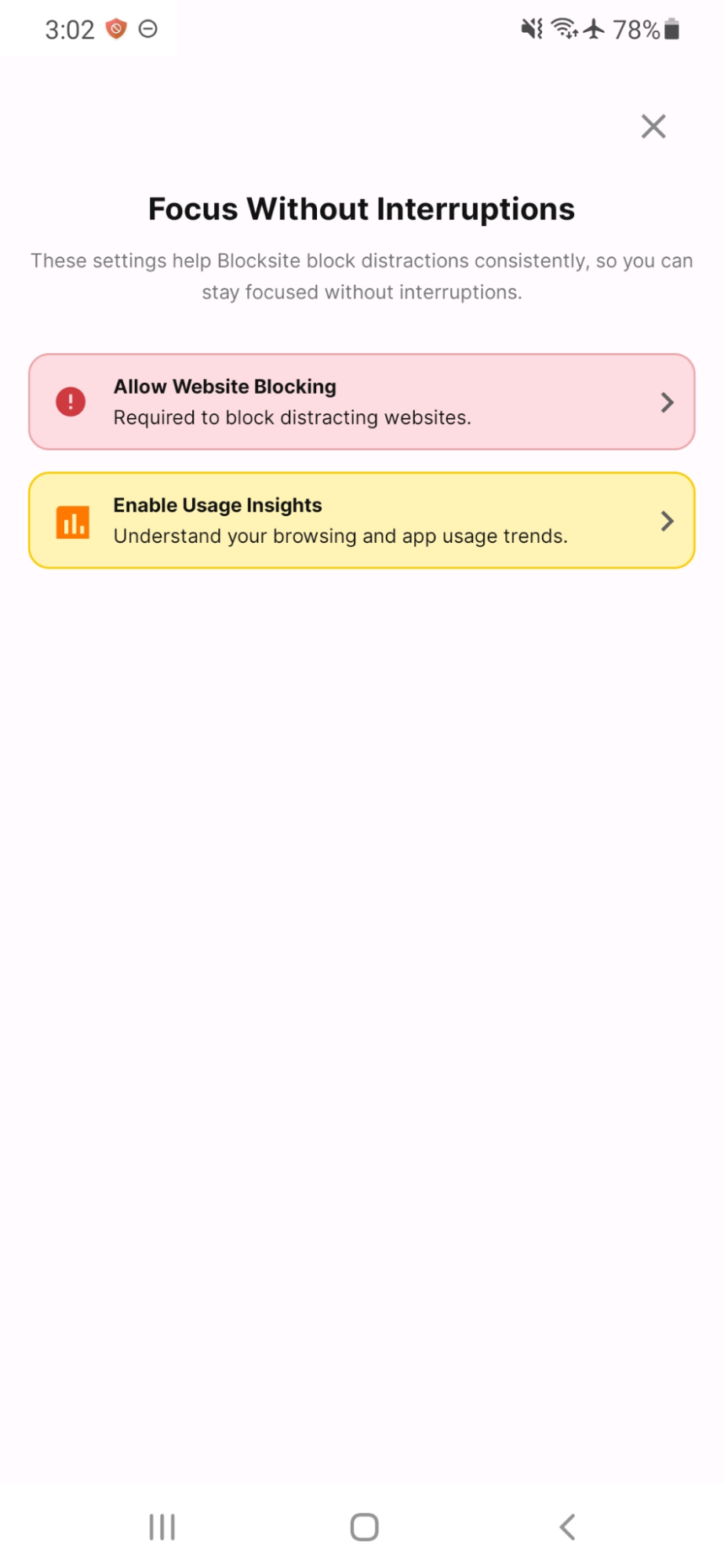
- Grant the required permissions.
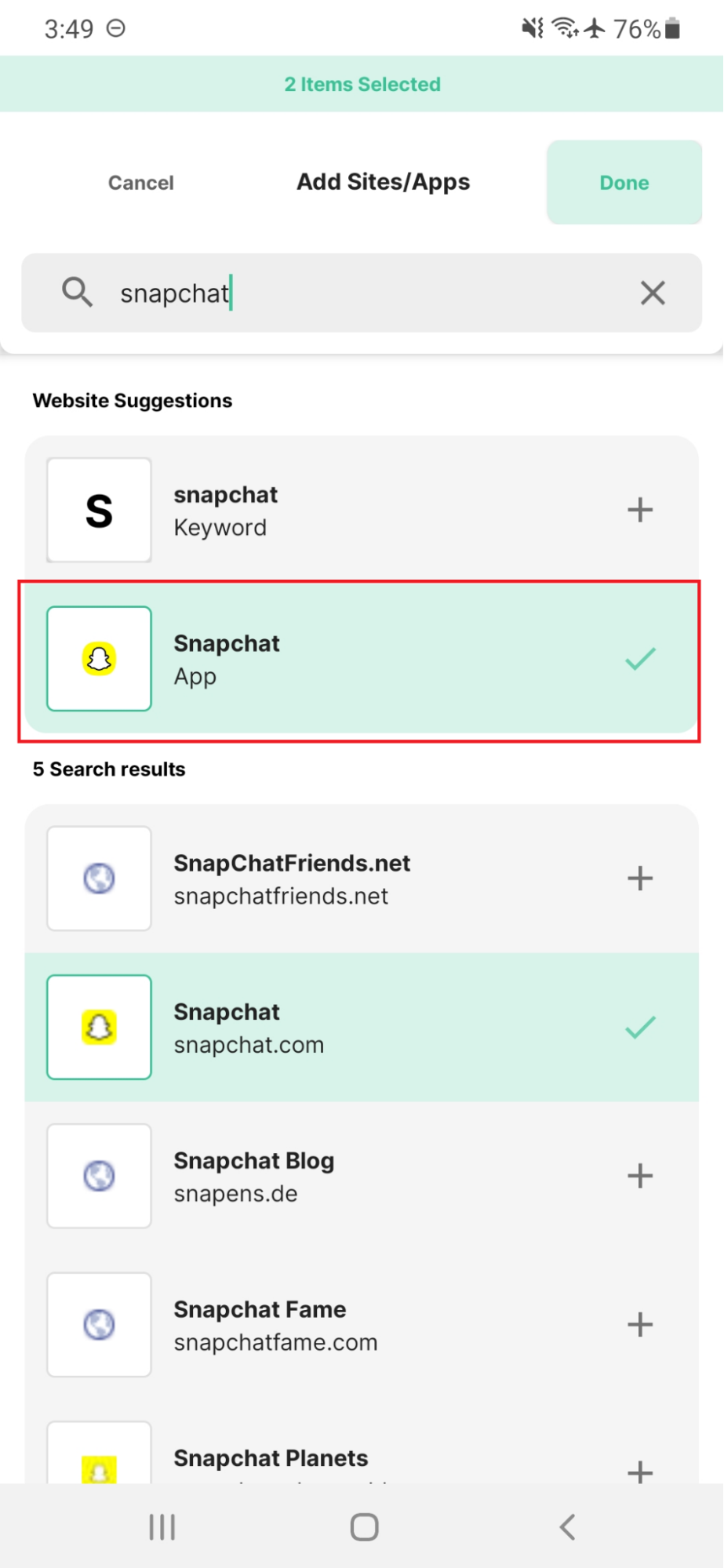
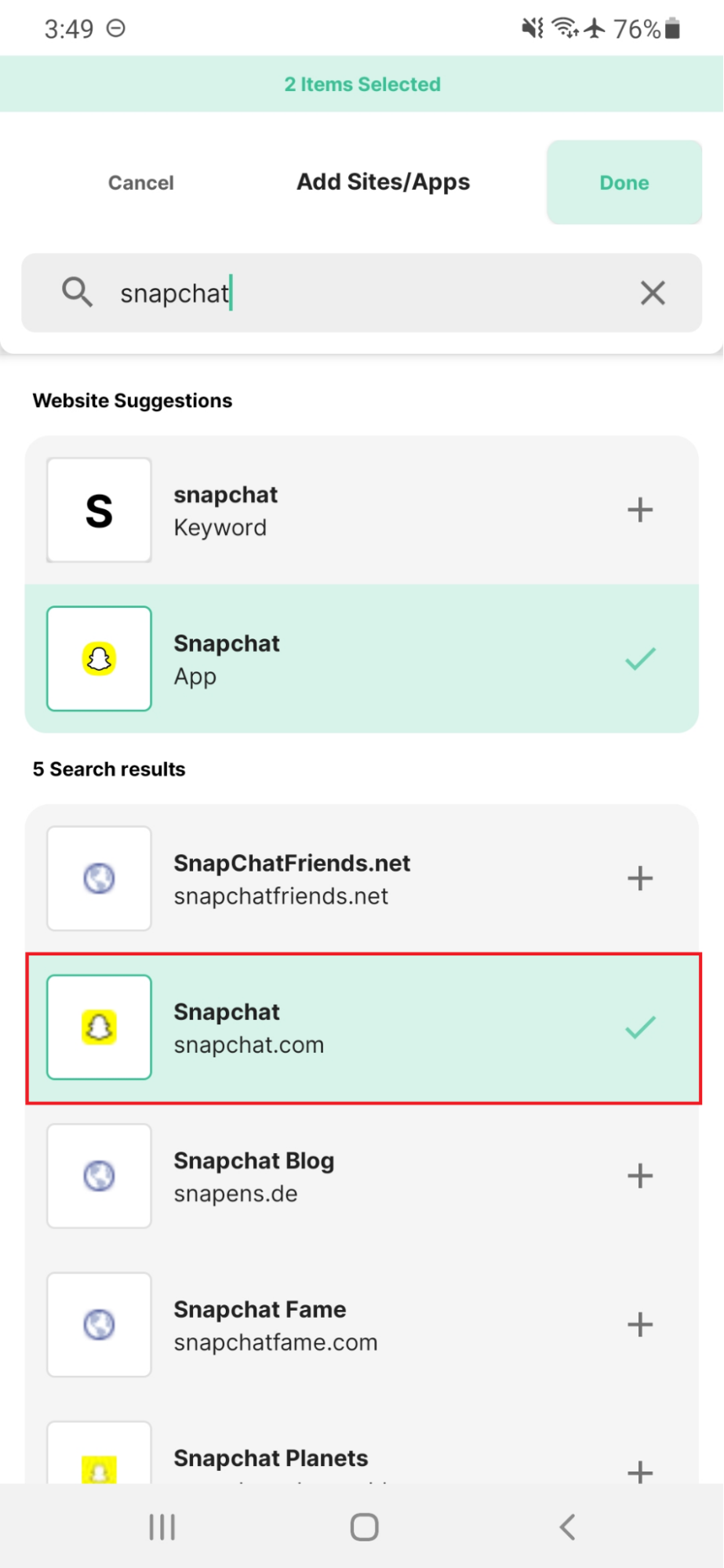
- Add Snapchat to your blocked apps.
- Add snapchat.com to the blocked websites list.
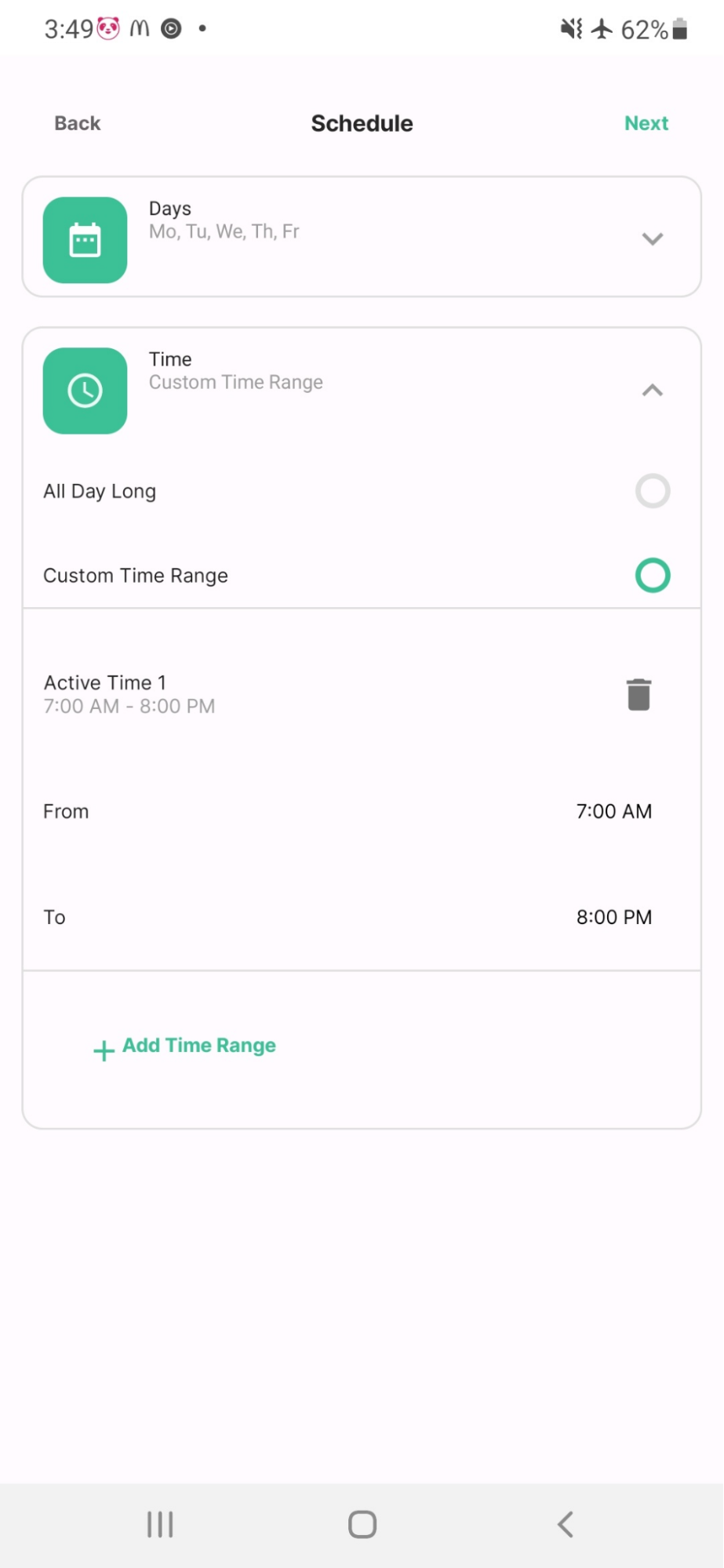
- Choose when the block should run. You can apply it on selected days, during certain hours, or across a custom time window.
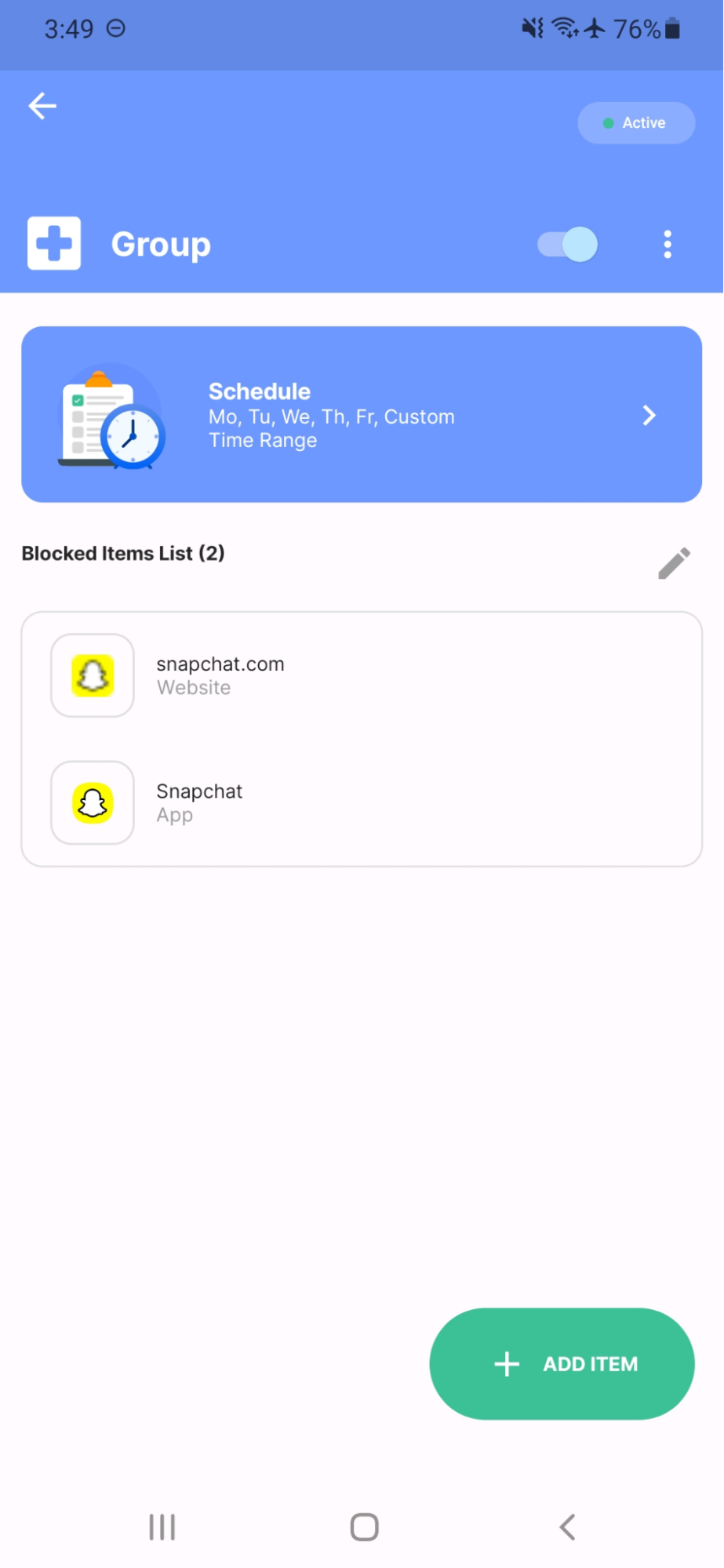
- Review the blocked group to make sure Snapchat is included and the rule is active.
How to block Snapchat on a computer
Method 1: Browser extensions or system settings
If your main concern is browser access, a browser blocker is the fastest route. If you want wider computer-level control, you can also use system settings on Mac or the hosts file on Windows..
Here are the basic steps:
- Decide whether you want browser-only blocking or device-level blocking.
- For Chrome or Edge, install a blocking extension and add snapchat.com.
- On Mac, you can use Screen Time web content restrictions.
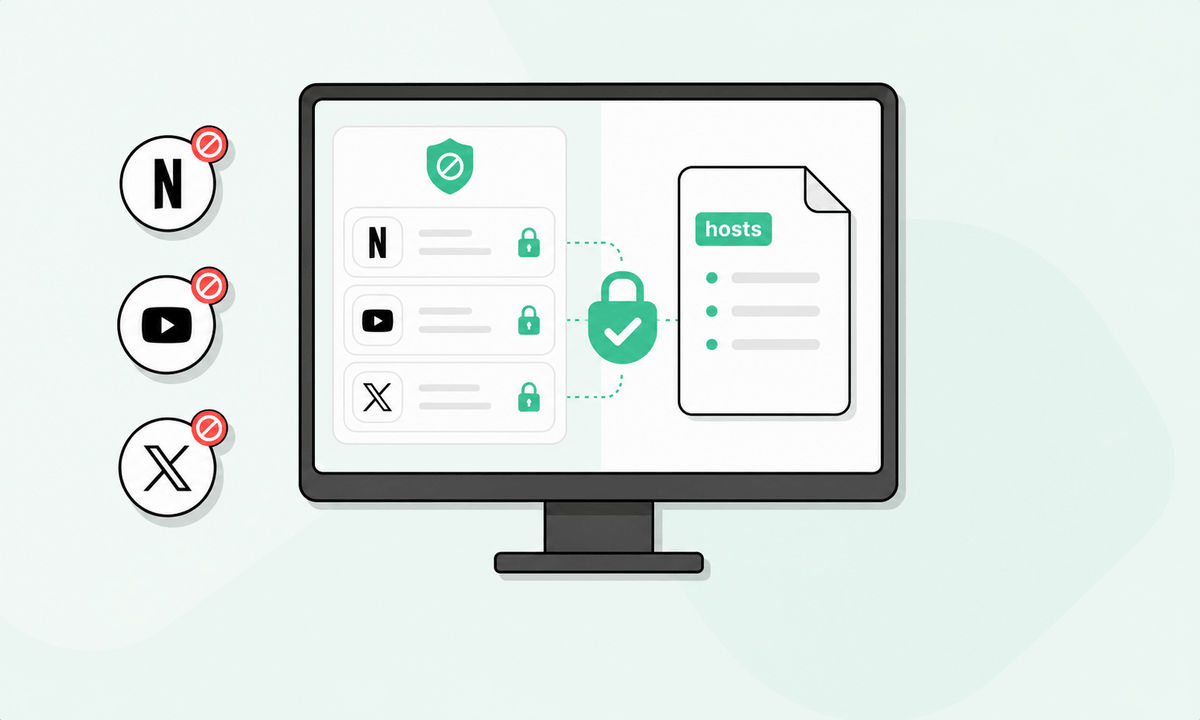
- On Windows, you can block sites across browsers by editing the hosts file.
Method 2: Using BlockSite
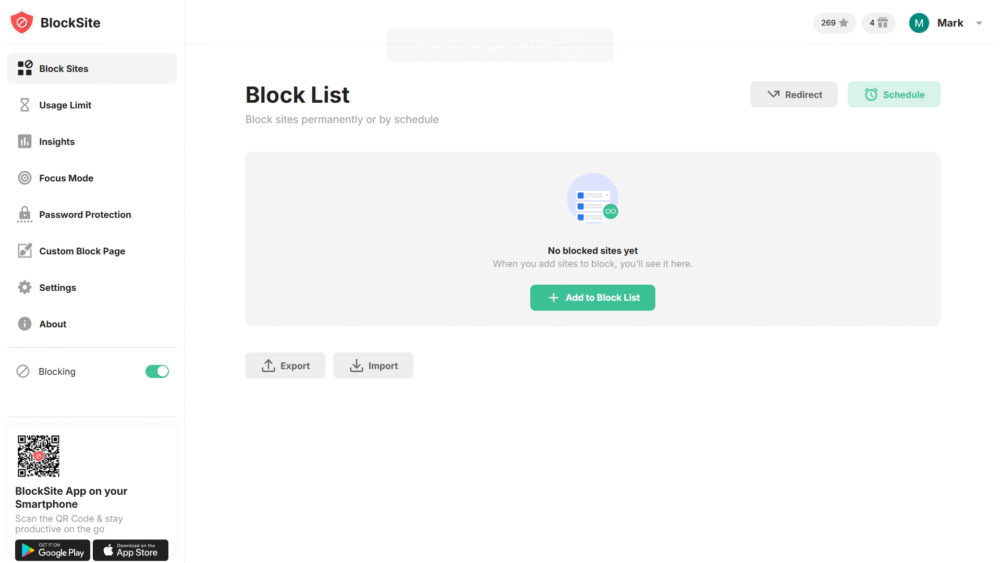
BlockSite’s browser extension is the easier option for most people because it does not require editing system files.
This is all you need to do:
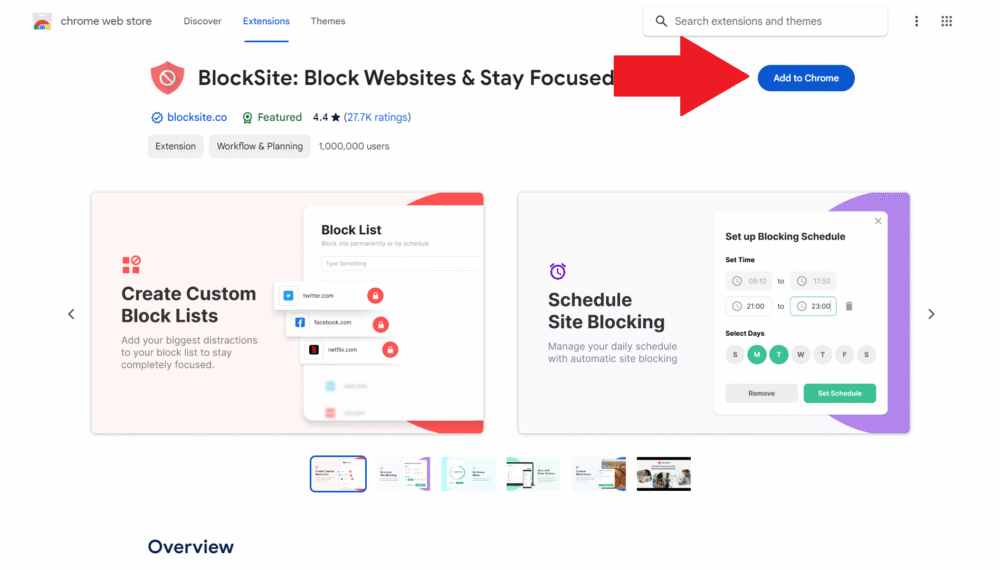
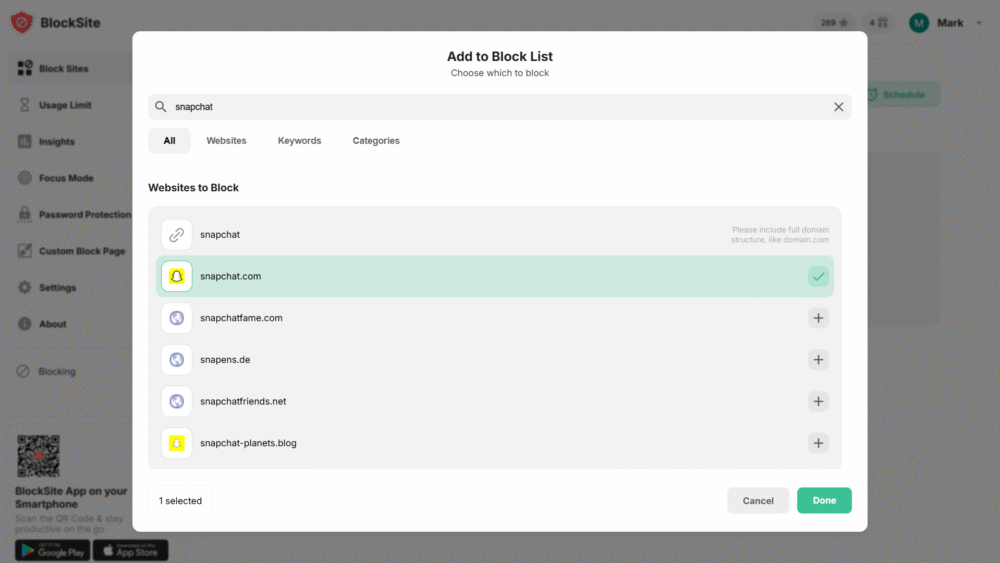
- Install the BlockSite browser extension.
- Open the extension dashboard.
- Add snapchat.com to the block list.
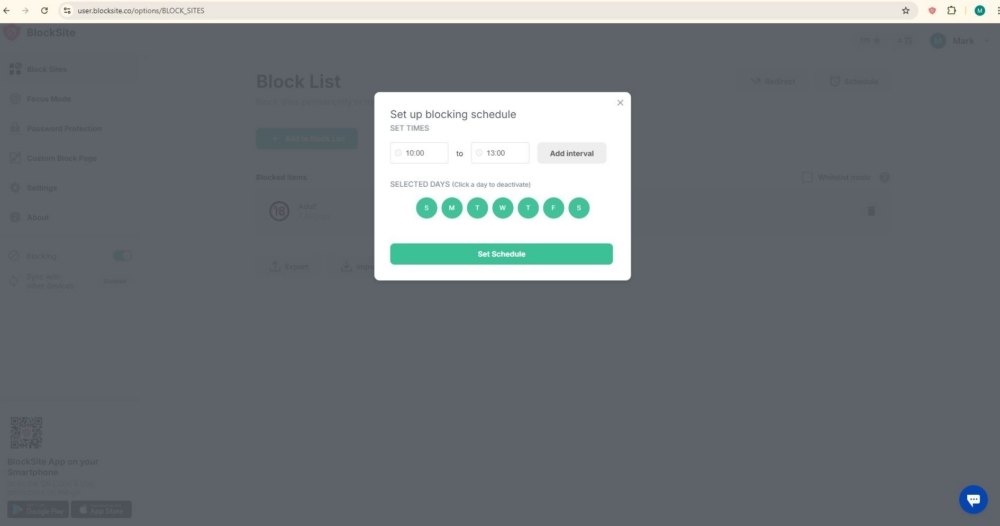
- Set it to block all day or only during chosen hours.
How to block Snapchat on WiFi or router
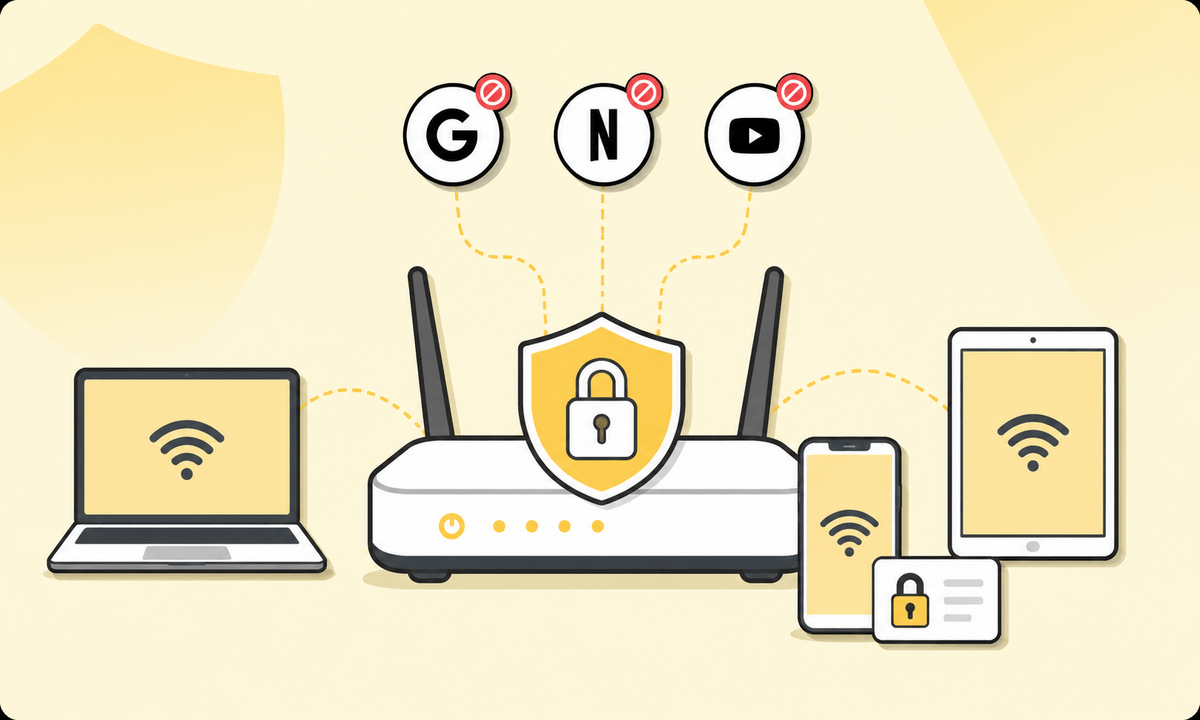
Router-level blocking is useful when you want the rule to apply across the home network, not just on one device. This will greatly depend on the router brand and model that you are using. NETGEAR’s router help shows a Block Sites workflow in the router interface, while TP-Link’s parental control guides show a similar flow through the router admin console.
These are the typical steps:
- Sign in to your router’s admin page or companion app.
- Find Parental Controls, Content Filtering, Access Control, or Block Sites.
- Add snapchat.com as a blocked domain or website.
- Apply the rule to the chosen device profile or to the whole network, depending on your router.
- Save the settings.
- Restart the router if the rule does not apply right away.
This method affects all devices using that WiFi rule set, which is useful for households but less useful if you only want to restrict one person’s phone.
Benefits of blocking Snapchat with BlockSite
Scheduling
The big advantage over many built-in controls is timing. BlockSite supports scheduled blocking, so Snapchat can be unavailable during work hours, classes, bedtime, or any recurring slot you choose.
Cross-device blocking
One of the strongest reasons people use a dedicated blocker is that they want the rule to follow them. BlockSite’s block list can sync across different phones and computers, which is useful when you want to block apps on Android and iOS while also covering websites on desktop.
Productivity focus
BlockSite is built around distraction reduction and not just parental restriction. The focus mode, scheduled blocking, insights, and blocked lists are designed to cut app and website interruptions during study or work.
Choose the level of control that fits your situation
When blocking Snapchat, don’t think about it as a punishment but rather as setting limits that match the reason you are doing it. If you are a parent, built-in parental controls or router rules may be enough. But if you want tighter day-to-day control for work, study, or bedtime, a dedicated blocker like BlockSite is easier to manage because it can cover the app, the website, and your schedule in one place.
FAQ
Can you block Snapchat without deleting the app?
Yes. That is the whole point of tools like Screen Time, Digital Wellbeing, router controls, and BlockSite. They restrict access without removing your account or erasing the app itself.
How do you block Snapchat on an iPhone using Screen Time?
Open Settings, go to Screen Time, add an App Limit for Snapchat, then block snapchat.com under web content restrictions. This setup limits both the app and the browser route, which is stronger than limiting only one of them.
Is it possible to block Snapchat on Android without third-party apps?
Yes, to a point. Android’s Digital Wellbeing lets you set app limits, and parental controls can add more structure, but a third-party blocker usually gives you more control over schedules and browser access too.
Can you block Snapchat on all devices connected to the same WiFi?
Yes, if your router supports site blocking, access control, or parental controls. In that case, blocking snapchat.com at router level can apply to all devices covered by that rule.
How do parental controls help restrict Snapchat usage?
They let you set time limits, website restrictions, and device rules that are harder for a child to change. On some systems, they also let a parent manage those rules from another device.
Can Snapchat be blocked only during certain hours?
Yes. Screen Time, Digital Wellbeing, some routers, and BlockSite all support time-based restrictions in different ways. BlockSite is especially useful if you want recurring schedules across more than one device type.
Will blocking Snapchat delete messages or account data?
No. Blocking access stops use of the app or website, but it does not erase your Snapchat account, messages, or saved data by itself.
Can someone bypass Snapchat blocking methods?
Sometimes, yes. Built-in limits can be easier to work around if there is no passcode or if the website version is still open. Router rules can also depend on the device and network setup. Stronger enforcement usually means combining app blocking, website blocking, schedules, and password protection.
What is the easiest way to block Snapchat for productivity?
For most people, the easiest route is a dedicated blocker that covers both the app and the website and lets you set fixed schedules. Built-in controls are useful, but they are usually more limited.
Does blocking Snapchat stop notifications completely?
Usually only while access is restricted, and it depends on the method. Some tools block the app opening, while notification behavior can still depend on the phone’s notification settings. If alerts are a problem, pair blocking with notification controls.


 Take back your focus