





How to Block YouTube on Chrome, Android & iPhone
If you are trying to stop yourself from opening YouTube on autopilot, you are not looking for motivation, you are looking for a setup that removes the temptation across the places you actually use it, phone, laptop, and browser.
YouTube is useful, but it is also engineered for “one more video.” Autoplay, recommendations, Shorts, and notifications make it easy to turn a two minute check into an hour. Some people want a clean break during work or school hours. Others want firmer limits at home, especially on shared devices or kids’ tablets. The good news is that you can block YouTube in layers, from simple device settings to stronger rules that follow you across apps and browsers.
Why is it important to block YouTube?
Blocking YouTube is less about willpower and more about designing your environment so the default behavior supports your day.
Reduce distractions and procrastination
YouTube is a high reward, low effort escape hatch. When a task gets mildly uncomfortable, it offers instant relief and endless novelty. Blocking it removes the quickest distraction loop, so you stay with the task long enough to get traction. The result is often fewer reset moments where you have to re-orient and rebuild focus after a video spiral.
Improve focus at work or school
Even when you return quickly, video content leaves attention residue. You keep thinking about what you watched, what you want to watch next, or what you might be missing. Blocking YouTube during study blocks or working hours cuts off the most common trigger, “I’ll just check one thing,” which is rarely one thing on a platform built for continuous viewing.
Control screen time for children
Kids do not need an infinite content feed in their pocket. Blocking YouTube can be a clear boundary that prevents accidental exposure, reduces conflicts around device time, and keeps routines predictable. It also helps parents avoid relying on constant supervision, because the rule is built into the device or the network rather than enforced in the moment.
Avoid inappropriate or time-wasting content
Even for adults, recommendations can drift toward content that wastes time or does not match with your goals. For younger users, it is also about safety, since not everything in search results, suggested videos, and comments is age-appropriate. Blocking YouTube gives you control over what is accessible, and when.
How to Block YouTube?
Here’s the plain truth: there is no single method that fits every device and every household. The strongest setups use layers: start with device controls, then add a blocker that covers the browsers and apps you actually use.
1. Use website and app blocking tools
A dedicated blocker is often the simplest option when the habit is cross-device and cross-browser. Rather than relying on one setting in one place, you create a rule that blocks YouTube consistently.
What makes a blocker effective for habit change is not just the “block” itself. It is whether the rule is easy to set, hard to bypass, and flexible enough to match real life. For example, you might want YouTube available on weekends, but not during weekdays. Or you might want it accessible for a specific tutorial, then locked again.
This is also where a tool for productivity can be more effective than generic screen time limits. You can block a specific site, an entire category, or a pattern of URLs, and you can combine that with schedules so the rule activates automatically.
2. Apply device-level restrictions
Device controls are a good baseline, especially on phones and tablets. They are built in, do not require extra setup, and they work well for families or shared devices.
iPhone and iPad options
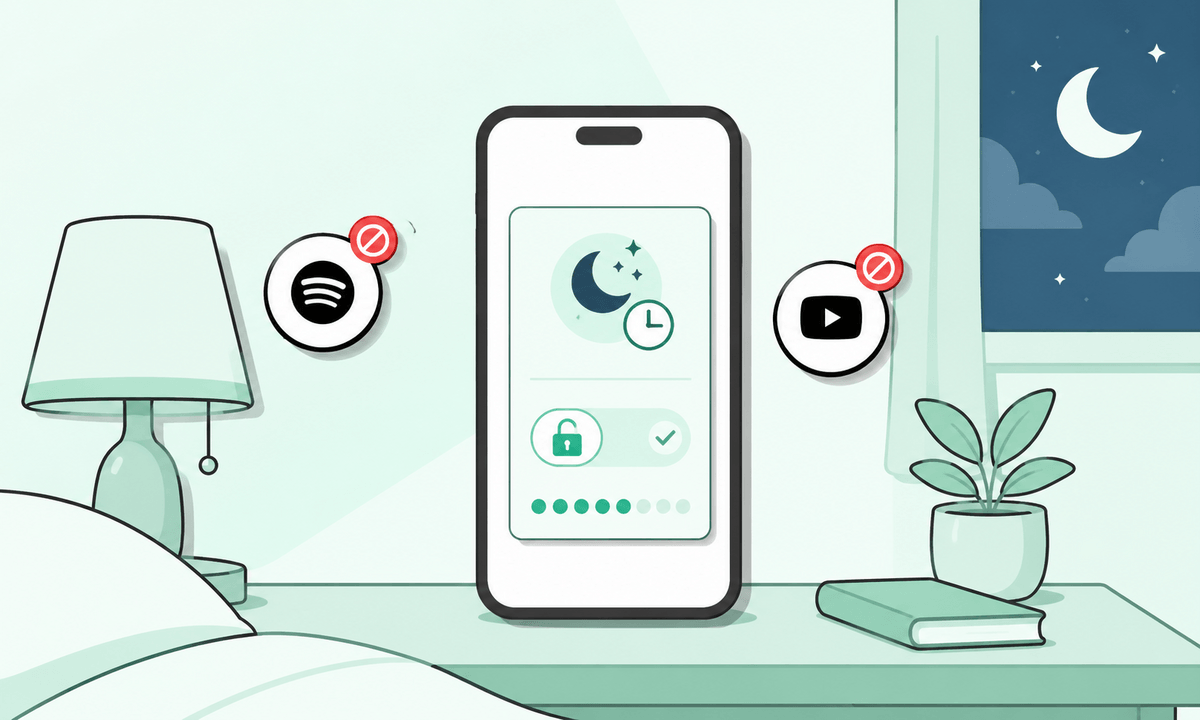
If you are using Apple devices, Screen Time can help you limit or block access. Depending on how you configure it, you can restrict certain apps, limit time spent, or block access to certain sites through Content and Privacy Restrictions. For households, the most important step is setting a Screen Time passcode so the limits cannot be changed on impulse.
Android options
Android has Digital Wellbeing and parental controls that can limit app usage and help enforce time boundaries. You can set app timers, use focus settings, or apply parental controls depending on the device and Android version. As with Apple, the rule matters less than whether it is protected from quick changes.
Desktop options
On computers, device-level restrictions can include account controls, parental controls, or system-level blocks. Some people also use network-level methods (covered below) to keep the rule consistent across devices.
3. Block YouTube across browsers and apps
If you only block YouTube in one place, you usually create a bypass. The thing is, people usually switch browsers, use private mode, open the YouTube app, or tap a link that opens inside another app.
To close the common gaps, think in terms of entry points:
Browser entry points
Block YouTube’s main domains and common variations. If you are doing a stricter lock, include mobile versions and regional variants. If your problem is Shorts, you may also want to block the Shorts path specifically, depending on your blocking method.
App entry points
If YouTube is installed, you can still end up inside it even if the website is blocked. For a more complete setup, block the app itself or restrict app installation. On shared devices, you can also lock down the ability to install new browsers.
Network entry points
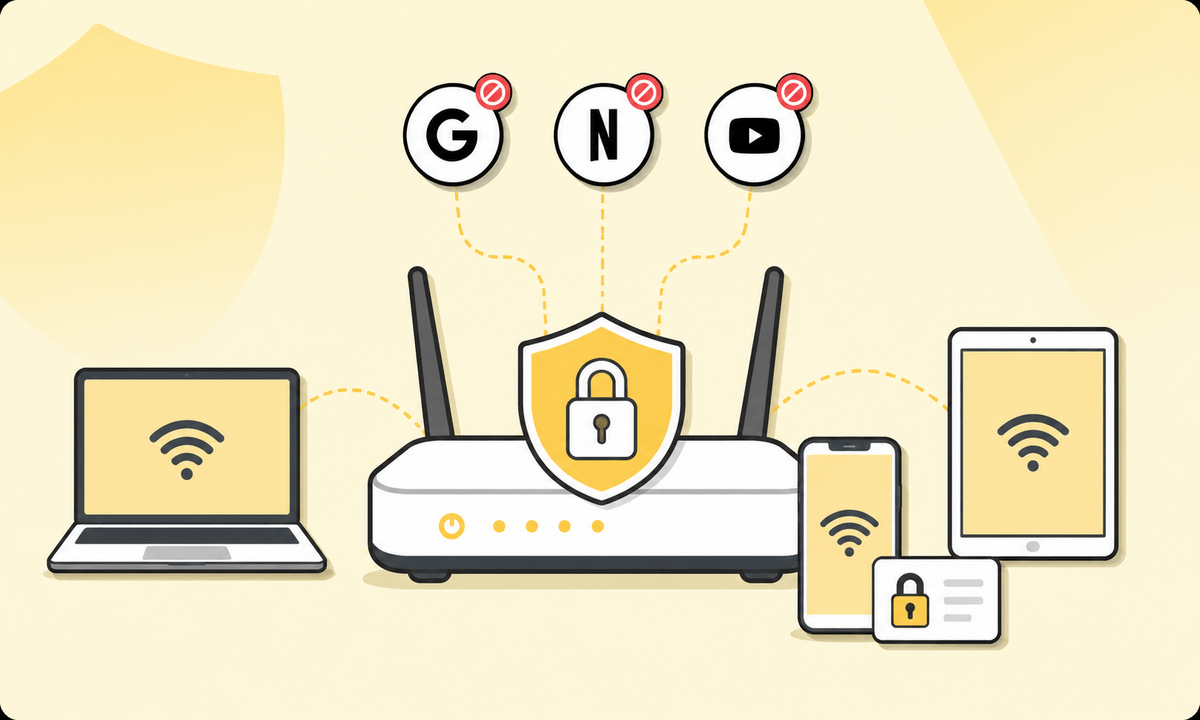
A network-level block can help when you want the same rule on every device connected to your Wi-Fi. This is especially useful in households, study spaces, or offices. The tradeoff is that network-level controls require router access and may be easier to bypass on mobile data unless you combine them with device controls.
4. BlockSite tools
BlockSite is designed for people who need consistent blocking rules that support focus, study, and healthier screen habits. It functions as a site blocker extension on desktop browsers and also supports mobile blocking so your rules do not collapse the moment you switch screens.
Below are the features that you can use for a more effective way of blocking access to YouTube.
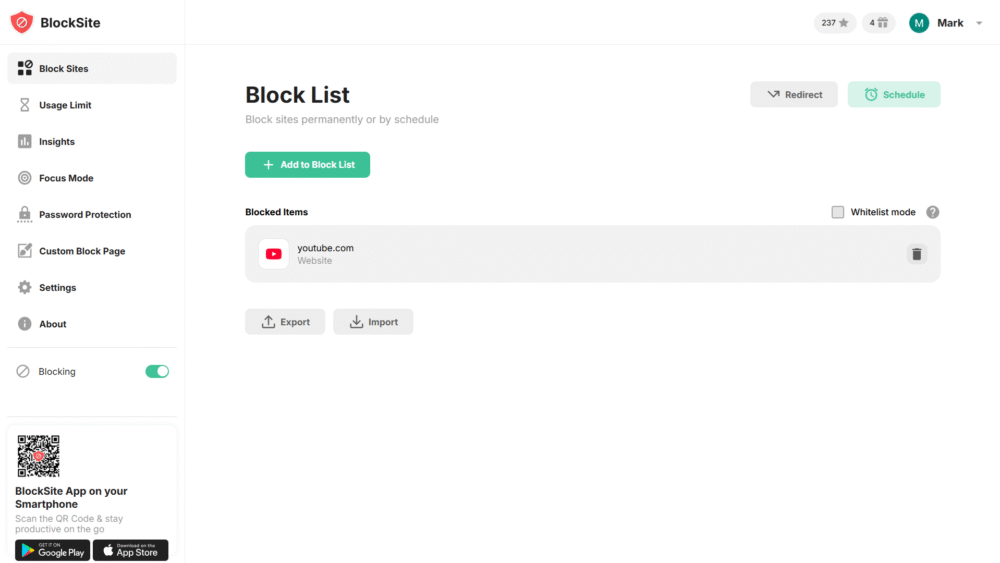
Block YouTube on multiple devices
If YouTube is a daily default on both phone and laptop, single-device fixes tend to fail. BlockSite is built for multi-device use so your blocking rules can follow you, rather than staying trapped inside one browser on one machine. This is important because the actual habit is rarely “YouTube on my laptop.” It is “YouTube whenever a task starts to feel uncomfortable or boring,” and that happens across devices.
Works on Chrome, Android, and iPhone
Most people bounce between a desktop browser and a phone. The good news is that BlockSite supports Chrome and has mobile support on Android and iPhone, which helps you enforce the same intention, focus time, homework time, or screen boundaries, no matter where you open a link.
If you specifically searched how to block YouTube on Chrome, start by blocking YouTube in the browser you use most, then mirror the same rule on your phone so you are not simply changing the habit to a different screen.
Option to block during specific times or permanently
Some blocks are situational, like “no YouTube from 9am to 6pm.” Others are long-term, like “no YouTube on this child’s tablet.” BlockSite supports scheduled blocking so you can set specific times and days when YouTube is inaccessible. Outside those windows, access can return automatically, which reduces decision fatigue because you are not constantly toggling rules on and off.
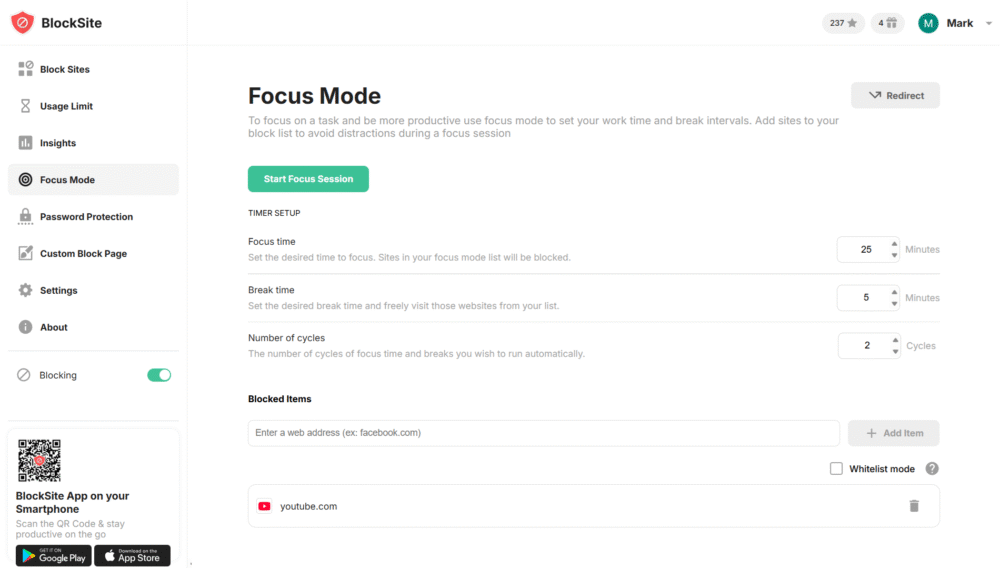
Sometimes you do not want a permanent ban, you want a short guardrail. A good example is when you need YouTube for a specific purpose but you do not trust the recommendation feed. In that case, set a time-boxed rule and block websites temporarily so you can complete the task and then return to your normal focus settings without extra effort.
For stricter boundaries, you can also keep YouTube on your block list full-time so it stays blocked until you intentionally remove it. That is effectively the “always blocked” version, and it works well if YouTube is a recurring trigger you do not want to negotiate with each day.
If your issue is Shorts in particular, you can treat it as its own trigger and set a tighter rule around it. This is where people commonly look for how to block YouTube Shorts, because the endless swipe format tends to be more compulsive than long-form videos.
Prevent access via apps and browsers
Blocking YouTube only in one browser is easy to bypass. BlockSite is built around a block list that can include top blocked sites and apps, which helps you shut down the most common workarounds. It also includes focus-oriented modes that let you temporarily block everything on your list during a work session, which is useful when you want a clean environment for a fixed period.
If you want to block specific kinds of content rather than the entire platform, you may be thinking about how to block content on YouTube or how to block videos on YouTube. At the platform level, YouTube has its own controls, like restricting a channel, using Restricted Mode, or controlling recommendations, and those can help, but they are not the same as blocking access. If the problem is time loss rather than a specific channel, blocking access is usually the better solution.
If you are looking for how to block on YouTube in the sense of blocking a creator, that is different from blocking the site. Creator blocking can reduce what you see, but it does not stop the habit of opening YouTube and getting pulled into whatever is next.
Get your time back from YouTube
Blocking YouTube is one of the simplest ways to reclaim attention, reduce procrastination loops, and make your day feel more deliberate. The point is not to never watch videos. The point is to prevent the platform from deciding for you when your workday ends, when your study session breaks, or when bedtime turns into another hour of scrolling.
If you are still trying to solve how to block YouTube on Google Chrome and keep it blocked when you switch to your phone, you are describing the exact problem multi-device blocking is built to solve. For a clean, cross-device setup that works across the places you actually open YouTube, BlockSite gives you an easy way to block site and app access, schedule blocks for specific times, and reinforce focus sessions when you need them most.
FAQ
Can I block YouTube without installing anything?
Yes. You can start with built-in controls like Screen Time on iPhone/iPad or Digital Wellbeing and parental controls on Android. You can also use router or DNS settings to block YouTube on your home Wi-Fi. These methods work best when you also lock settings with a passcode and cover both browsers and the YouTube app.
What is the difference between restricting content and blocking YouTube completely?
Restricting content tries to filter what appears inside YouTube, such as limiting mature content or reducing certain recommendations. Blocking prevents access to YouTube itself, which is usually better when the issue is time loss, procrastination, or a recurring viewing habit.
Will a browser-only block stop the YouTube app on my phone?
No. A browser block only affects that browser. If the YouTube app is installed, you can still open it directly or through links. For a more complete setup, you need device-level controls or an app-aware blocker on mobile.
How do I make the block harder to bypass?
Use layers. Combine device restrictions (and lock them) with browser blocking. On shared devices, restrict app installs and alternate browsers. If the device supports it, set a passcode so changes cannot be made in the moment.
How do I block YouTube on multiple devices at the same time?
You need a setup that supports both desktop and mobile rules. The simplest way is to use a blocker that works on your main browser and your phone, then apply a schedule so the rule runs automatically.


 Take back your focus